On this page
TradingView’s AI tools are powerful, but not a crystal ball
Ask ten traders what TradingView’s AI does and you’ll get ten different answers.
Some think it predicts tomorrow’s close. Others think it’s a fancy autocomplete for Pine Script.
Both are wrong.
As of 2026, the platform’s native AI Copilot and AI Screener sit alongside Pine Script, thousands of community scripts, and a growing wave of third-party AI extensions.
That mix is useful.
It’s also confusing, because the native tools, the community tools, and the unofficial add-ons all get lumped together as “TradingView AI features.”
Here’s the tension.
TradingView itself states that Copilot can produce answers that are wrong, incomplete, or outdated, and that nothing it says is financial advice. Yet many online guides describe it as if it were a forecasting engine.
That gap between marketing and documentation is where traders get hurt.
AI Copilot describes what is on your chart and helps you build tools faster. It does not know what price will do next, and TradingView never claims it does.
This guide is organized around that reality.
First comes a feature map, so you know which tool does what and which ones are actually built by TradingView. Then a close look at what Copilot can genuinely do, followed by a verification workflow for any AI-generated idea or script.
Finally, we’ll look at how AI research fits with a rules-based trading system such as PipTrend, where entries, exits, and stops come from deterministic logic rather than conversational guesses.
Set your expectations now.
This is a field guide for research and preparation.
Not a push-button signal.
The 2026 AI feature map
Most confusion about TradingView AI comes from one problem: people mix up tools that TradingView builds and supports with tools that merely run on TradingView. The difference matters for accuracy, security, and how much trust you should place in any output.
The table below maps the main options as of 2026. Use it as a reference before you install, subscribe to, or rely on anything labeled “AI.”
| Tool | What it does | Built or vetted by TradingView? | Best use | Main caveat |
|---|---|---|---|---|
| AI Copilot | Conversational assistant that reads chart context, indicators, news, fundamentals, and Pine Script, then answers questions or drafts code | Yes, native feature | Chart explanation, idea generation, drafting indicator and strategy logic | Can be wrong or outdated; output is not financial advice |
| AI Screener | Translates natural-language prompts into filters on existing screener fields | Yes, native feature | Building shortlists fast (“large-cap tech stocks above the 200-day MA with rising volume”) | Only filters on data that already exists; invents no new predictive metric |
| Pine Editor (Pine Script v6) | TradingView’s own scripting language for indicators, strategies, and alerts | Yes, native language and compiler | Custom indicators, strategy backtesting, alert conditions | Your logic is only as good as your code; bugs compile happily |
| Pine Screener | Runs Pine Script indicator conditions across a watchlist | Yes, native feature | Scanning a watchlist for your own custom signals | Limited to watchlist scope and plan limits |
| Community indicator scripts | Public scripts published by users, including many labeled “AI” or “machine learning” | No. Published under house rules, but not endorsed or performance-checked | Learning, inspiration, open-source code you can inspect | Quality varies wildly; “AI” is often a label, not a method |
| Third-party extensions and apps | Browser add-ons, external signal services, and apps that overlay or connect to TradingView | No | Niche workflows from reputable, transparent vendors | Security risk, unverifiable claims, possible terms-of-service issues |
Native tools vs third-party add-ons
One frequent source of outdated instructions: the older “AI Chart Copilot” browser extension. Many 2024 and 2025 tutorials still walk readers through installing it.
The built-in AI Copilot has superseded it, so if a guide asks you to add a Chrome extension to get “TradingView Copilot,” that guide is out of date.
Native tools share one advantage.
They run inside TradingView’s own environment, use its data feeds, and follow its permission model. Third-party tools don’t, and TradingView doesn’t audit their logic or results.
Community scripts deserve their own note. Open-source scripts let you read every line, which is genuinely valuable.
But a script titled “AI Super Trend Predictor” may be a moving-average crossover with a fresh coat of paint.
The label proves nothing.
Spotting fake or unsafe ‘AI’ tools
Scammers love the TradingView brand because millions of traders trust it. Watch for these red flags:
- Requests for your TradingView login credentials. No legitimate add-on needs your password. Native AI features are already inside your account.
- Off-platform downloads. Installers, ZIP files, or “desktop AI modules” from Telegram, Discord, or YouTube descriptions are a common malware delivery route.
- Unusual permissions. A browser extension that wants to “read and change all your data on all websites” can capture sessions, keystrokes, and broker logins.
- Guaranteed-profit marketing. Claims like “95% win rate” or “never lose again” are a near-certain sign of a scam or a curve-fit backtest.
- Fake verification badges. Logos copied from TradingView on a third-party site mean nothing. Check whether the feature is reachable from your own chart panel.
What AI Copilot can actually do
Strip away the hype and AI Copilot is closer to a sharp research analyst sitting next to you than a fortune teller.
It reads what’s on your screen, explains it in plain language, and writes code drafts on request.
That’s useful.
It’s also bounded.
Access on web, desktop, and mobile
On the web and desktop apps, Copilot opens from the chart’s right-hand panel, alongside the watchlist, alerts, and object tree. Once open, it takes context from the active chart: the symbol, the timeframe, and the indicators you’ve loaded.
Access and usage depend on your subscription.
TradingView has tied AI Copilot availability and message allowances to plan tiers, and it adjusts those caps as the feature matures. Before you build a workflow around it, check the current pricing page from inside your account, since third-party articles quoting specific limits go stale quickly.
Mobile is the weak spot.
New AI features typically reach web and desktop first, and the mobile apps may offer a reduced experience or lag behind by several releases. If Copilot is missing on your phone, update the app and confirm on desktop before assuming your plan excludes it.
Reading charts, news, and fundamentals
According to TradingView’s own documentation, Copilot can work with chart structure, loaded indicators, screeners, alerts, news, fundamentals, and existing Pine Script. In practice, that means you can ask questions like “What’s the current market structure on this 4H chart?” or “Summarize the last two earnings reports for this ticker.”
It can identify support and resistance zones, point out chart patterns such as ascending triangles or double tops, and describe momentum readings from RSI or MACD. It can also pull fundamental analysis context: revenue trends, valuation ratios, and upcoming dates from the earnings calendar or economic calendar.
But here’s the distinction most guides skip.
When Copilot says “price is approaching a resistance zone near 182,” it’s describing the past. It is not forecasting a rejection.
Pattern description is not prediction, and a confident tone doesn’t change that.
Treat every Copilot chart read like a junior analyst’s note: a useful first draft that you confirm against the chart yourself.
News summaries carry an extra risk.
If the underlying feed is delayed or the model misreads a headline, the summary can be stale or wrong on market sentiment. Always click through to the source before acting on anything time-sensitive.
Writing indicators, strategies, and Pine Script
This is where Copilot saves the most time.
You can describe an idea in natural-language prompts (“Plot a 20 EMA and 50 EMA, color the background green when the 20 is above the 50, and alert on crossovers”) and get a working Pine Script v6 draft in seconds.
It can also explain existing code line by line, convert older scripts toward current syntax, and sketch no-code strategy logic before you commit to writing anything. For traders who understand trading but not programming, that lowers the barrier enormously.
And yet.
Code that compiles is not code that’s correct.
AI-generated scripts can repaint, peek into future bars, assume perfect fills, or ignore commissions entirely. The script will run, the backtest will look great, and the flaw will stay invisible until real money is on the line.
So every output needs human review. The next section shows exactly how to do it.
A verification workflow for AI-generated ideas
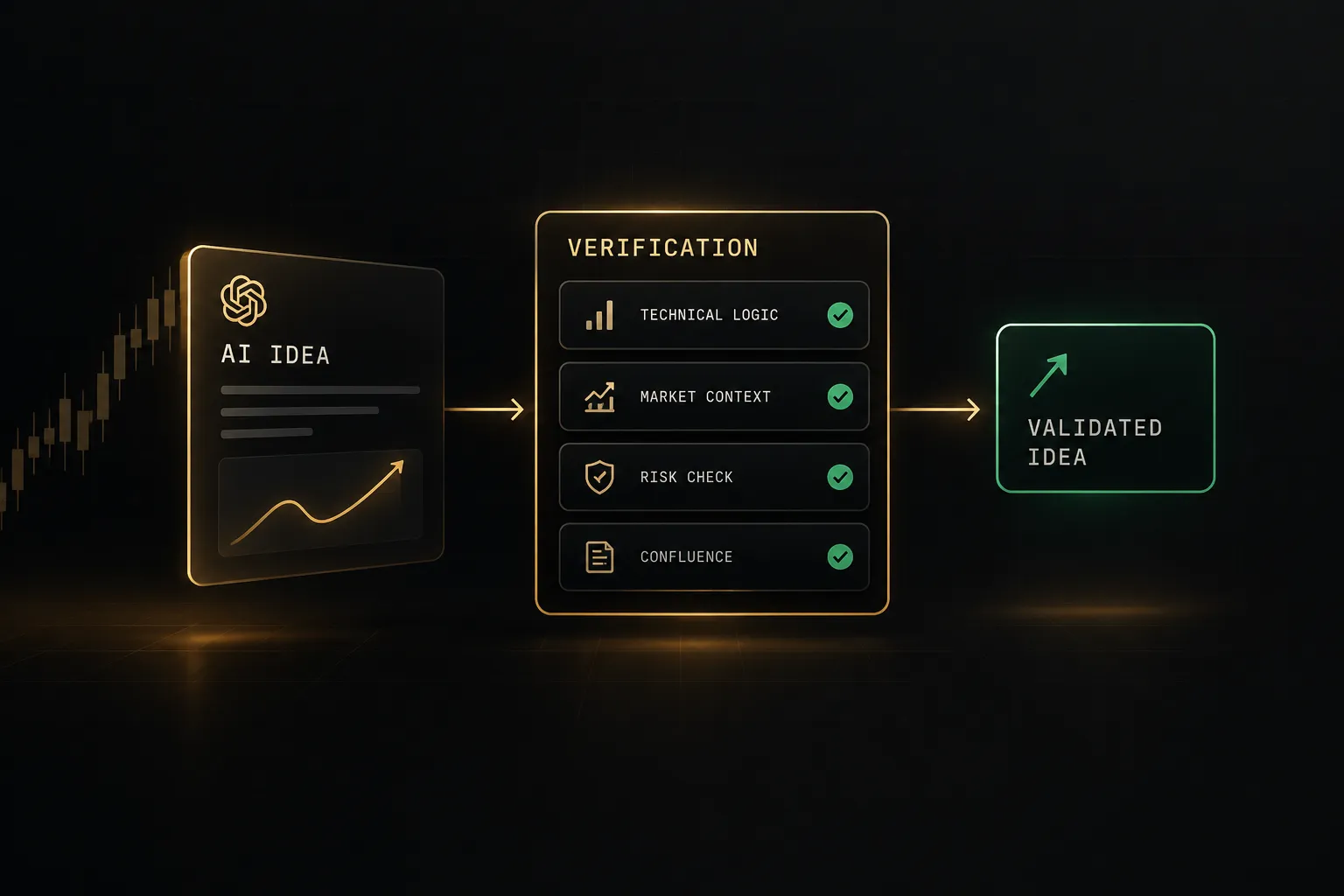
The quality of AI output is set long before you read it.
It’s set by your prompt.
Vague questions produce vague, confident-sounding answers; precise questions produce answers you can actually check.
Prompt templates that reduce ambiguity
Use this template for any chart analysis or strategy request. Each field closes a gap the model would otherwise fill with assumptions.
- Name the instrument and market. Specify the exact ticker and exchange (for example, EURUSD on spot forex, or AAPL on NASDAQ) so Copilot doesn’t mix data sources.
- Set the timeframe. State the primary timeframe and any higher timeframe for context, which forces genuine multi-timeframe analysis instead of a single-chart guess.
- Define indicator settings. Give exact parameters (EMA 50 and 200, RSI 14) rather than “moving averages,” so the logic is reproducible.
- State risk assumptions. Include risk per trade, account size, and stop method so any strategy code reflects realistic position sizing.
- Specify the invalidation condition. Tell it what would prove the idea wrong, which keeps the output falsifiable.
Worked example: “On EURUSD spot forex, 4H chart with daily context, using EMA 50 and EMA 200 plus RSI 14: describe the current trend and nearest support and resistance. Then draft a Pine Script v6 strategy that goes long when the 4H close is above both EMAs and RSI crosses above 50, risks 1% of a $10,000 account per trade, and places the stop below the most recent swing low. The idea is invalid if price closes below the daily EMA 200.”
Notice what’s absent: “Will EURUSD go up?”
That question has no checkable answer.
Checking Pine Script for hidden flaws
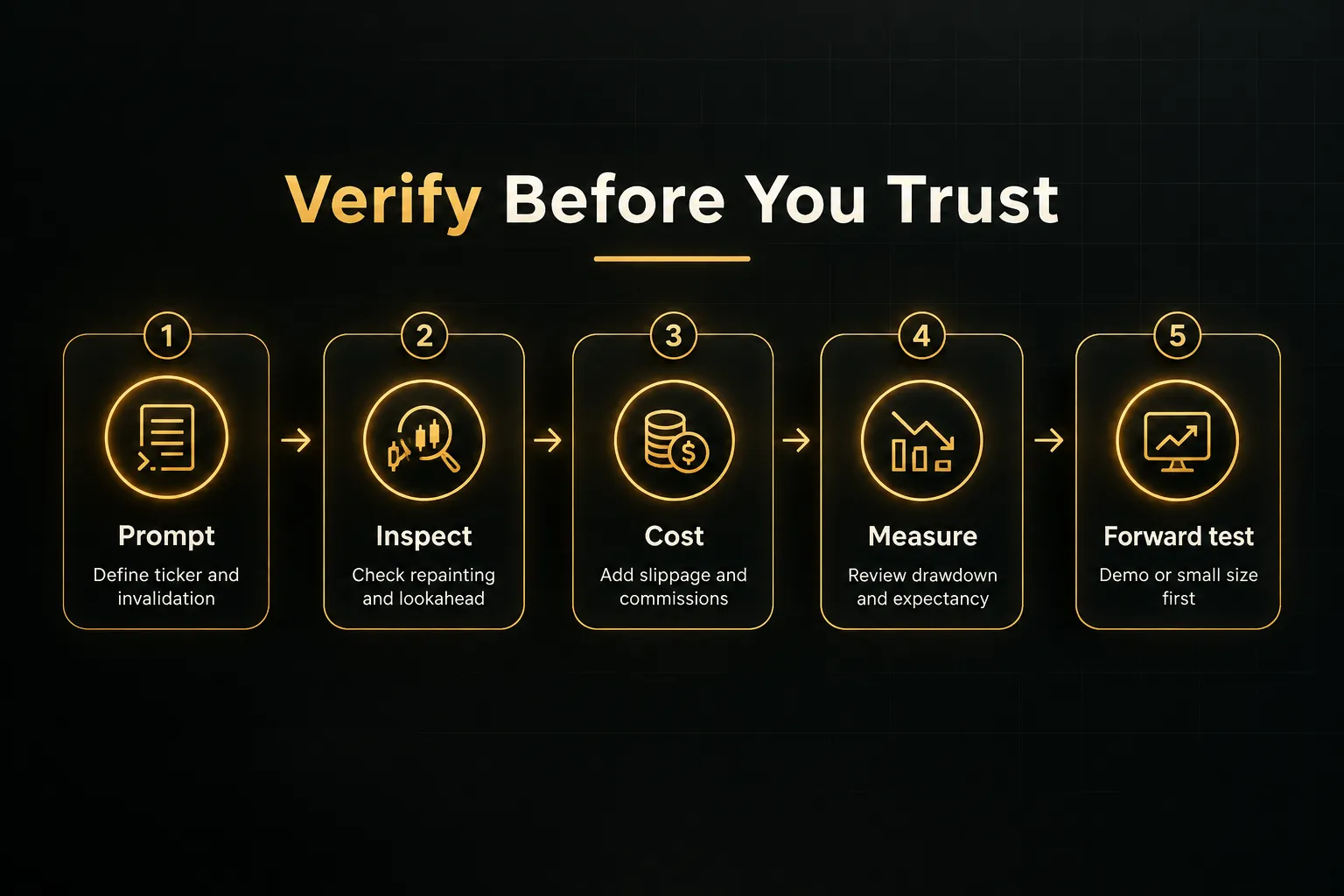
Before any backtest, read the generated code for these five issues:
- Check for repainting. Signals that use the current bar’s unconfirmed values can appear and vanish in real time; look for logic gated on barstate.isconfirmed or applied to closed bars.
- Hunt for lookahead bias. Any request.security() call with lookahead = barmerge.lookahead_on and no offset can pull future higher-timeframe data into historical bars.
- Verify order fill assumptions. Settings like process_orders_on_close or intrabar fills can make results look better than real execution, so confirm they match how you’d actually trade.
- Flag deprecated functions. AI models trained on older code may mix v4 or v5 syntax such as study() or security() into a v6 script, which causes errors or silent behavior changes.
- Set realistic slippage and commissions. If commission_value and slippage are zero or missing, the backtest is fiction; enter your broker’s real costs.
Backtest metrics beyond win rate
A 70% win rate sounds impressive.
But if the average win is $50 and the average loss is $150, expectancy is (0.70 × 50) minus (0.30 × 150), which equals negative $10 per trade.
A losing system with a winning headline.
- Review maximum drawdown. The largest peak-to-trough decline tells you whether you could emotionally and financially survive the strategy’s worst stretch.
- Calculate profit factor. Gross profit divided by gross loss; values below 1.0 lose money, and anything above roughly 2.0 on a backtest deserves extra suspicion for curve fitting.
- Confirm expectancy is positive after costs. Expectancy is the average amount you make or lose per trade, and it must survive realistic slippage and commissions.
- Check trade count. Twenty trades prove almost nothing; many practitioners want at least 100 before drawing conclusions.
- Separate in-sample from out-of-sample. Build the strategy on one date range, then test it untouched on a later one; strong in-sample and weak out-of-sample results signal overfitting.
- Forward test before trusting it. Run the strategy on a demo account or at minimal size for several weeks, since forward testing exposes execution issues no historical test can.
Pairing AI research with a rules-based system
What happens when traders treat a shortlist like a trade signal?
They buy everything on it.
That single mix-up explains a surprising amount of disappointment with AI tools.
Research assistant, not a signal generator
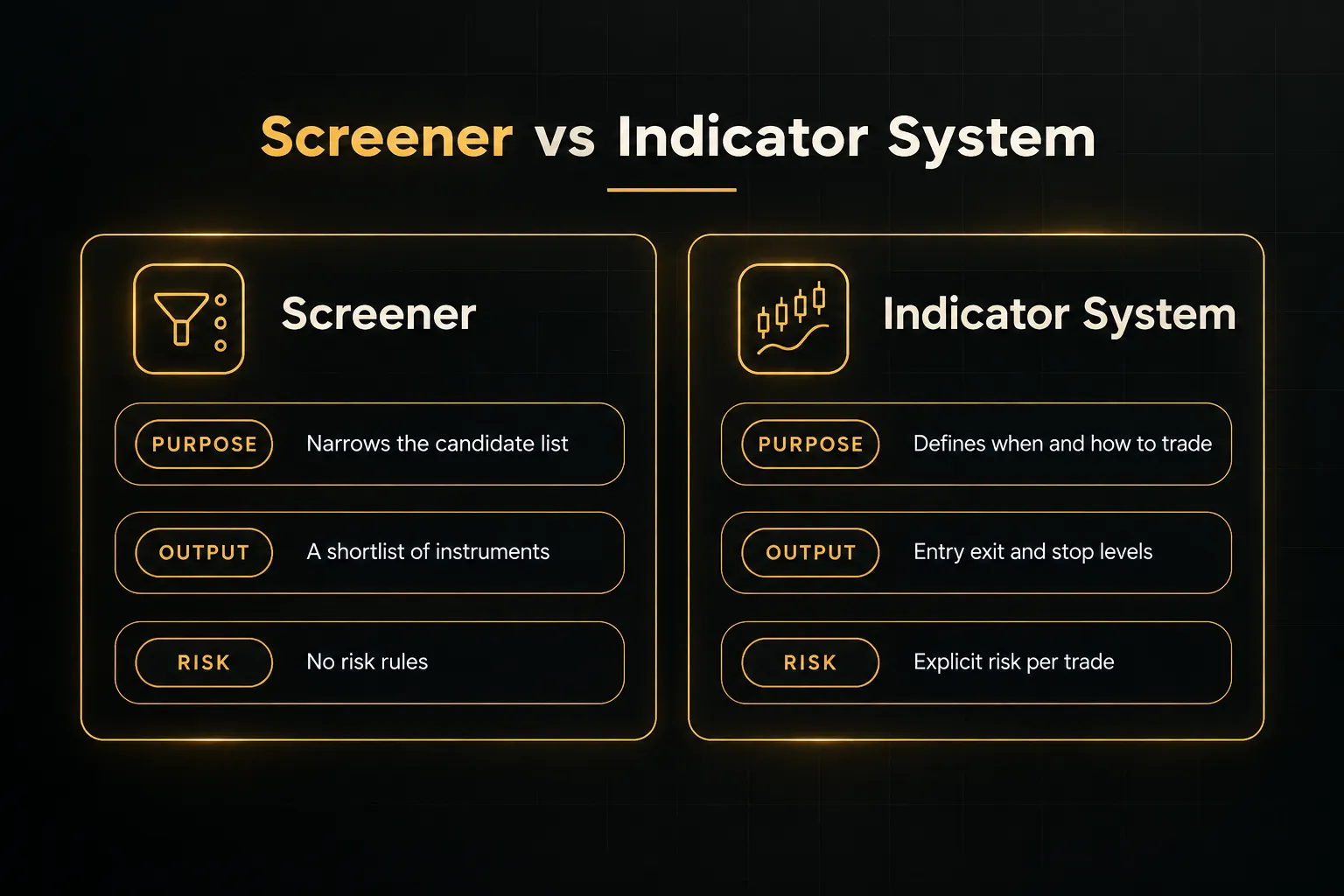
The AI Screener works by mapping your natural-language query onto existing screener fields: market cap, sector, price relative to moving averages, volume change, P/E, dividend yield, and so on.
It doesn’t invent a hidden predictive metric.
It just saves you from clicking through twenty filter menus.
That makes it a superb tool for narrowing a research universe.
Ask for “mid-cap industrials above the 50-day SMA with earnings in the next two weeks” and you’ll get a focused list in seconds. Pair it with watchlist automation and you can refresh that list daily without lifting a finger.
But a screener answers one question: which instruments meet these conditions right now?
An indicator system answers a different set: when do I enter, where’s my stop, where do I exit, and how much do I risk?
Confusing the two is like confusing a job board with a hiring decision.
The same logic applies to Copilot.
Its commentary is a hypothesis.
AI-generated trading signals pulled from a chat conversation lack the consistency of a coded rule set, because ask the same question twice and you may get two different framings.
Where a system like PipTrend fits in
A practical sequence keeps each tool in its lane:
First, use Copilot and the AI Screener to form a hypothesis and build a shortlist.
For example: “Energy stocks are reclaiming their 200-day moving averages after a sector-wide pullback.” The screener returns twelve names that fit.
Second, confirm direction and timing with a deterministic tool.
A rules-based system such as PipTrend applies the same logic to every chart: its signal engine flags trend direction, its multi-timeframe table shows whether higher and lower timeframes agree, and its marked entry levels give you a specific price rather than a vague zone.
Same inputs, same outputs, every time.
Third, set TradingView alerts on the levels the system defines, not on the levels a chat response suggested. Alerts tied to deterministic rules fire consistently, and you can review exactly why each one triggered.
This sequence turns twelve AI-suggested names into perhaps two or three trades that actually meet your criteria.
Fewer trades.
Better ones.
AI narrows the field. Rules pick the trade. Risk management decides the size.
Which brings everything back to risk.
AI commentary can inform your risk management decisions: a Copilot note that earnings land in three days might convince you to cut size or skip the setup. But it should never replace your stop placement, your invalidation level, or your position sizing formula.
If you risk 1% per trade, that rule holds whether Copilot sounds bullish or not. Your stop goes where your system says the idea is wrong, not where a language model thinks support “might” be.
Discipline is the part AI can’t supply.
FAQ: common questions about TradingView AI
Does TradingView have an AI tool?
Yes, TradingView has native AI tools, mainly AI Copilot and the AI Screener.
Copilot is a conversational assistant that reads chart context, news, fundamentals, and Pine Script, while the AI Screener turns natural-language requests into screener filters. Many “TradingView AI” tools you see online are third-party products that TradingView doesn’t build or endorse.
Is TradingView AI free?
Access to AI Copilot depends on your subscription plan, and TradingView applies usage caps that vary by tier.
As of 2026, TradingView continues to adjust these allowances, so check the pricing page inside your account for current limits rather than trusting figures quoted in older articles.
Pine Script and community scripts remain available on free accounts, with plan-based limits on indicators per chart.
Can TradingView AI predict stock prices?
No, price prediction is outside AI Copilot’s design.
TradingView states that Copilot’s answers can be inaccurate or outdated and are not financial advice.
It assists analysis by describing patterns, levels, and data, but it does not output reliable forecasts, and no AI tool can guarantee future price movement.
How do I use AI Copilot on TradingView?
Open a chart on web or desktop and launch AI Copilot from the right-hand panel.
Then type a specific prompt that includes the ticker, timeframe, indicator settings, and what you want back (an explanation, a level map, or a Pine Script draft).
For best results, use the five-part prompt template from this guide and verify every claim against the chart.
Can ChatGPT create a TradingView indicator?
Yes, ChatGPT and other large language models can draft Pine Script syntax for indicators and strategies.
However, they cannot compile or test code inside TradingView’s environment, so they often produce deprecated functions, version mismatches, or logic errors.
Paste the code into the Pine Editor, fix compile errors, and run the full flaw checklist before trusting any result.
What is the best AI indicator for TradingView?
There is no single best AI indicator, and anyone naming one without evidence is selling something.
Choose tools using disciplined criteria: transparent logic you can inspect, verifiable results with realistic costs, clear entry and exit rules, and honest disclosure of drawdowns.
A plain rules-based system that meets those standards beats a mysterious “AI” label every time.
The takeaway: let AI prepare, let rules decide
TradingView’s AI features are genuinely useful in 2026.
AI Copilot explains charts, summarizes news and fundamentals, and drafts Pine Script in seconds. The AI Screener turns a sentence into a shortlist.
Both save real time.
But they are research accelerants, not autonomous traders.
They describe; they don’t decide.
And TradingView says as much in its own documentation.
Here’s one thing to do tonight.
Open a chart you already know well, one where you’ve traded or studied the levels for months. Run a single Copilot prompt using the template from this guide: ticker, market, timeframe, indicator settings, risk assumptions, and invalidation condition.
Then check every claim it makes against your own read of the chart.
Where was it right? Where was it vague? Where was it simply wrong?
That one exercise will calibrate your trust better than any review article.
The bigger shift is this.
Everyone has access to AI now, so using it isn’t an edge anymore… it’s table stakes.
The edge in 2026 belongs to traders who pair fast AI research with a tested, rules-based execution framework that defines entries, exits, stops, and size before emotion gets a vote.
Let AI prepare.
Let rules decide.
Sources
Risk Disclaimer: Trading involves risk. Past performance doesn't guarantee future results. Only trade with money you can afford to lose. PipTrend is a tool to assist your trading decisions, not financial advice.