On this page
Why most indicator setups go wrong before the first trade
Most traders learn how to add indicators on TradingView in about ten seconds. Then they spend months staring at a chart so cluttered that price itself becomes hard to see.
The click path is easy.
The setup is not.
This guide goes past the basic “search and click” instructions most tutorials stop at, and covers the full workflow on the web version of TradingView Supercharts, the desktop app, and the iOS and Android mobile apps as of 2026.
You’ll learn how to add built-in technical indicators, Community Scripts, your own Pine Script code, and invite-only scripts that require author permission. You’ll also learn to manage panes, save reusable templates, fix indicators that vanish, and keep your chart readable.
One framing point before we start.
Indicators are analytical tools that support a rules-based process. They are not buy or sell recommendations on their own.
An indicator answers a question about price. If you don’t know the question, the answer won’t help you.
Adding indicators step by step
Every indicator on TradingView, from a basic moving average to a paid invite-only system, enters your chart through the same doorway: the Indicators, metrics, and strategies menu. Learn that panel once and the rest gets simple.
Know your indicator types first
The panel groups scripts by where they came from, and that origin affects what you can see, edit, or access. Work through the tabs in this order the first time you open it.
- Start with Built-ins. These are TradingView’s own scripts, split into technical indicators (RSI, MACD, Bollinger Bands, VWAP) and fundamental indicators such as revenue, EPS, and P/E ratio for stocks.
- Browse Community Scripts. This tab holds more than 100,000 public scripts published by other users, sortable by Editors’ Picks, Top, and Trending, so check the author and description before trusting anything here.
- Check My Scripts. Anything you’ve written and saved in the Pine Editor appears here, along with scripts you’ve favorited for quick access.
- Review Strategies. Strategies look like indicators but are built for backtesting, and adding one opens results in the strategy tester at the bottom of the screen.
- Understand the lock icon. A padlock next to a script name marks it as invite-only, meaning the author controls who can use it.
- Know why the button is grayed out. Without access, “Add to chart” stays disabled; once the author grants permission, the script appears under an Invite-only section and the button becomes active (some versions label it “Use on chart”).
- Request access the right way. Open the script’s page and read the “Author’s instructions” field, which usually explains how to request access, whether through a subscription, a website, or a direct message on TradingView.
Web and desktop: the full click path
The browser version and the desktop app share the same interface, so these steps work in both.
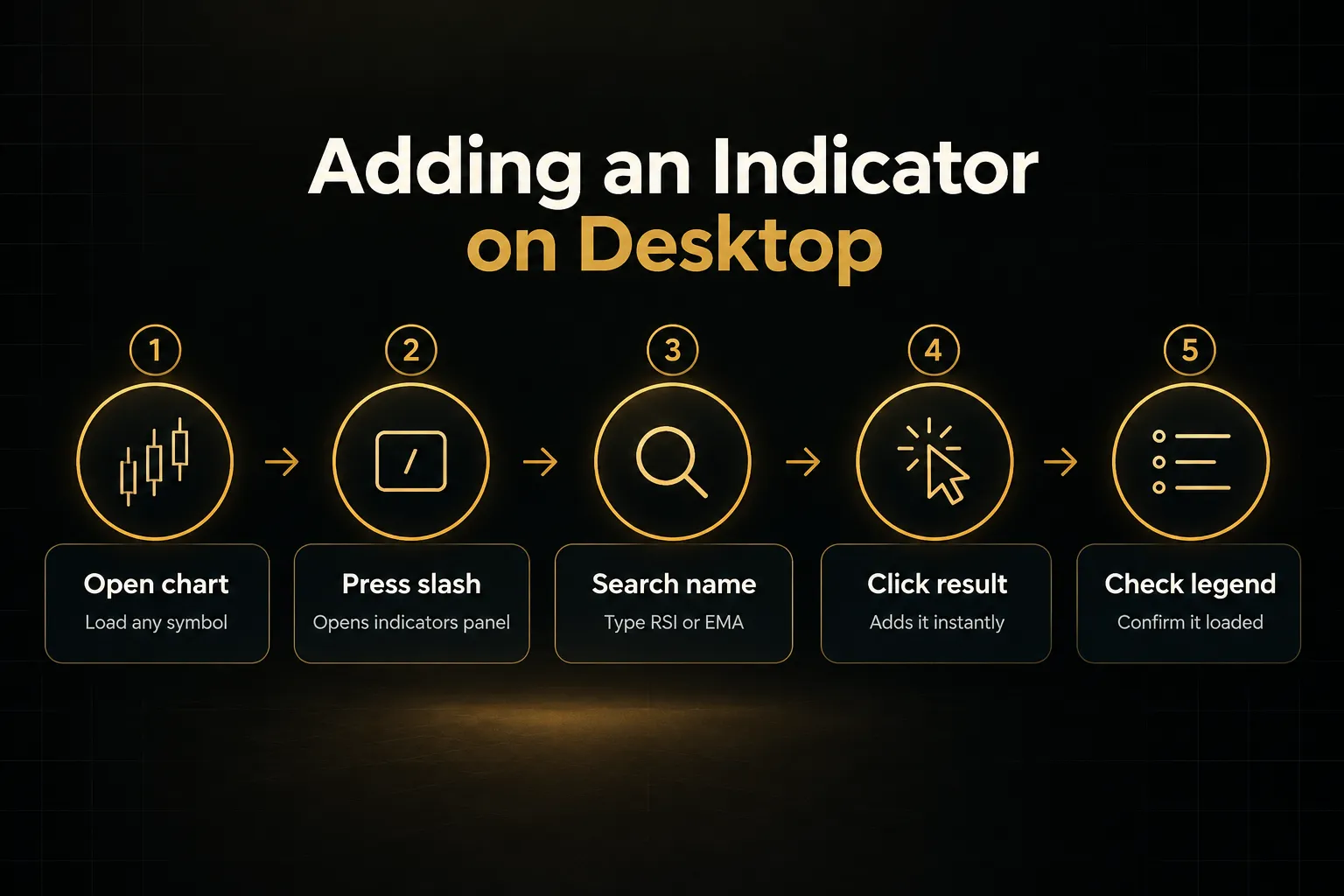
- Open a chart. Go to Products, then Supercharts, or open any saved layout so a symbol is loaded.
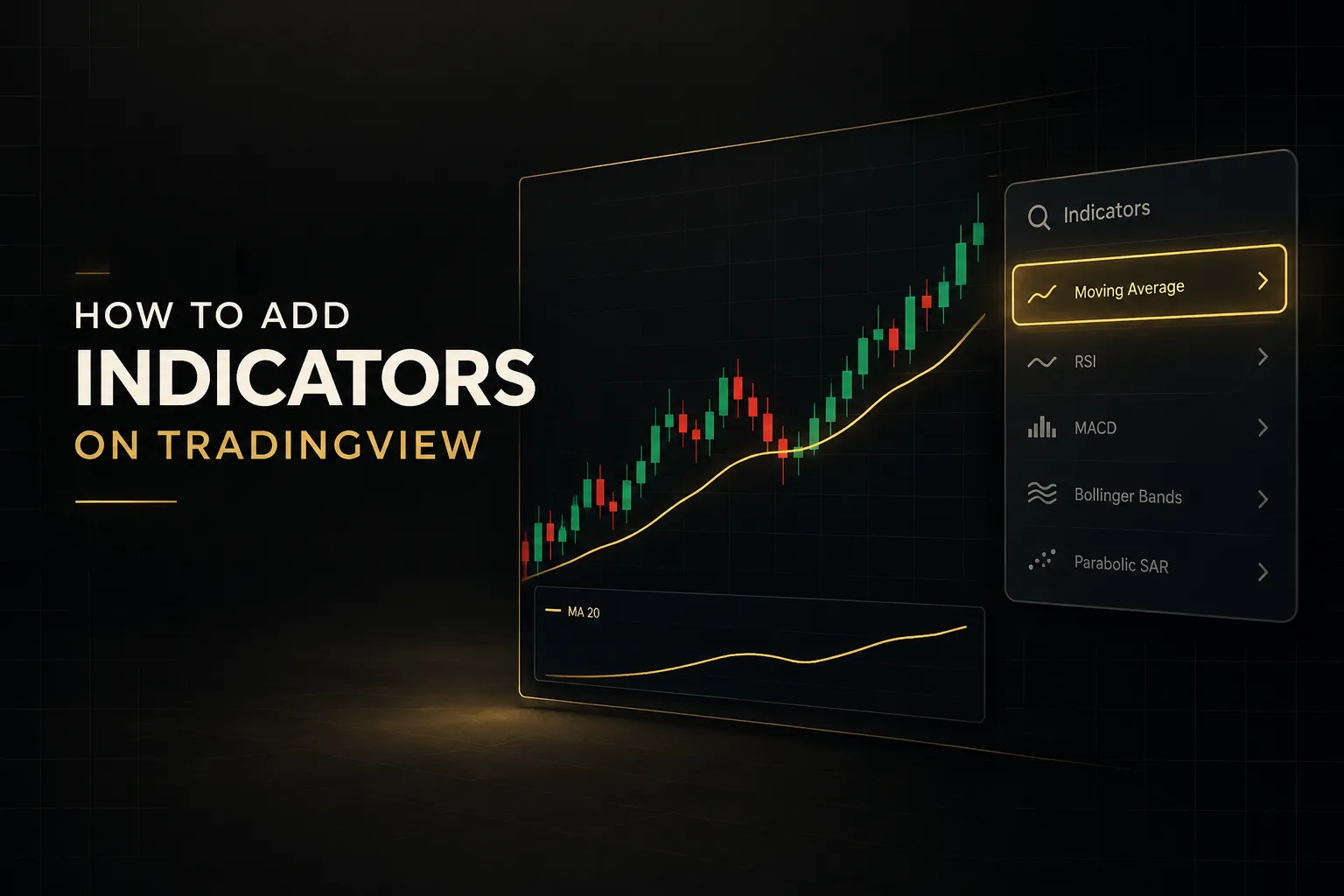
- Open the indicators panel. Click the “Indicators” button (marked with an fx icon) in the top toolbar, or press the forward slash key ”/” as a shortcut.
- Search by name. Type “RSI,” “MACD,” “EMA,” or “VWAP” into the search bar, and results from every tab appear in one list.
- Click to add. A single click adds the indicator immediately, and you can click it again to add a second copy with different settings, such as a 20 EMA and a 50 EMA.
- Close the panel and locate it. An overlay indicator like an EMA or VWAP lands directly on price, while oscillators like RSI and MACD open in a separate indicator pane below the main chart.
- Confirm it in the legend. The indicator’s name and current values appear in the top-left indicator legend of its pane, which is where you’ll control it later.
Mobile app: iOS and Android differences
The mobile apps hide most controls to save screen space. The logic is the same, but the buttons move.
- Open a chart in full view. Tap a symbol from your watchlist, then rotate to landscape if you want more toolbar options visible.
- Tap the fx icon. It sits in the chart toolbar; if you don’t see a top menu bar, tap the chart once to reveal hidden controls or look for the fx icon in the bottom toolbar.
- Use the search bar. Search works like desktop, but results show fewer previews, so type the full name (“Relative Strength Index”) if the abbreviation returns clutter.
- Tap to add, then exit. The indicator loads behind the menu, so close the panel to see it on the chart.
- Adjust settings from the legend. Tap the indicator name on the chart, then the gear icon; expect fewer style and visibility options than desktop, and do detailed configuration on a larger screen when possible.
Managing indicators once they’re on your chart
Here’s what nobody tells beginners: default settings are a guess.
A 14-period RSI was chosen by J. Welles Wilder in 1978 for daily commodity charts, not for your 5-minute crypto setup.
Changing settings and inputs
Hover over the indicator name in the legend and click the gear icon to open its indicator settings. You’ll see three tabs: Inputs, Style, and Visibility.
The indicator inputs tab controls the math. Length, source (close, open, hl2), and smoothing type all live here, and changing one value changes every reading the indicator produces.
The Style tab controls appearance.
Adjust line colors, thickness, and overbought or oversold levels, and switch off plots you don’t need.
A MACD with the histogram hidden is a very different visual tool than the default.
Visibility decides which timeframes show the indicator. You might want a 200 EMA on daily charts but not on 1-minute charts, and this tab handles that without deleting anything.
Remember the difference between overlays and oscillators.
Overlays share the price scale, so a moving average at 105.20 sits right next to a candle at 105.30. Oscillators use their own scale (RSI runs 0 to 100), which is why they get a separate pane.
Moving, hiding, and combining indicators in one pane
Two oscillators in two panes eat vertical space fast. Merging them often makes comparison easier.
Click the three-dot “More” icon next to an indicator in the legend and choose “Move to,” then pick an existing pane above or below. You can also drag an indicator’s name directly into another pane.
Stochastic and RSI, for example, sit comfortably together because both run on a 0 to 100 scale.
You can also stack calculations.
Open any indicator’s Inputs tab, click the Source dropdown, and select another indicator’s plot instead of price.
That’s how you build an EMA of RSI, which smooths noisy momentum readings into something easier to read.
The eye icon in the legend hides an indicator without removing it. For a bigger-picture view, open the Object Tree from the right sidebar, where every indicator and drawing on the chart is listed and can be toggled, locked, or deleted.
Fixing indicators that won’t show up
An indicator that “disappeared” is almost always still there.
It’s just hidden.
Check these causes in order:
Collapsed pane. Panes can be minimized to a thin strip.
Look for a sliver at the bottom of the chart and use the pane’s expand arrow to restore it.
Timeframe visibility. If you switched from 1H to 15m and the indicator vanished, its Visibility tab probably excludes minute charts.
Re-enable the range.
Status line settings. Right-click the chart, open Settings, then Status line.
If indicator titles and values are switched off, the legend looks empty even when plots are drawing.
Saved layout or template overwrite. Loading a different layout replaces the indicators on screen.
Reopen your original layout from the layout menu in the top right, or reapply your saved indicator template to restore everything at once.
Templates, limits, and custom scripts
Rebuilding the same five indicators every time you open a new chart wastes roughly a minute each time. Over a year of daily trading, that’s hours of setup you could have saved with one click.
Saving a reusable indicator template
Once your chart looks right, click the templates icon (four small squares) in the top toolbar and choose “Save indicator template.” TradingView saves every active study with its exact inputs and styling.
Name templates by purpose, not by contents.
“Swing Daily Trend” beats “EMA RSI ATR v3” because six months from now you’ll remember what you used it for.
You can also tick options to save chart properties, symbol, and interval with the template.
One warning matters here.
Applying a template replaces your current indicators rather than adding to them.
And switching to a different chart layout swaps out drawings, trendlines, and studies together, so save your active layout before experimenting.
Indicator, plot, and historical-bar limits
Your plan caps how many indicators can run on one chart at the same time.
As of 2026, the free Basic plan allows 2 per chart, Essential allows 5, Plus allows 10, Premium allows 25, and higher professional tiers go further.
TradingView adjusts these numbers periodically, so confirm on the pricing page.
Scripts carry their own limits.
A single Pine Script can output up to 64 plots, and historical bars available for calculation also scale with your plan, which affects long-lookback indicators like a 200-week moving average.
The “calculation taking too long” error means a script hit TradingView’s execution time limit.
Heavy loops, excessive security calls for multi-timeframe analysis, and huge lookbacks are the usual causes.
Shortening input lengths or switching to a higher timeframe often fixes it.
Adding a custom Pine Script indicator
Pine Script is TradingView’s built-in programming language, now on version 6. Open the Pine Editor from the bottom panel, paste or write your code, click “Save,” then click “Add to chart.”
Saved scripts appear under My Scripts in the indicators panel, so you won’t need the editor again to reuse them.
Community Scripts come in two flavors.
An open-source script lets you view and copy the code, which means you can verify the logic.
A protected script hides the source; you can use it, but you have to trust the author’s description of what it calculates.
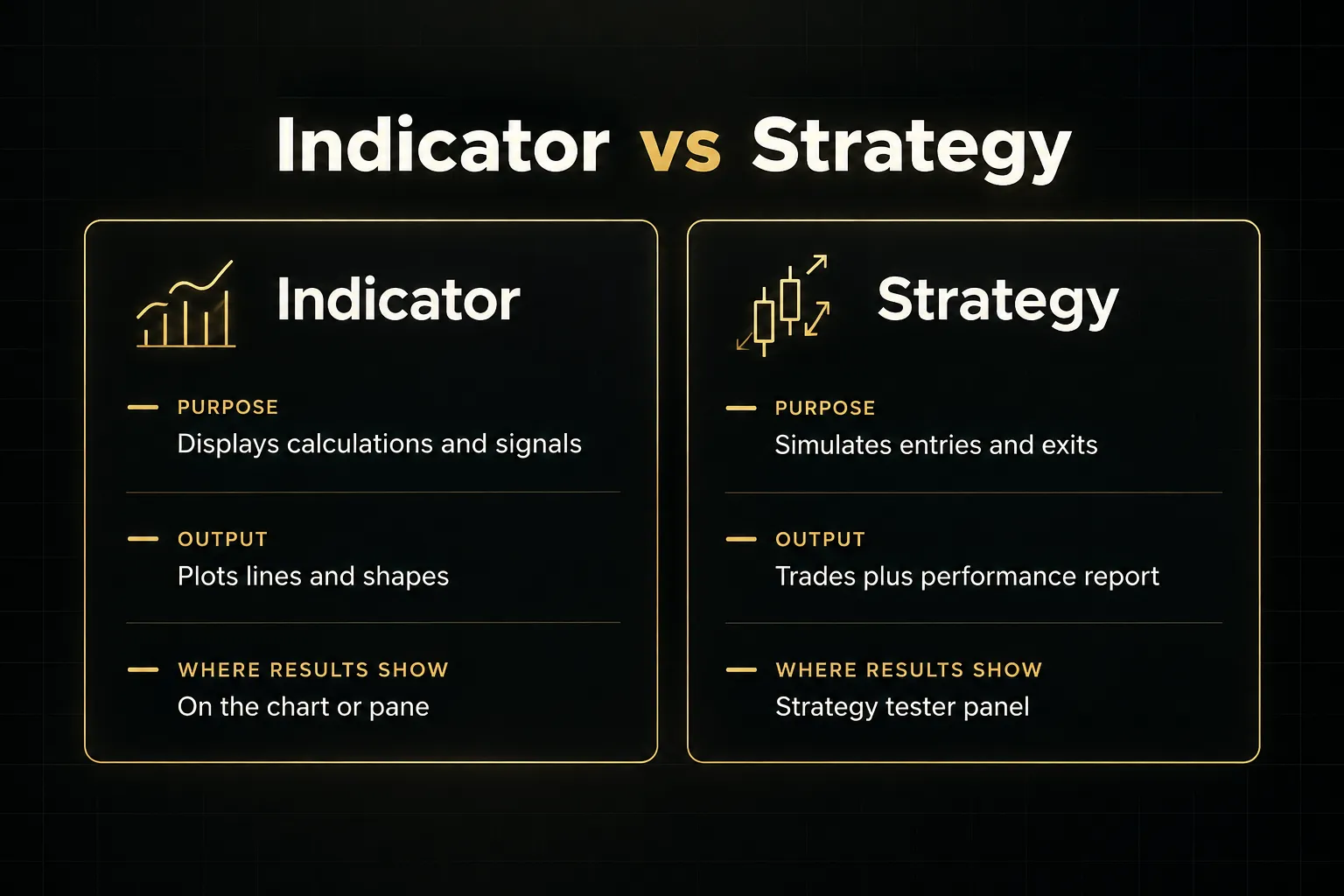
Finally, know whether you’re adding an indicator or a strategy.
Indicators display calculations and signals.
Strategies are written with entry and exit rules so they can generate trades in the strategy tester, complete with net profit, drawdown, and win-rate reports.
Choosing indicators without creating chart overload
RSI, Stochastic, CCI, and Williams %R are four different names for roughly the same question: is momentum stretched?
Stack all four and you haven’t got four confirmations.
You’ve got one answer repeated four times.
A simple framework by market role
Assign each indicator a single job.
If two indicators do the same job, one of them goes.
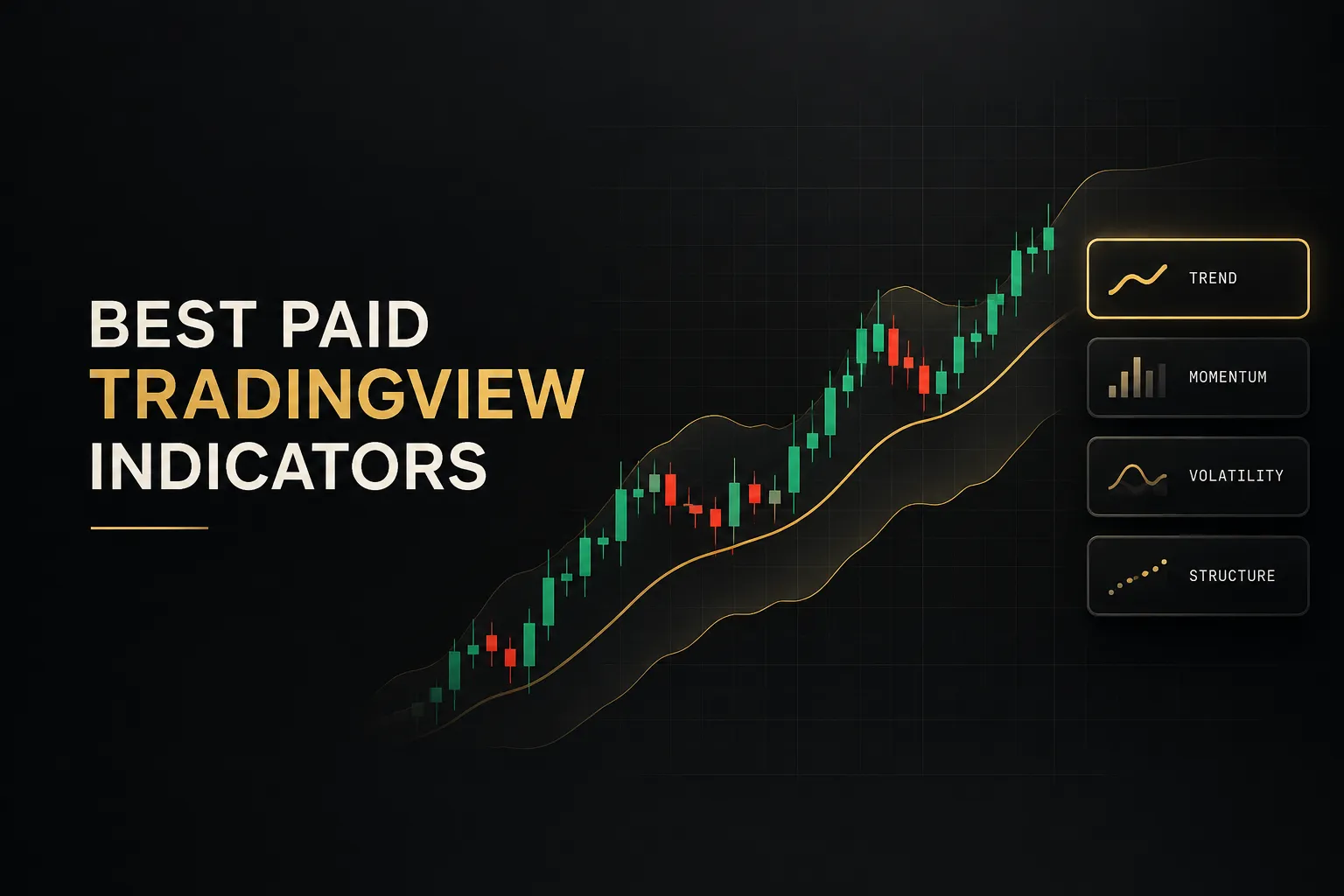
Trend. Pick one of the trend-following indicators, such as a 50 EMA, a 200 SMA, or Supertrend.
Its only job is telling you which direction to favor.
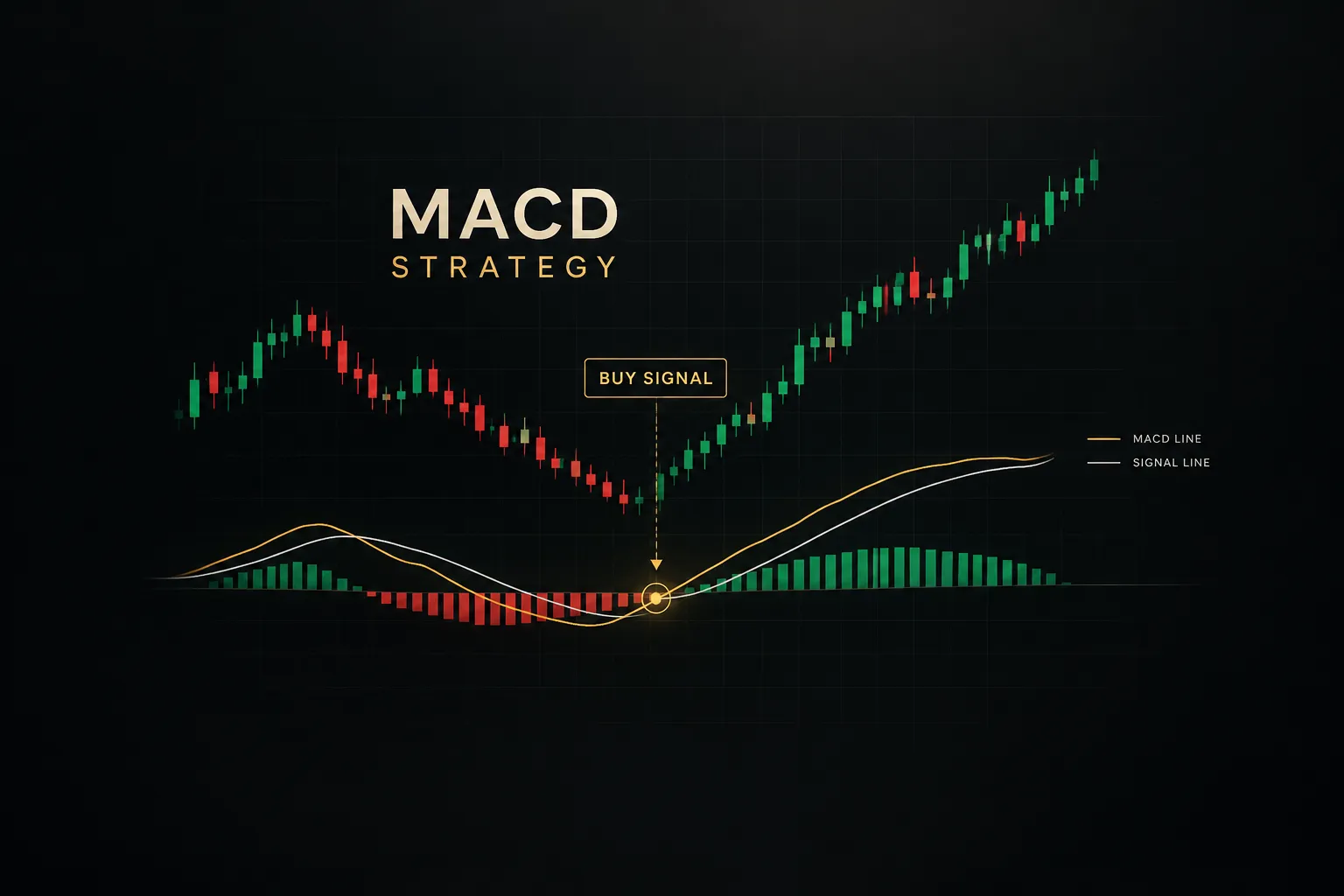
Momentum. Choose one of the momentum indicators: RSI or MACD, not both.
It tells you whether the move has strength or is fading.
Volatility. Add one of the volatility indicators like ATR or Bollinger Bands.
These answer how far price typically moves, which shapes stop distance and position size.
Volume. Use one of the volume indicators, such as VWAP, OBV, or the standard volume histogram, to judge participation behind a move.
Risk reference. This can be a drawing (a support level) or a calculated level like an ATR-based stop.
It defines where your idea is wrong.
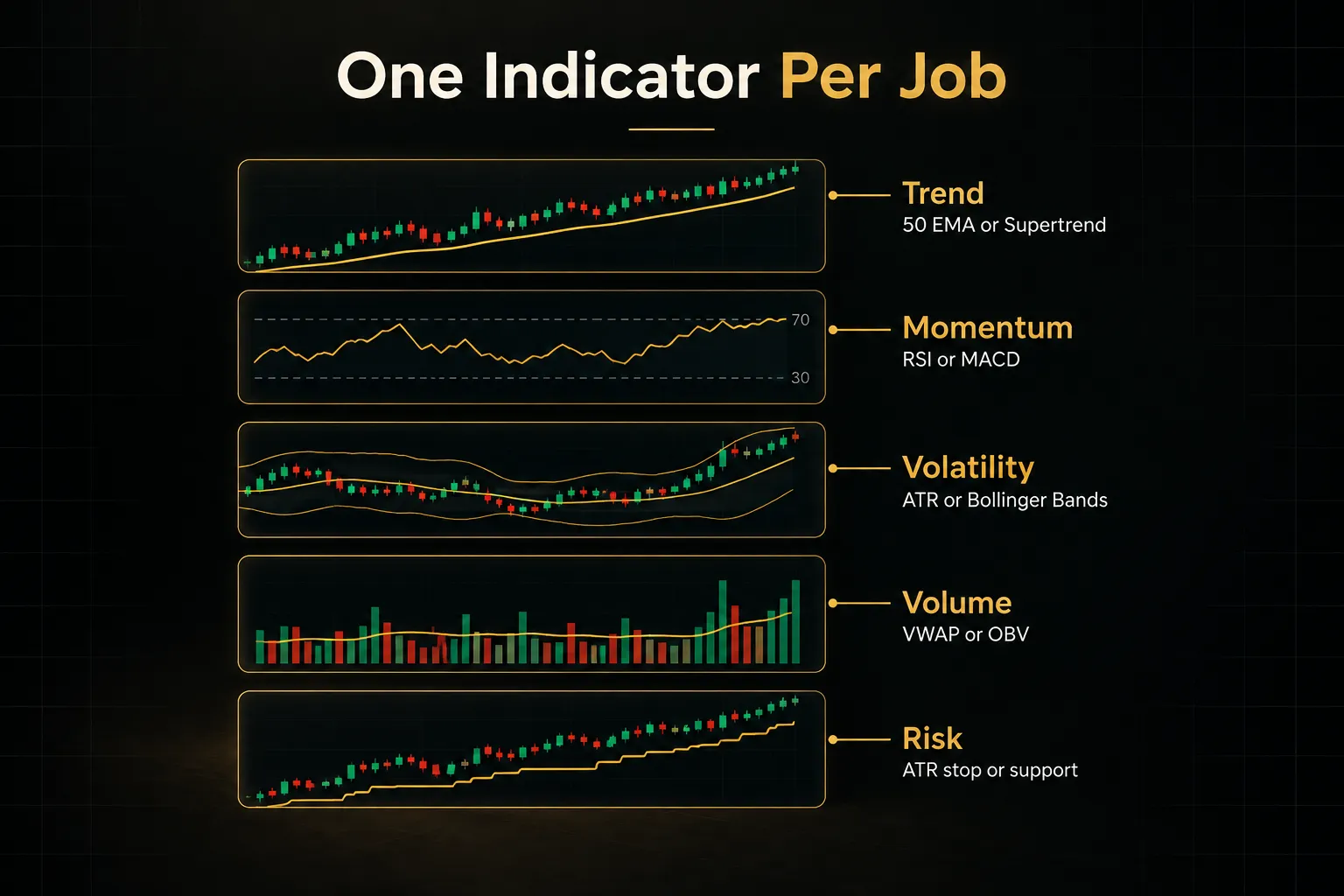
Five tools, five questions.
That structure gives you genuine indicator confluence, where independent measurements agree, instead of fake confluence built from duplicates.
When more indicators means less reliability
Overlapping signals are the first problem. Correlated oscillators flash at the same time, which creates false confidence.
Scale distortion is the second.
Merge an indicator with a 0 to 100 range into a price pane at $45,000 and either the price action flattens or the indicator becomes a straight line.
Check that merged studies share a compatible y-axis.
The third problem is psychological.
With eight indicators on screen, at least one will almost always agree with whatever you already want to do.
That’s confirmation bias with a chart attached.
Before trusting any community script, check five things:
- Description: Does the author explain what it calculates and how to read it?
- Source code: Is it open-source, or protected with no way to verify the logic?
- Author history: Do they have other published scripts and a track record?
- Repainting: Repainting means past signals change after the fact, which makes historical results look far better than live performance.
- Alert logic: Can you set technical alerts on its conditions, and do those alerts fire on bar close or intrabar?
Some systems avoid redundancy by design.
PipTrend, for example, separates the jobs clearly: a signal for direction, marked price levels for entry, and a multi-timeframe table for exit timing.
Because each component answers a different question, traders don’t need to bolt on a second trend tool or a separate MTF dashboard to cover the same ground.
FAQ
How do I add an indicator to my TradingView chart?
Click the “Indicators” button (fx icon) in the top toolbar or press ”/” on your keyboard.
Search for the indicator by name, then click it to add it to the chart.
Overlays appear on price, while oscillators open in a new pane below.
Why can’t I add indicators on TradingView?
The most common reason is your plan’s indicator limit.
The free Basic plan allows only 2 indicators per chart, so you’ll need to remove one or upgrade.
If you’re under the limit, clear your browser cache, disable ad blockers or script-blocking extensions, and try the desktop app.
Invite-only scripts also stay grayed out until the author grants access.
How do I add custom indicators to TradingView?
Open the Pine Editor at the bottom of the chart, paste your Pine Script code, click “Save,” and then click “Add to chart.”
The script is stored under My Scripts in the indicators panel for future use.
Public community scripts can be added directly from the Community Scripts tab.
How do I add an indicator to the TradingView mobile app?
Tap the fx icon in the chart toolbar, search for the indicator, and tap it to add.
If the toolbar isn’t visible, tap the chart once to reveal hidden controls.
Edit settings by tapping the indicator’s name on the chart and selecting the gear icon.
How do I use invite-only indicators on TradingView?
You need permission from the script’s author before you can use it.
Open the script page, follow the “Author’s instructions” to request access, and wait for approval.
Once granted, the script appears in the Invite-only section of the indicators panel and the add button becomes active.
How do I save indicators on TradingView?
Save indicators as an indicator template using the four-squares templates icon in the top toolbar.
That stores your studies and their settings so you can apply them to any chart.
Saving a chart layout (via the layout menu or Ctrl+S) is a separate action that stores the whole chart, including indicators, drawings, symbol, and timeframe.
Put one indicator on the chart before adding a second
Tonight, open a clean chart and add exactly one indicator.
A 50 EMA if you care about trend, RSI if you care about momentum.
That’s it.
Then learn it properly.
Change the length and watch how signals shift.
Switch timeframes.
Turn on its alerts and see when they fire.
Most traders never spend an hour with a single indicator, which is why they keep adding more hoping the next one will finally make sense.
Use one decision rule from here on: add an indicator only if it answers a question the chart doesn’t already answer. If price structure already shows the trend, you don’t need three moving averages to repeat it.
Knowing how to add indicators on TradingView takes seconds.
Knowing which ones deserve a place takes discipline… and that’s the part that shows up in your results.
A clean, deliberate chart supports better decisions than a crowded one ever will.
Sources
Risk Disclaimer: Trading involves risk. Past performance doesn't guarantee future results. Only trade with money you can afford to lose. PipTrend is a tool to assist your trading decisions, not financial advice.