In short: open Indicators in TradingView, choose Invite-only, and click a PipTrend script to add it. Then right-click the chart, choose Settings…, and on the Symbol tab untick Body, Borders and Wick. TradingView’s own candles stop covering the PipTrend candles, and you see green, red and gray candles that show the trend at a glance.
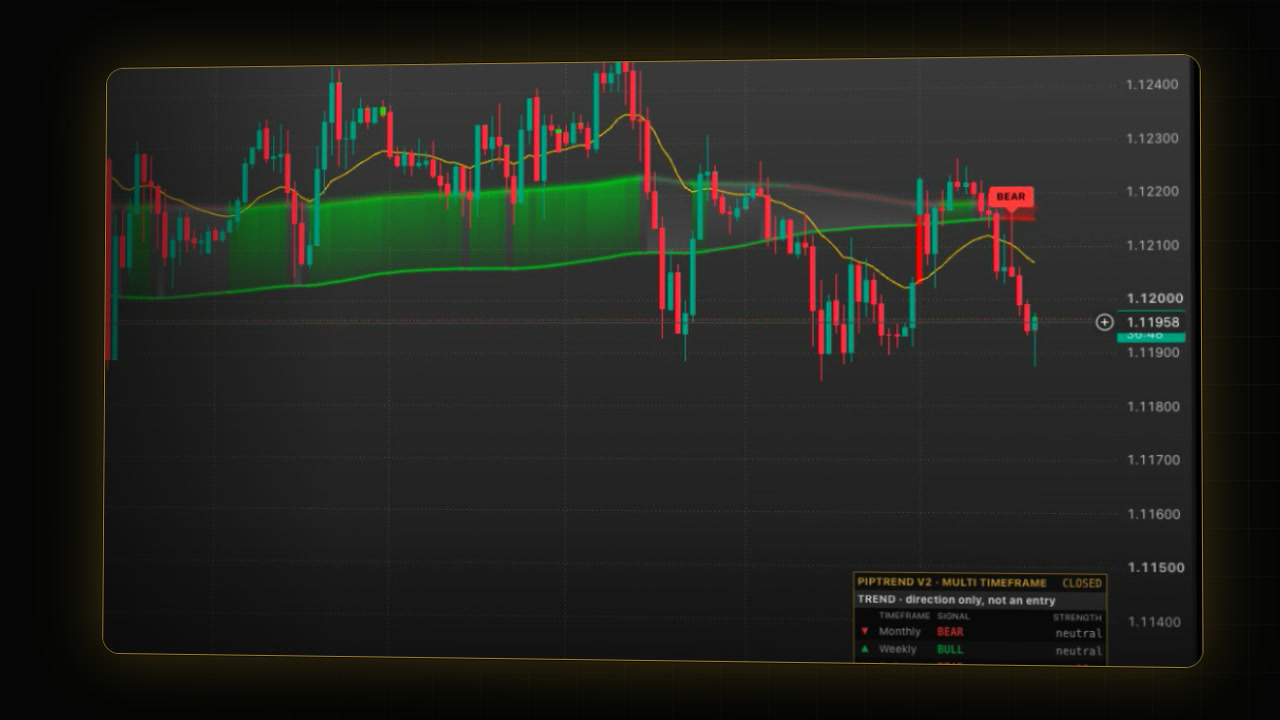 Video coming soon
This guide assumes your access is already active. If PipTrend does not show up yet, start with How PipTrend access works.
Step 1: Open the Invite-only tab
- Click Indicators in the top toolbar of your TradingView chart.
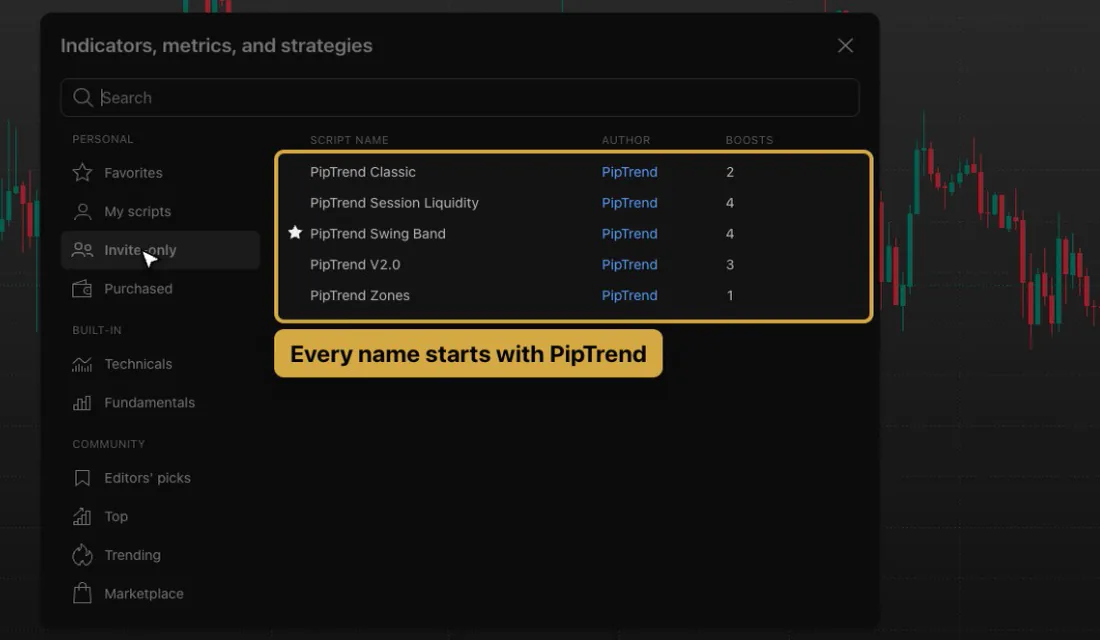
- In the window that opens, choose Invite-only on the left, under Personal.
This tab lists every script an author has given your TradingView username access to. Every PipTrend indicator’s name starts with PipTrend, so they are easy to spot. New indicators are added over time, so you may already see more here than the video shows.
Step 2: Add a script to your chart
Click PipTrend V2.0 once. It is added to your chart straight away. Add the others the same way whenever you need them.
Step 3: Star the scripts you use
Click the star next to each PipTrend script you use. Starred scripts appear under Favorites, so next time you add them in two clicks on any chart, without opening the Invite-only tab. Close the window when you are done.
Step 4: Hide TradingView’s candles (no extra script needed)
Right after adding PipTrend you see two sets of candles on top of each other. TradingView’s candles sit in front and hide the PipTrend colours.
- Right-click the chart and choose Settings….
- On the Symbol tab, untick Body, Borders and Wick.
- Click Ok.
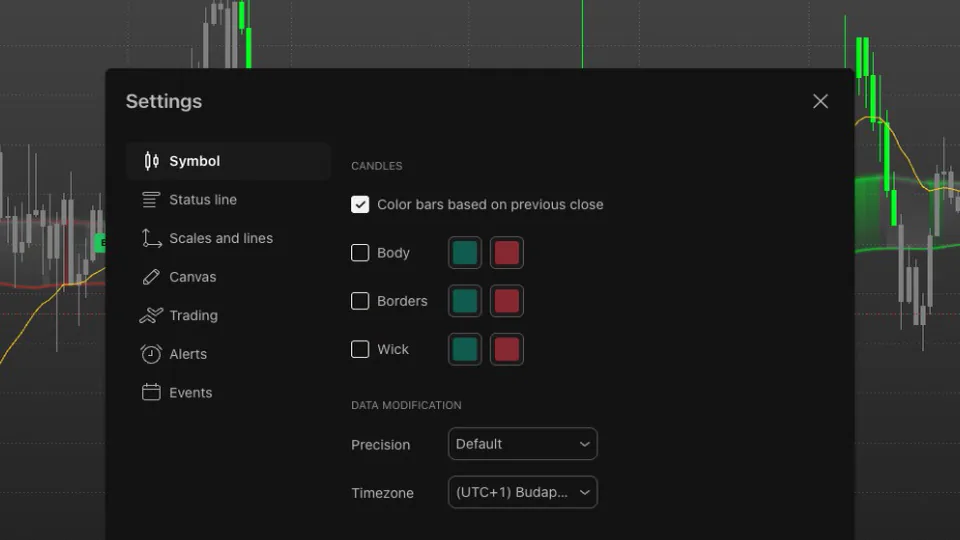
Now the candles you see are PipTrend’s:
- Green: an established uptrend.
- Red: an established downtrend.
- Gray: the trend is still forming or conflicted.
Step 5: Reuse the setting on other charts
These settings belong to this chart layout. To reuse them:
- Right-click the chart and open Settings… again.
- Click Template at the bottom left and choose Save as….
- Give the template a name, for example:
PipTrendOn any new chart, open Settings…, click Template, and pick it from the list.
Step 6: Which PipTrend script should draw the candles?
Double-click the script’s name, top left on the chart, to open its settings. In the Candles group, Candle display has three choices: PipTrend candles, Normal candles, or Hidden.
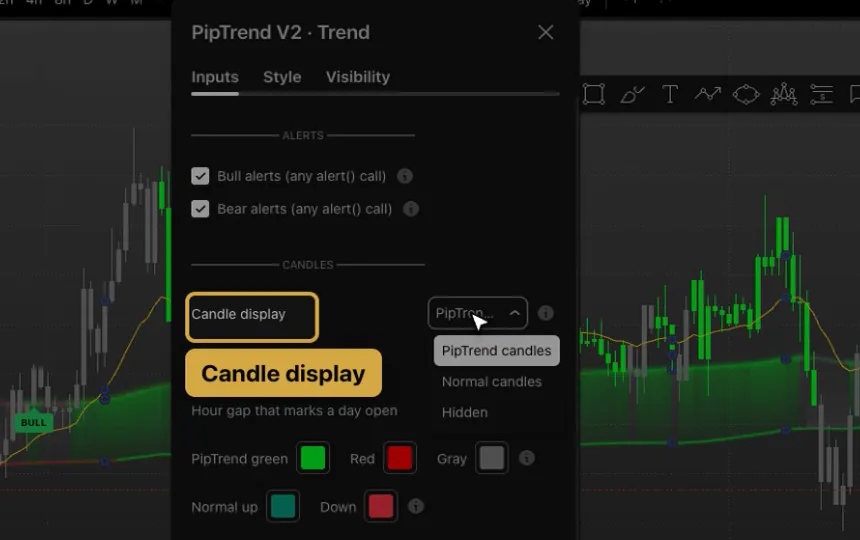
PipTrend’s trend indicators and idea indicators draw candles. Indicators that only mark levels or sessions don’t. If you use two candle-drawing indicators on the same chart, let one draw the candles and set the other one’s Candle display to Hidden, so the colours never overlap. Some indicators word the same choice a little differently, for example Show PipTrend Candles or Hide Candles.
Step 7: What does Candle gaps change?
Just below is Candle gaps (not every PipTrend indicator has it):
| Option | What it draws |
|---|---|
| No gaps (default) | Every candle starts at the previous close. Weekend and session gaps don’t break the picture, so a trend reads as one continuous move. |
| Gaps, but not at the day open | Real opens, except after a pause longer than Hour gap that marks a day open (6 hours by default). |
| All gaps (true opens) | The same opens as TradingView’s own candles. Use it when gap levels matter to you, for example on indices and stocks. |
Candle gaps changes only how the open is drawn. It never changes the trend colour or the signals. With No gaps, the drawn open is not the real open price, so read your entries and stops from the price scale or the Data Window, not from the candle’s open.
Step 8: Decide on closed candles
While the last candle is still forming, its colour can change. Once it closes, its colour is fixed and does not repaint. Make your decisions on closed candles.
Step 9: Save your layout
Press Save in the top bar, or Cmd S on a Mac and Ctrl S on Windows, so your layout keeps PipTrend and these settings.
If it doesn’t work
- No Invite-only scripts listed: your access is not active yet, or it was granted to a different TradingView username. See How PipTrend access works.
- Still two sets of candles: Body, Borders or Wick is still ticked on the Symbol tab, or a second PipTrend script also draws candles. Set its Candle display to Hidden.
- Only gray candles: the trend is still forming on this timeframe. That is information, not an error.
- PipTrend still not showing: work through PipTrend not showing on your chart.
FAQ
Where do I find PipTrend in TradingView?
Open Indicators in the top toolbar and choose Invite-only on the left. All PipTrend scripts your username has access to are listed there.
Why do I see two sets of candles after adding PipTrend?
TradingView’s own candles are drawn in front of the PipTrend candles. Right-click the chart, open Settings…, and untick Body, Borders and Wick on the Symbol tab.
Does Candle gaps change the PipTrend signals?
No. It changes only how the open of each candle is drawn. The trend colour and the signals stay the same.
Do PipTrend candles repaint?
The candle that is still forming can change colour. Once a candle closes, its colour is fixed.
Can I hide TradingView’s candles without installing another script?
Yes. Right-click the chart, open Settings…, and untick Body, Borders and Wick on the Symbol tab. To reuse it on other charts, save it as a chart template: Template, then Save as….
Does PipTrend work on the TradingView free plan?
Yes. PipTrend works on every TradingView plan, including the free one. The free plan shows two indicators on a chart at a time, and hidden indicators don’t count. See How PipTrend access works and Build your PipTrend chart.
Can I switch back to normal candles?
Yes. Tick Body, Borders and Wick again on the Symbol tab to bring back TradingView’s own candles. In the PipTrend script’s settings, Candle display also offers Normal candles and Hidden.
Transcript
Full transcript
In this video, you’ll add PipTrend to your TradingView chart. Then you’ll make the PipTrend candles visible. Green, red and gray candles will show you the trend at a glance. And the setup gets saved, so every new chart opens the same way. This video assumes your access is already active. If it isn’t, the access guide is linked below.
Click Indicators in the top toolbar. In the window that opens, choose Invite-only on the left. This tab lists every script an author has given your TradingView username access to. Every PipTrend indicator’s name starts with PipTrend, so they’re easy to spot. You may already see more of them here than in this video, because new ones are added over time. Click PipTrend V2.0 once, and it’s added to your chart. You can add the others the same way whenever you need them.
Before you close this window, click the star next to each PipTrend script you use. Starred scripts appear under Favorites, so next time you can add them in two clicks, on any chart, without opening the Invite-only tab again. Now close the window.
Right now you’re seeing two sets of candles on top of each other: TradingView’s own candles and the PipTrend candles. TradingView’s candles sit in front, so they hide PipTrend’s colours. Right-click the chart and choose Settings. On the Symbol tab, untick Body, Borders and Wick. Click Ok. Now the candles you see are PipTrend’s. Green means an established uptrend, red an established downtrend, and gray means the trend is still forming or conflicted.
These settings belong to this chart layout. To reuse them on other charts, right-click the chart and open Settings again. Click Template at the bottom left, and choose Save as. Give the template a name, for example PipTrend. On any new chart, open Settings, click Template, and pick it from the list.
Open the PipTrend V2.0 settings by double-clicking its name, top left on the chart. In the Candles group, Candle display has three choices: PipTrend candles, Normal candles, or Hidden. PipTrend’s trend indicators and idea indicators draw candles. Indicators that only mark levels or sessions don’t. If you use two candle-drawing indicators on the same chart, let one draw the candles and set the other one’s Candle display to Hidden, so the colours never overlap. Some indicators word the same choice a little differently, for example Show PipTrend Candles or Hide Candles.
Just below is Candle gaps. The default, No gaps, draws every candle from the previous close. Weekend and session gaps don’t break the picture, so a trend reads as one continuous move and colour changes are easy to spot. Gaps, but not at the day open keeps the real opens, except after a pause longer than the hour gap you set below it, six hours by default. All gaps, true opens, matches TradingView’s own candles. Use that when gap levels matter to you, for example on indices and stocks.
One thing to keep in mind. Candle gaps changes only how the open is drawn. It never changes the trend colour or the signals. With No gaps, the drawn open is not the real open price, so read your entries and stops from the price scale or the Data Window, not from the candle’s open.
Watch the last candle on the right. While it’s still forming, its colour can change. Once it closes, its colour is fixed and won’t repaint. So make your decisions on closed candles.
Finally, press Save in the top bar, or Command S on a Mac and Control S on Windows, so your layout keeps PipTrend and these settings. That’s the setup. Next, set up your chart settings for a clean, dark chart.
Related guides
Risk Disclaimer: Trading involves risk. Past performance doesn't guarantee future results. Only trade with money you can afford to lose. PipTrend is a tool to assist your trading decisions, not financial advice.
Finished this guide?
Was this guide helpful?

