In short:
- Grid: click Layout setup in the top toolbar and pick a grid, for example three charts. More than one chart needs a paid plan.
- Timeframes: click a chart, then pick its timeframe. Here: daily, 4 hours and 1 hour.
- Sync: in Layout setup, under Sync in layout, turn on Symbol and leave Interval off.
- Shortcuts: Tab moves between charts; Alt + Enter (Option + Enter on a Mac) shows one chart full size.
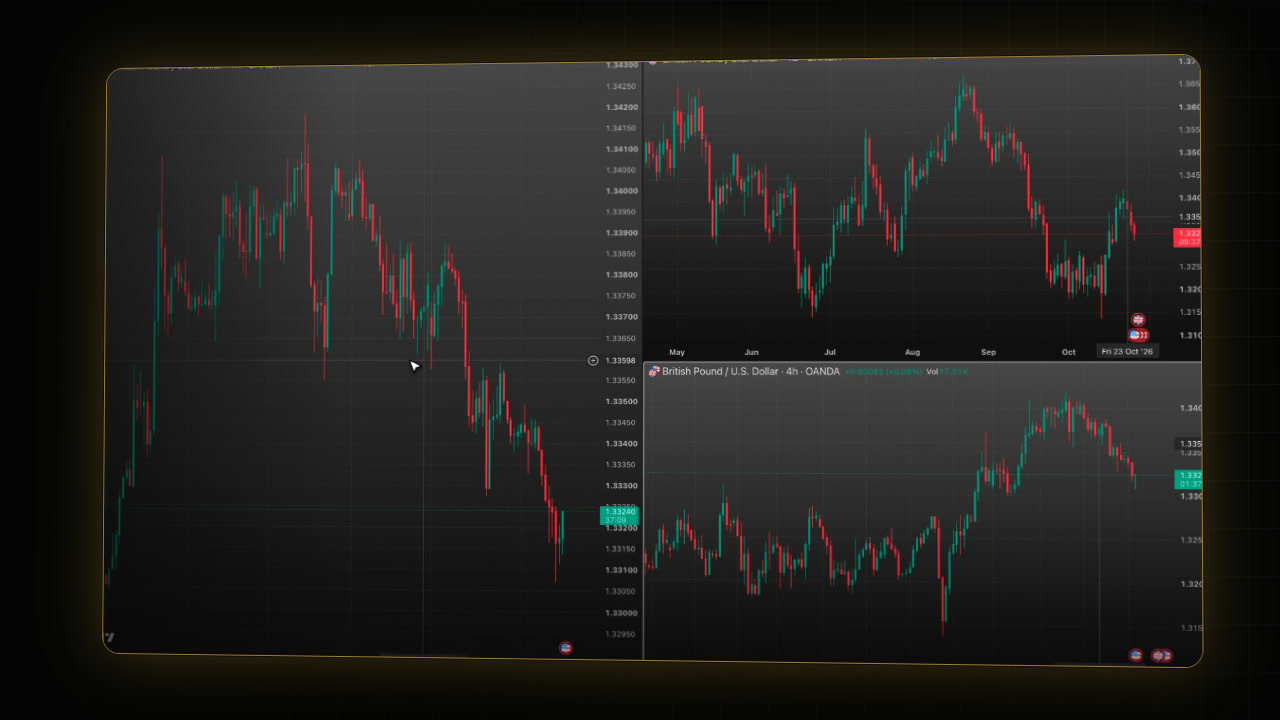 Video coming soon
This guide is the setup. Why reading several timeframes helps is explained in Multi-Timeframe Analysis Explained for Traders.
Before you start
- You need a paid TradingView plan to show more than one chart in a layout, and your plan sets how many. If you upgrade, signing up through our link gives you $15 toward your next plan (paid plans only).
- On a plan with two charts, use the same steps with two charts, for example the 4 hour and the 1 hour.
- To keep your current single chart as it is, first make a copy of your layout and work in the copy. See TradingView layouts, templates and multi-chart.
Step 1: Pick a grid
- Open your chart on TradingView.
- Click Layout setup in the top toolbar (the square icon left of your layout name). A menu opens with grids grouped by the number of charts, and SYNC IN LAYOUT below.
- In the row marked 3, click the grid with one big chart on the left and two charts stacked on the right.
- Press Escape to close the menu.
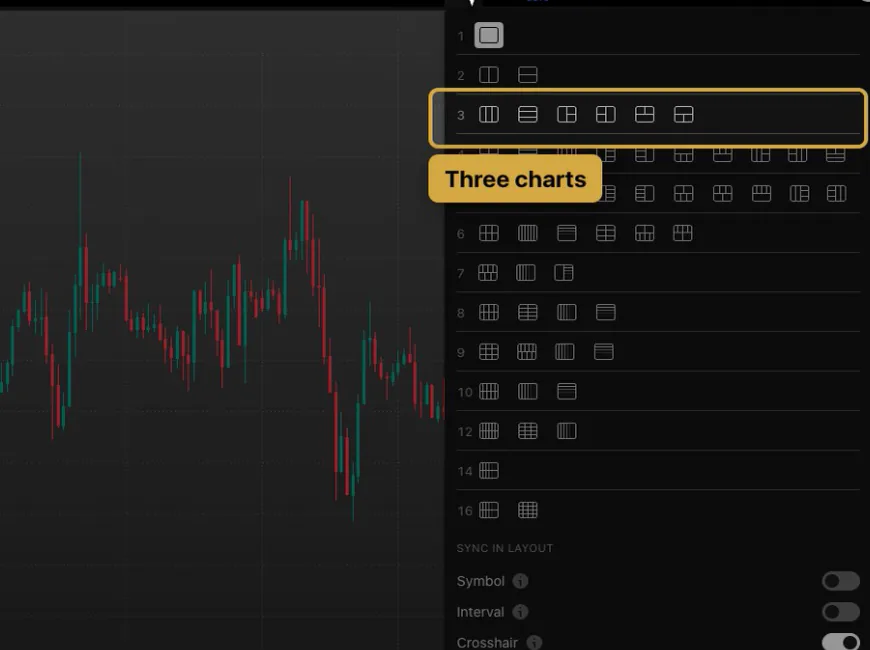
You now see three charts. The two new ones start as copies of the first.
Step 2: Give each chart its own timeframe
- Click the top right chart. A thin frame shows it is the active chart.
- Click D in the top toolbar. The top right chart switches to the daily.
- Click the bottom right chart.
- Type 4, then H. A Change interval box appears and shows 4 hours.
- Press Enter. The bottom right chart switches to 4 hours.
- Leave the big chart on 1h.
The timeframe buttons in the top toolbar are your favourite timeframes; see TradingView chart settings to choose them.
Step 3: Sync the symbol, not the interval
- Click Layout setup again.
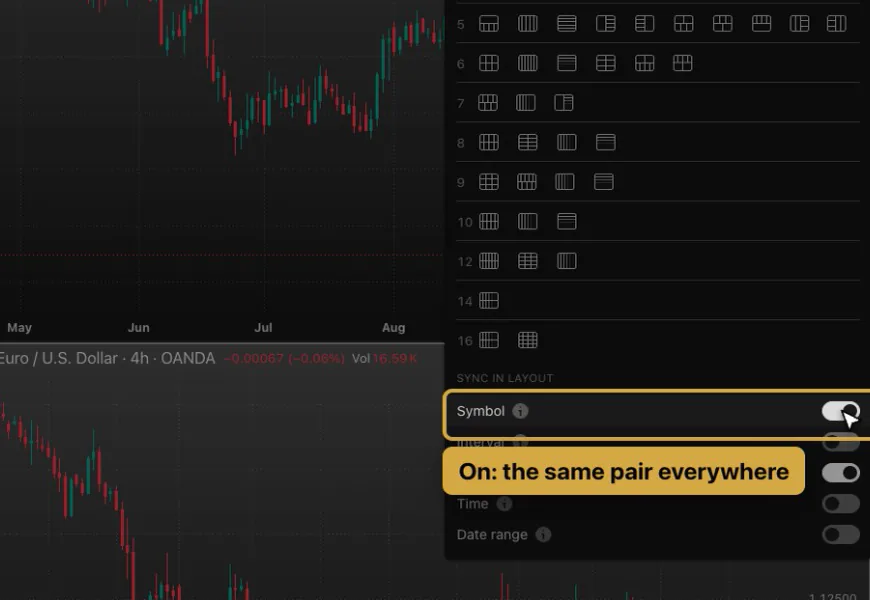
- Under SYNC IN LAYOUT, click the switch next to Symbol so it turns on. Every chart now follows the same pair.
- Leave Interval off, so each chart keeps its own timeframe.
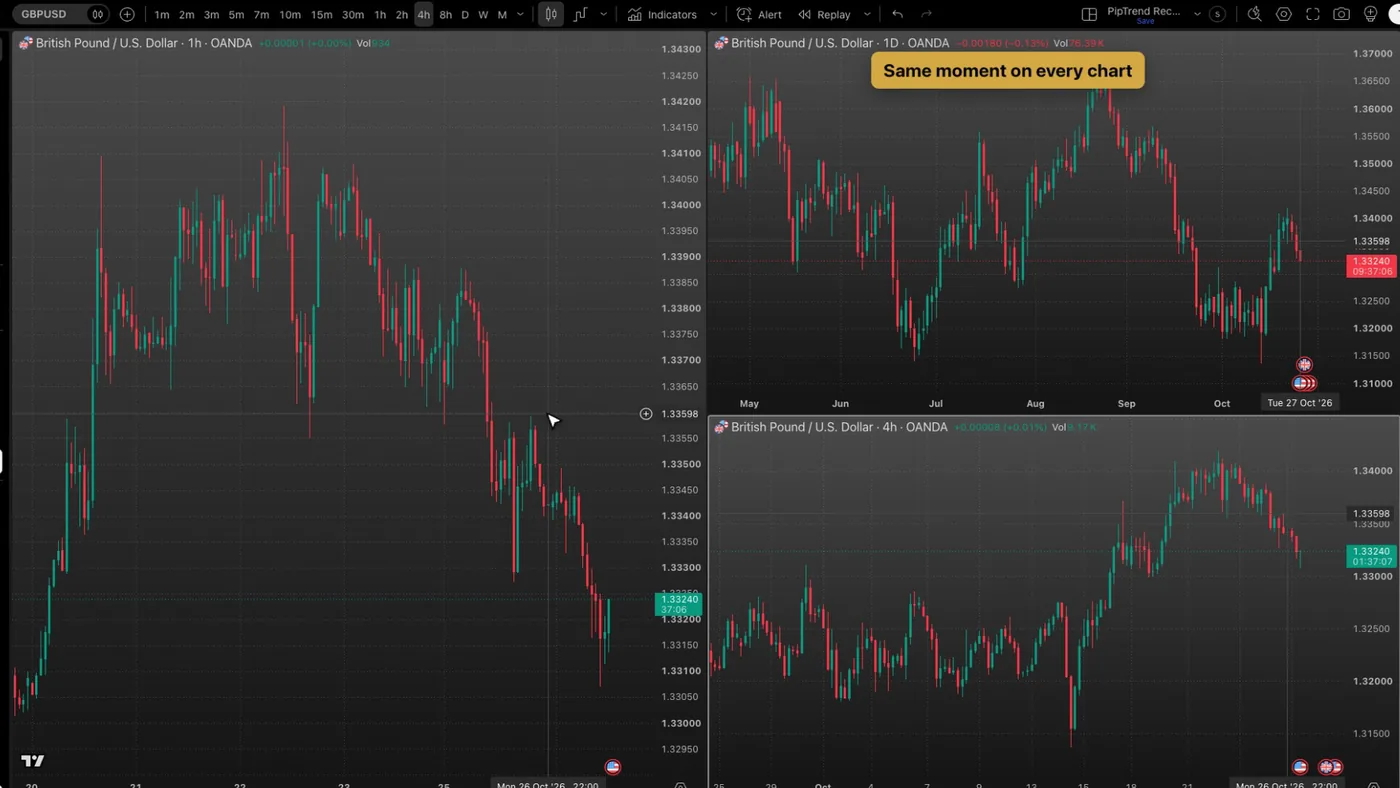
- Turn on Crosshair if it is off. The crosshair then shows the same moment on every chart.
- Time is optional: with it on, clicking a chart makes the others show the same point in time.
- Leave Date range off.
- Press Escape to close the menu.
Step 4: Change the pair once
- Click the symbol name at the top left of the toolbar. The symbol search opens.
- Type the pair, for example:
OANDA:GBPUSD- Press Enter. All three charts switch to GBPUSD and keep their timeframes.
- Move the mouse over the 1 hour chart. The crosshair marks the same moment on the daily and the 4 hour chart.
Step 5: Switch charts and go full screen
| Shortcut (orientation only) | What it does |
|---|---|
| Tab | Makes the next chart active |
| Shift + Tab | Goes back to the previous chart |
| Alt + Enter | Shows the active chart full size (Windows) |
| Option + Enter | Shows the active chart full size (Mac) |
| The same key again | Back to the grid |
Typing a number on the chart opens Change interval for the active chart, as in Step 2.
Step 6: It’s saved in your layout
The grid, each chart’s timeframe and the sync settings are saved in your layout. With Autosave on, there is nothing else to do. To save by hand, press Cmd+S on a Mac or Ctrl+S on Windows.
Can you see multiple timeframes on the free plan?
PipTrend V2.0’s multi-timeframe panel shows the trend on many timeframes in one table, right on your chart. See PipTrend V2.0 basics.
If it doesn’t work
- Changing the pair changes only one chart: Symbol is off under Sync in layout. Turn it on.
- All charts switch to the same timeframe: Interval is on. Turn it off.
- The grid shows only one chart: a chart is maximized. Press Alt + Enter (Option + Enter on a Mac) to go back to the grid.
- You can’t pick a grid with more charts: your plan limits the number of charts per layout.
- A new chart shows old indicators or another symbol: TradingView restores a chart you used in that grid before. Set it up again, or pick the timeframe and indicators you want on it.
FAQ
How do I view multiple timeframes on TradingView?
Click Layout setup in the top toolbar, pick a grid with several charts, then click each chart and choose its timeframe. Turn on Symbol under Sync in layout so every chart follows the same pair.
How do I sync charts on TradingView?
Open Layout setup and use the switches under Sync in layout: Symbol, Interval, Crosshair, Time and Date range. For a multi-timeframe layout, turn on Symbol and leave Interval off.
Can I see multiple charts on the free TradingView plan?
No. More than one chart per layout needs a paid plan, and the plan sets how many.
How do I make one chart full screen in a TradingView grid?
Click the chart and press Alt + Enter, or Option + Enter on a Mac. Press it again to go back to the grid.
How do I show the same symbol on different timeframes?
In Layout setup, under Sync in layout, turn on Symbol and leave Interval off. Every chart then follows the same pair and keeps its own timeframe.
What can I do on the free plan with one chart?
Use PipTrend V2.0’s multi-timeframe panel, which shows the trend on many timeframes in one table, right on your chart. See PipTrend V2.0 basics.
Transcript
Full transcript
Reading more than one timeframe shows you the bigger picture before you trade. In this video, you’ll put three timeframes of one pair side by side on TradingView, link them, and move between them with two shortcuts. Why it helps is explained in our multi-timeframe article, linked below.
Click Layout setup in the top toolbar and pick a grid. Here, three charts: one big chart on the left and two smaller ones on the right. The new charts start as copies of the first. More than one chart needs a paid TradingView plan, and your plan sets how many.
Now give each chart its own timeframe. Click a chart to make it active, then pick a timeframe in the top toolbar. The top right chart becomes the daily. Or type it: click the bottom right chart, type 4, then H, and press Enter. That’s four hours. The big chart stays on 1 hour, where you look for entries.
Open Layout setup again. Under Sync in layout, turn on Symbol, so every chart follows the same pair. Leave Interval off, so each chart keeps its own timeframe. Crosshair shows the same moment on every chart. Time is optional: click a chart, and the others jump to the same point in time.
Now change the pair once. Click the symbol at the top left, type the pair, here GBPUSD, and press Enter. All three charts switch together and keep their timeframes. Move the mouse over the 1 hour chart, and the crosshair marks the same moment on the daily and the four hour.
Two shortcuts make this fast. Tab moves to the next chart, and Shift Tab goes back. To see one chart full size, press Alt and Enter, or Option and Enter on a Mac. Press it again to go back to the grid.
The grid, the timeframes and the sync are saved in your layout. To keep your single chart as well, make this its own layout, as shown in our layouts video.
If your plan shows only one chart, PipTrend V2.0’s multi-timeframe panel lists the trend on many timeframes in one table, right on your chart. It’s covered in our PipTrend V2.0 basics video.
Next, set up your drawing tools for zones, levels and positions.
Related guides
- The TradingView drawing tools I use for trade planning
- TradingView layouts, templates and multi-chart
- PipTrend V2.0 basics
Risk Disclaimer: Trading involves risk. Past performance doesn't guarantee future results. Only trade with money you can afford to lose. PipTrend is a tool to assist your trading decisions, not financial advice.
Finished this guide?
Was this guide helpful?

