In short: click Alert in the top toolbar, or press Alt+A (Option+A on a Mac). Set the condition, for example Price, Crossing and a level, choose Trigger and Expiration, write a message, pick your Notifications, and click Create. The alert keeps watching even when your chart is closed.
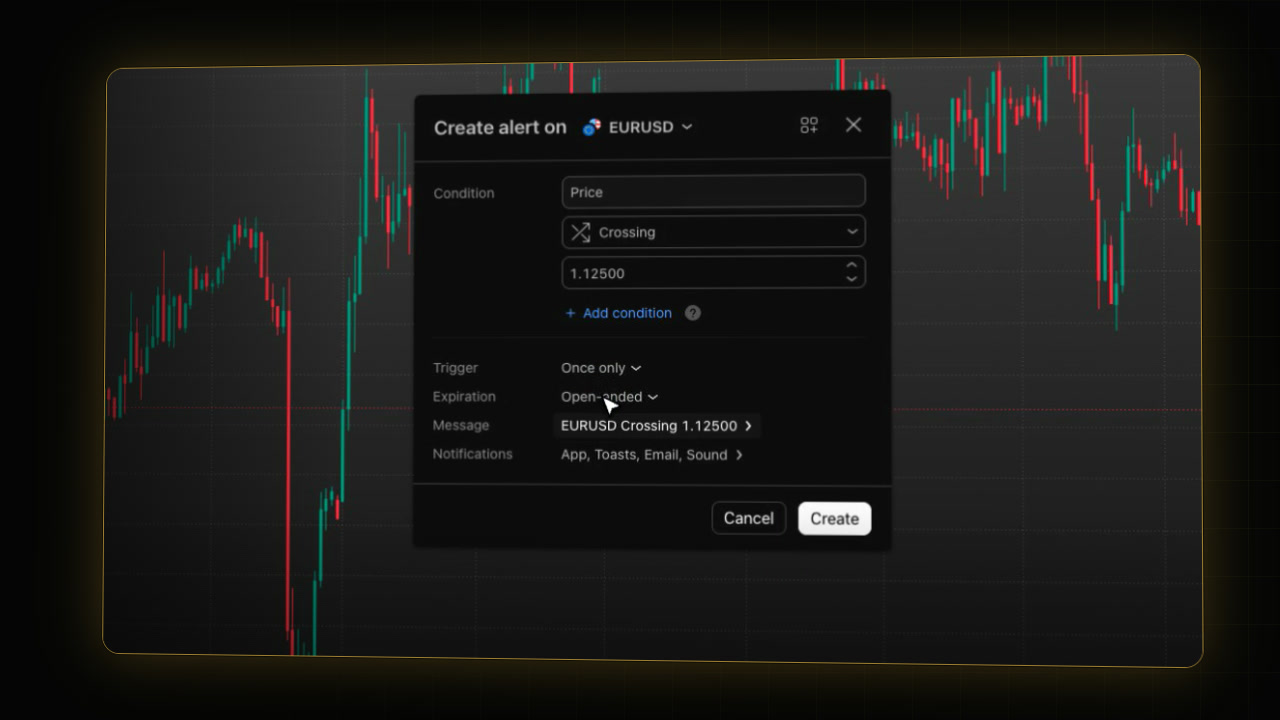 Video coming soon
Alerts let the market tell you when it’s time to look, so you don’t have to watch the chart all day. This guide covers price alerts. For alerts on PipTrend’s own signals, see PipTrend alerts.
Step 1: Open the alert window
- Open the chart of the symbol you want to watch.
- Click Alert in the top toolbar, or press Alt+A on the chart (Option+A on a Mac).
- The window Create alert on {symbol} opens.
Step 2: Set the condition
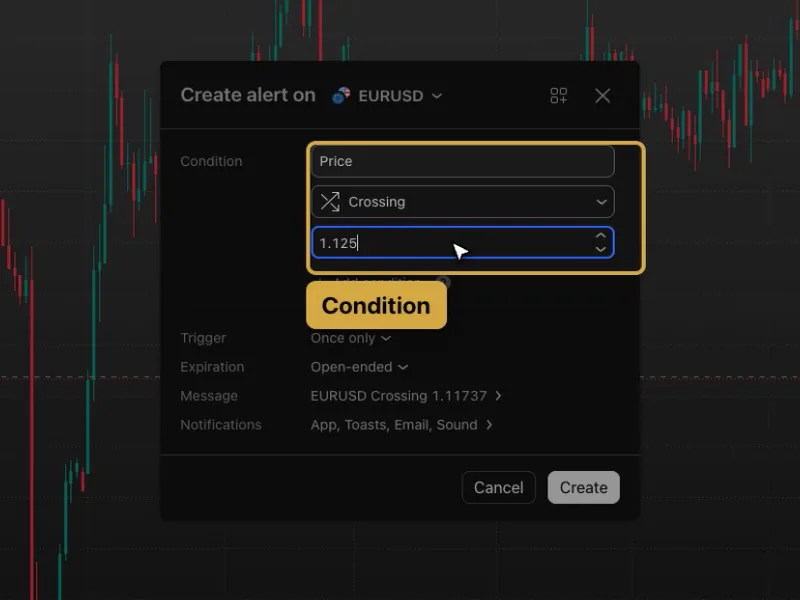
The condition says what to watch. For a price alert it reads Price, Crossing and a price level.
- Click the price field and type your level, for example the edge of a zone:
1.125- Leave Crossing if the alert should fire when price moves through the level in either direction.
- Or click Crossing and choose Crossing Up or Crossing Down. Show more lists other conditions.
Step 3: Choose the trigger
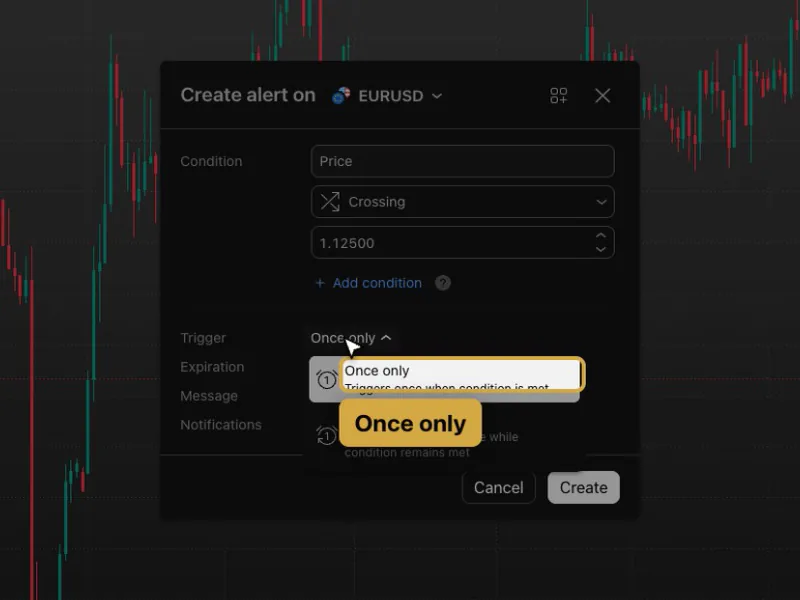
Click the value next to Trigger:
- Once only: fires the first time the condition is met. Usually what you want for a price level.
- Every time: keeps firing, at most once a minute, while the condition stays true.
Step 4: Choose when it expires
Click the value next to Expiration: Open-ended (never expires), End of day, 1 week, 1 month or Custom date.
Step 5: Write the message
- Click the text next to Message. The Edit message page opens.
- Replace the text in Message with something that tells you what to do, for example:
EURUSD at the weekly zone, check the chart- Click Apply.
Step 6: Choose the notifications
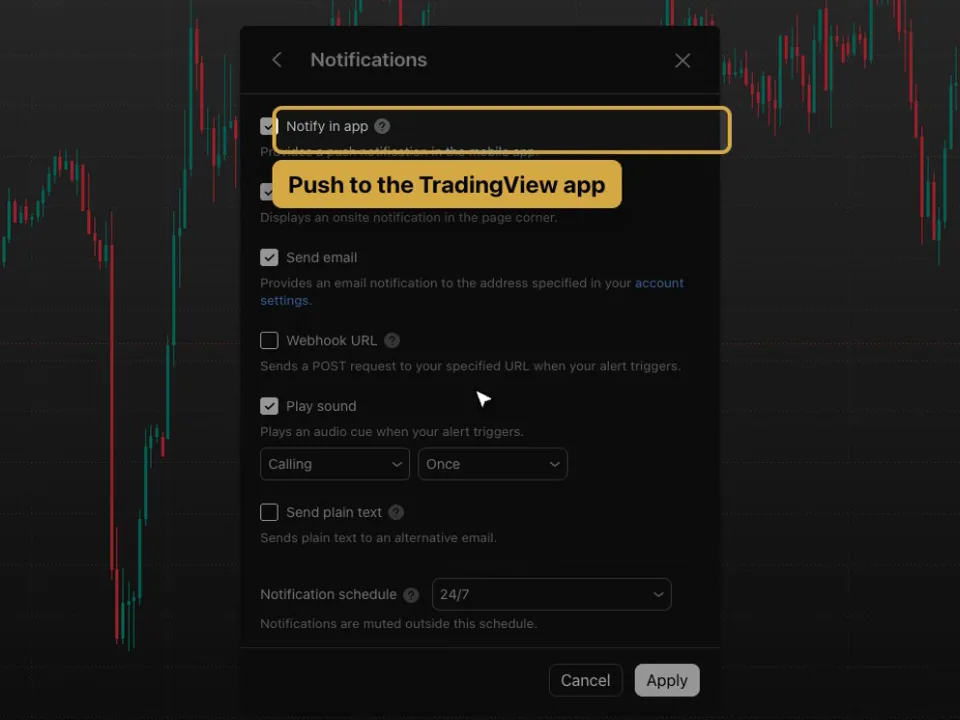
- Click the text next to Notifications.
- Tick the ways the alert should reach you:
- Notify in app: a push notification in the TradingView mobile app.
- Show toast notification: a pop-up in the corner of your screen.
- Send email: an email to the address in your account settings.
- Play sound: a sound, with a choice of sound and how often it plays.
- Webhook URL: sends the alert to another service. Needs a paid plan and two-factor authentication on your TradingView account.
- Click Apply.
Step 7: Create the alert
Click Create. The alert is active, and a dashed line marks the level on the chart. It keeps watching on TradingView’s side, even when your chart or your computer is closed.
How to get push notifications on your phone
- Install the TradingView app and log in with the same account.
- In your phone’s settings, allow notifications for the TradingView app.
- Make sure Notify in app is ticked in the alert’s Notifications.
Manage alerts and see the ones that already fired
Open the Alerts panel from the right toolbar. On the Alerts tab, hover an alert to Pause, Edit or Delete it. The Log tab lists the alerts that already fired. How many alerts you can keep active at once depends on your TradingView plan. If you upgrade, signing up through our link gives you $15 toward your next plan (paid plans only).
TradingView alert not working? What to check
- No push on your phone: check that you are logged in to the TradingView app with the same account, that its notifications are allowed in your phone’s settings, and that Notify in app is ticked.
- The alert fired once and stopped: the trigger is Once only. Choose Every time if it should keep firing.
- The alert disappeared: it expired. Check Expiration, or look for it in the Log tab.
- Webhook URL can’t be ticked: webhooks need a paid plan and two-factor authentication.
FAQ
How do I set an alert on TradingView?
Click Alert in the top toolbar or press Alt+A, set the condition, choose the trigger and expiration, and click Create.
How do I get TradingView alerts on my phone?
Log in to the TradingView app with the same account, allow its notifications in your phone’s settings, and tick Notify in app in the alert’s notifications.
Do TradingView alerts work when the chart is closed?
Yes. Alerts run on TradingView’s servers, so they keep watching when your chart, browser or computer is closed.
What is the difference between Once only and Every time?
Once only fires the first time the condition is met. Every time keeps firing, at most once a minute, while the condition stays true.
Why is my TradingView alert not triggering?
Check three things. Expiration: an expired alert stops, and the Log tab shows what already fired. Trigger: an alert set to Once only fires once and then stops. And the feed: an alert runs on the feed of the symbol you set it on, so a wick can reach your level on your chart’s feed and stop just short of it on the alert’s. See Which forex symbol and data feed to use.
Why am I not getting TradingView alerts on my phone?
Usually one of three things: the app is logged in to a different TradingView account, notifications for the TradingView app are off in your phone’s settings, or Notify in app was not ticked for that alert. To fix the last one, open the Alerts panel, hover the alert, click Edit, and tick Notify in app under Notifications.
Transcript
Full transcript
Alerts let the market tell you when it’s time to look, so you don’t have to watch the chart all day. In this video, you’ll set a price alert on TradingView, choose how often it fires and when it expires, pick where it reaches you, including your phone, and find your alerts later.
Click Alert in the top toolbar. Or press Alt and A on your keyboard. The Create alert window opens for the symbol on your chart.
The condition says what to watch. Here it’s Price, Crossing, and a price level. Type the level you care about, for example the edge of a zone. Crossing fires when price moves through it in either direction. Open the list for Crossing Up or Crossing Down, and Show more for other conditions.
Trigger decides how often it fires. Once only fires the first time the condition is met, and that’s usually what you want for a price level. Every time keeps firing, at most once a minute, while the condition stays true. Expiration sets when the alert stops: open-ended, the end of the day, a week, a month, or a date you choose.
The message is what you’ll read when it fires. Make it tell you what to do, for example: EURUSD at the weekly zone, check the chart.
Under Notifications, choose where it reaches you. Notify in app sends a push to the TradingView app on your phone. Show toast notification pops up on your screen, Send email sends an email, and Play sound plays a sound. Webhook URL sends the alert to another service, and needs a paid plan.
Click Create. The alert is now active, and it keeps watching even when your chart is closed.
For alerts on your phone, log in to the TradingView app with the same account, and allow notifications for it in your phone’s settings. Otherwise Notify in app has nowhere to go.
To see, edit or delete your alerts later, open the Alerts panel from the right toolbar. How many alerts you can keep active at once depends on your TradingView plan.
Price alerts are the start. Next, set up the TradingView app on your phone.
Related guides
- TradingView mobile app setup: charts, watchlists, alerts
- How to add indicators on TradingView
- PipTrend alerts: every alert condition explained
Risk Disclaimer: Trading involves risk. Past performance doesn't guarantee future results. Only trade with money you can afford to lose. PipTrend is a tool to assist your trading decisions, not financial advice.
Finished this guide?
Was this guide helpful?

