In short: sign up for free, then find your username at the top of the profile menu. That is the name script authors, like PipTrend, give access to.
- Turn on two-factor authentication in Settings and billing, Account settings, and write your backup codes down by hand.
- Set the chart’s time zone with the clock at the bottom right.
- Change the language in the profile menu.
 Video coming soon
Do this once, before you add any indicator. It takes about five minutes, and everything here works on the free TradingView plan. If you choose a paid plan later, signing up through our link gives you $15 toward your next plan (paid plans only).
Step 1: Create your account
- Go to TradingView and click Get started for free.
- Under the free plan, click Sign up.
- Choose Continue with Google, another account under Show more options (Facebook, X, Yahoo, Apple or LinkedIn), or Email.
- If you signed up with your email, confirm it from the email TradingView sends you.
Step 2: Find your username
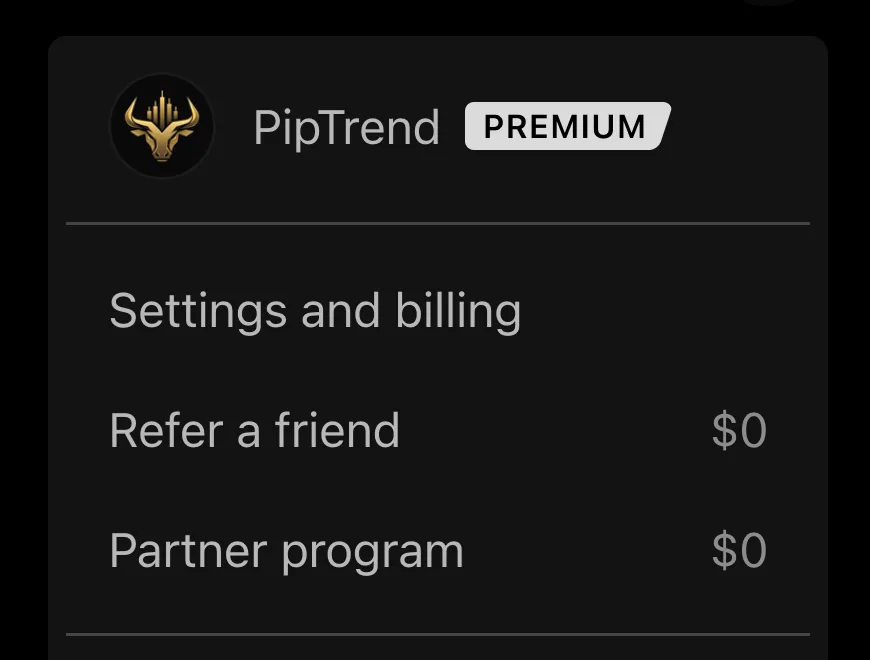
- Click your profile picture: top left on a chart, top right on the other TradingView pages.
- The name at the top of the menu is your username.
Your username is your public name on TradingView, and it is what script authors use to give you access to invite-only scripts, like PipTrend. Give them this name, not your email address and not your display name.
Step 3: Know the username rules
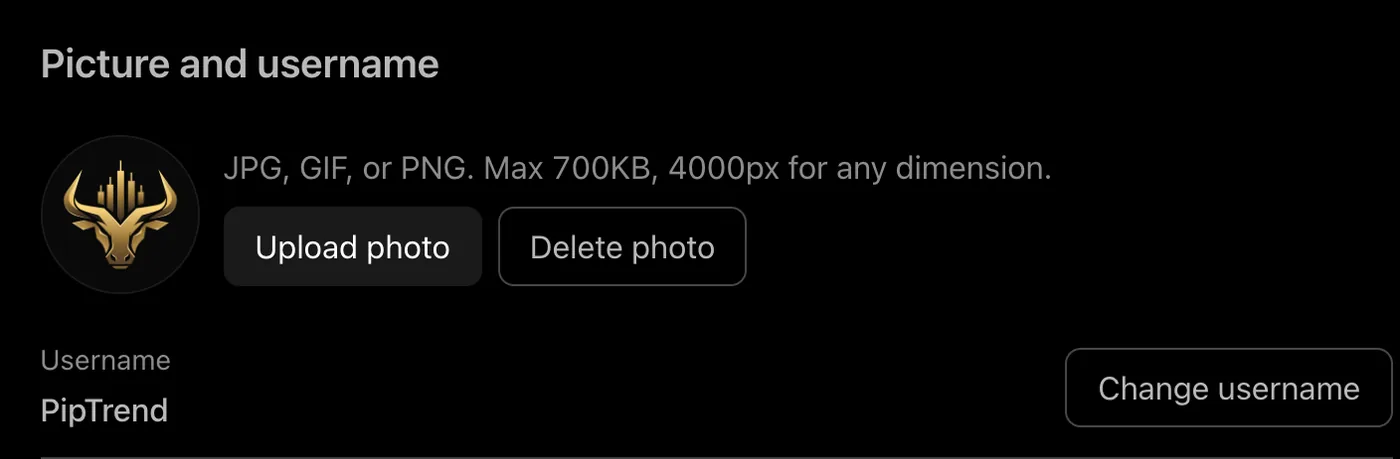
- A username can only use English letters, numbers, underscores and hyphens.
- TradingView lets you change it twice: open the profile menu, then Settings and billing, Public profile, Change username.
- If you change it, update it everywhere a script author has given you access. For PipTrend, see How to change the TradingView username on your membership.
Step 4: Turn on two-factor authentication
- Open the profile menu and click Settings and billing.
- Click Account settings.
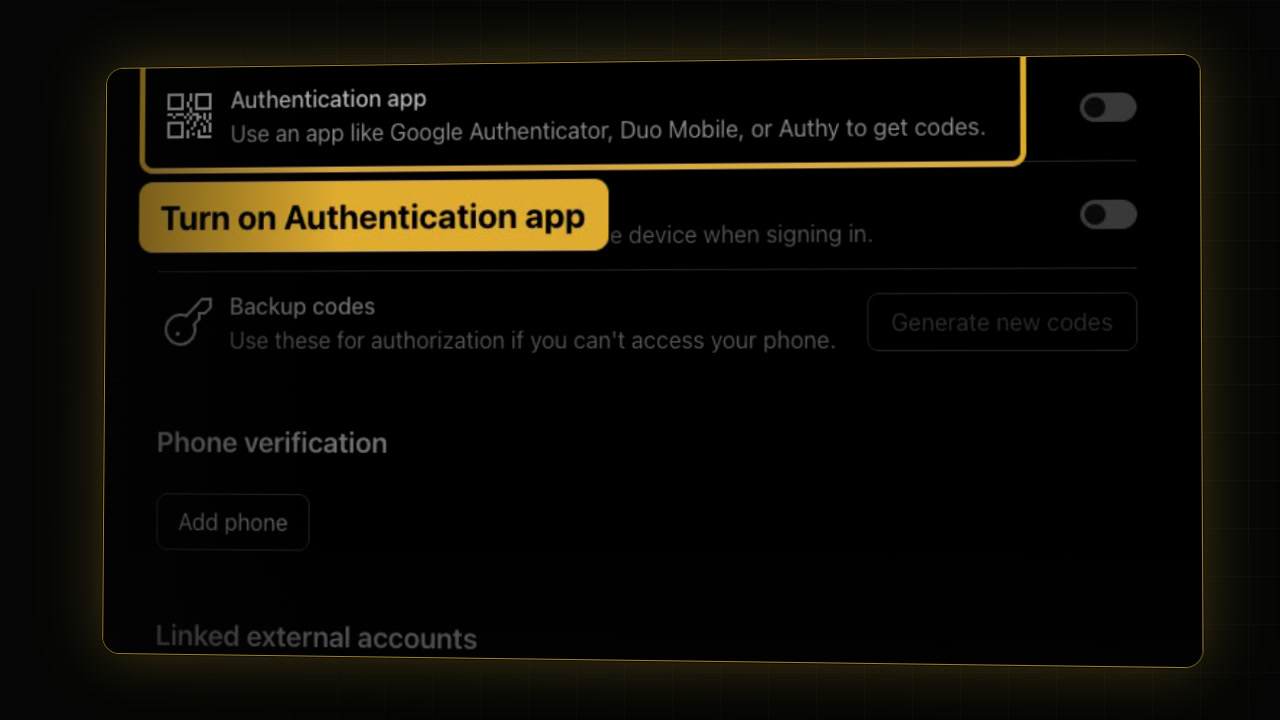
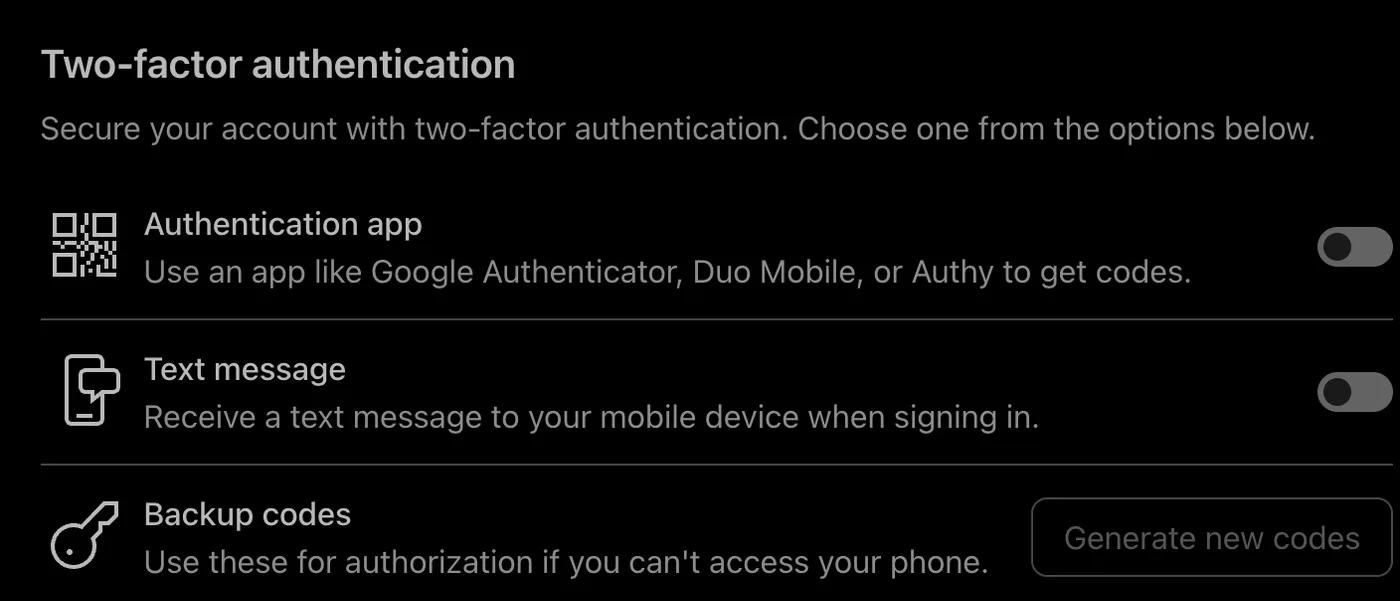
- Under Two-factor authentication, turn on Authentication app.
- Scan the QR code with an authenticator app, like Google Authenticator or Authy, and enter the code the app shows.
- TradingView then gives you backup codes. Write them down by hand and keep them somewhere safe.
TradingView can’t recover your account if you lose access to your two-factor codes, which is why the backup codes matter. If you signed up with Google or another account, TradingView may ask you to set a password first.
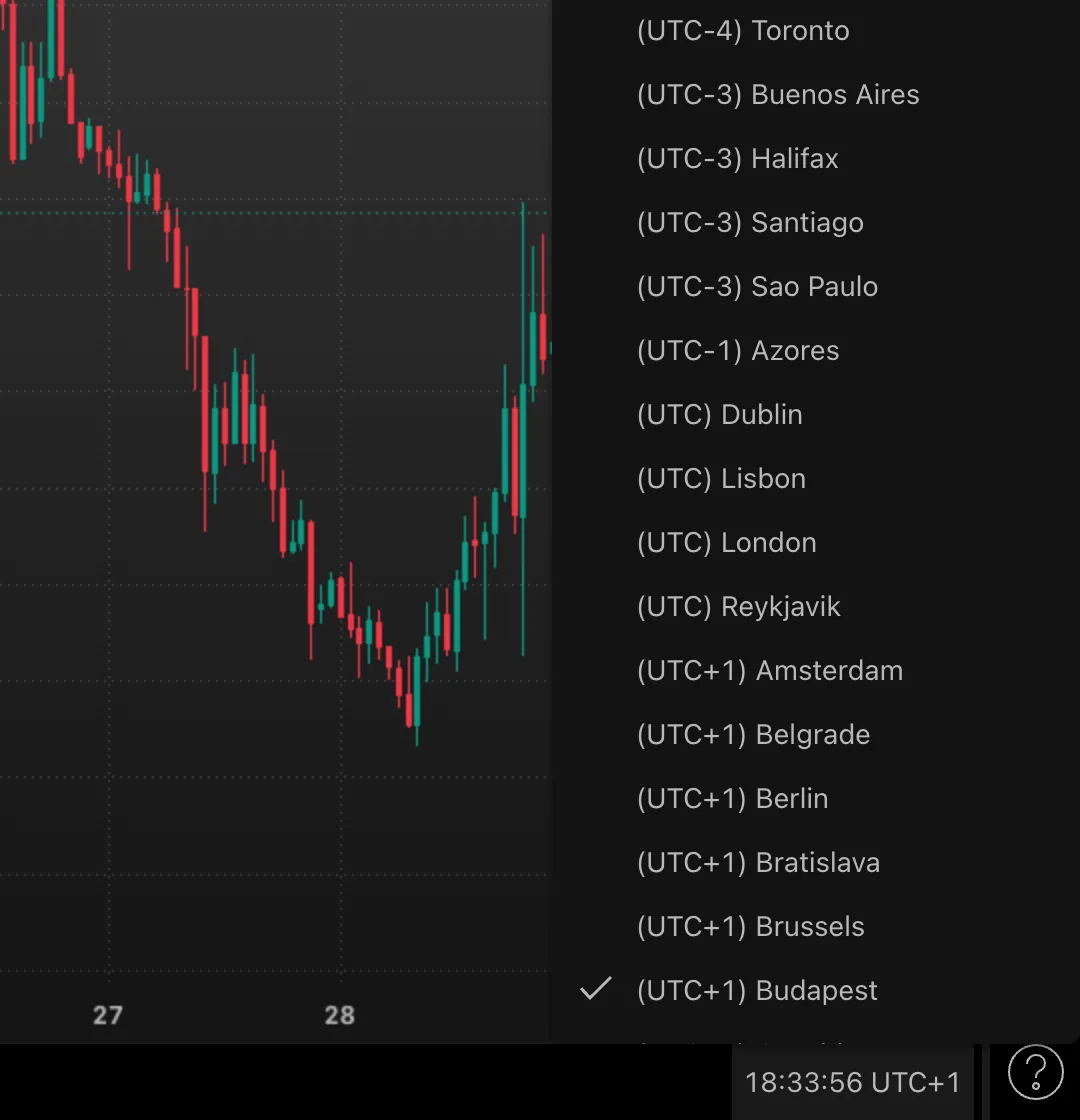
Step 5: Set the chart’s time zone
- Open a chart.
- Click the clock at the bottom right.
- Choose your time zone from the list.
The time scale, the session boxes and your alert times then match your own clock, which makes the trading sessions much easier to read.
Step 6: Change the language
- Click your profile picture.
- Point at Language and pick yours from the list.
Web, Desktop and mobile
TradingView runs in your browser, in the Desktop app for Mac and Windows, and in the mobile app. Your layouts, watchlists, indicators and alerts belong to your account, so they are the same everywhere you sign in. On a chart, the profile menu links to the Desktop app under Get desktop app.
Which plan do you need?
Everything in this series works on the free plan. Plans differ in limits, like how many indicators you can see on a chart at once. See what the TradingView free plan includes and the TradingView plans compared.
FAQ
How do I set up TradingView for the first time?
Sign up for free, find your username in the profile menu, turn on two-factor authentication under Settings and billing, Account settings, and set the chart’s time zone with the clock at the bottom right.
Where do I find my TradingView username?
Click your profile picture. The name at the top of the menu is your username. It is also under Settings and billing, Public profile.
Can I change my TradingView username?
Yes, twice. Open Settings and billing, Public profile, and click Change username. A username can only use English letters, numbers, underscores and hyphens.
How do I turn on two-factor authentication on TradingView?
Open Settings and billing, Account settings, and turn on Authentication app under Two-factor authentication. Scan the QR code with an authenticator app, enter its code, and write your backup codes down by hand.
How do I change the time zone on TradingView?
Click the clock at the bottom right of the chart and choose your time zone from the list.
Do I need a paid TradingView plan?
No. Everything in this series works on the free plan. Paid plans raise limits, like how many indicators you can see on a chart at once.
Related guides
- How PipTrend access works
- How to add PipTrend and show the PipTrend candles
- TradingView chart settings
Risk Disclaimer: Trading involves risk. Past performance doesn't guarantee future results. Only trade with money you can afford to lose. PipTrend is a tool to assist your trading decisions, not financial advice.
Finished this guide?
Was this guide helpful?

