In short: turn on Dark theme in your profile menu, then right-click the chart and open Settings….
- Tick Color bars based on previous close.
- In Status line, untick Open market status, Chart values and Buy/sell buttons.
- In Canvas, set a dark Gradient background, a dark solid Crosshair (colour codes in Step 6), and untick Replay mode under Watermark.
- Untick Latest news in Events.
- Save it all as a template.
 Video coming soon
This is the setup we use at PipTrend: a calm, dark chart where price and your indicators stand out. It works on every TradingView plan, including the free one. If you are choosing a paid plan, signing up through our link gives you $15 toward your next plan (paid plans only).
Step 1: Turn on dark mode
- Click your profile picture in the top left corner.
- Turn on Dark theme.
- Press Escape to close the menu.
The whole platform switches, and the chart follows.
Step 2: Open the chart settings
Right-click the chart and choose Settings…. All the following steps happen in this window, tab by tab.
Step 3: Symbol tab
- Tick Color bars based on previous close. A candle is now green when it closes above the previous close, and red when it closes below.
- Check that Timezone matches your own, so session times line up.
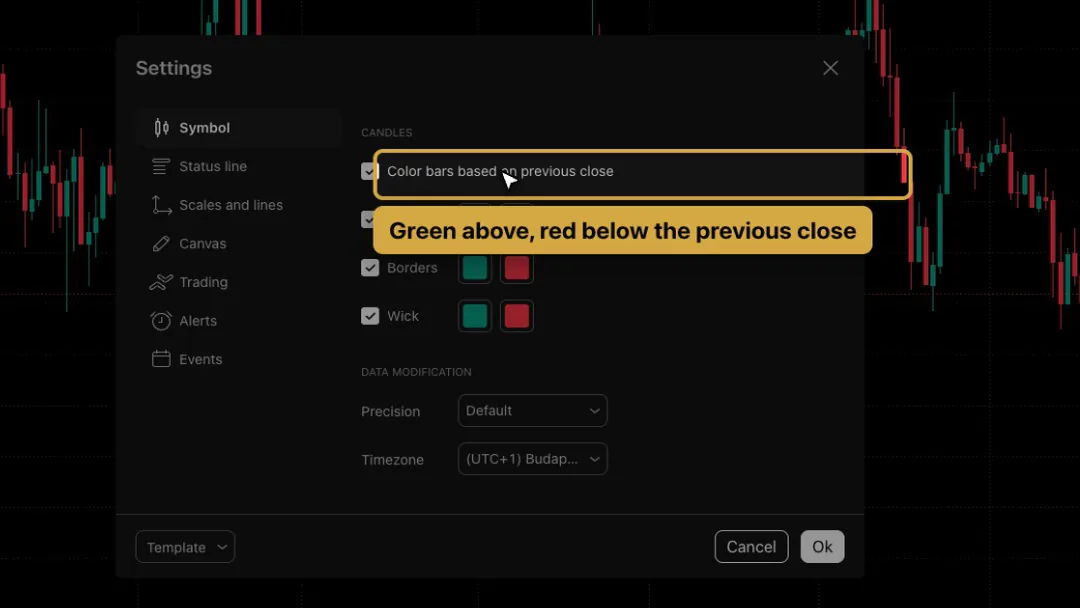
If you use PipTrend, this is also the tab where you untick Body, Borders and Wick so the PipTrend candles show. See How to add PipTrend and show the PipTrend candles.
Step 4: Status line tab
The status line is the text in the top left corner of the chart.
- Untick Open market status.
- Untick Chart values.
- Untick Buy/sell buttons.
- Tick Volume.
You keep the symbol name and the change of the current candle, without the clutter.
Step 5: Scales and lines tab
Keep No overlapping labels on, and keep Countdown to bar close on. The countdown shows how long until the current candle closes. That matters, because signals are confirmed on the candle close.
Step 6: Canvas tab
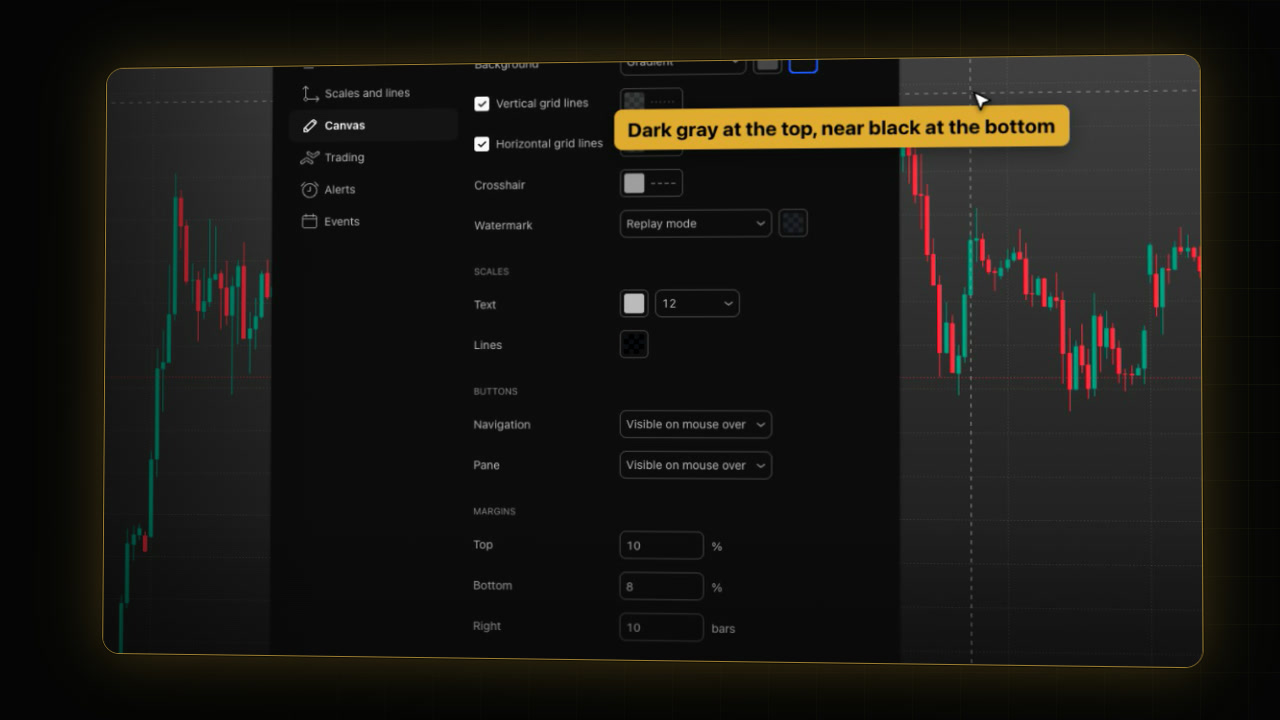
- Change Background from Solid to Gradient.
- Click the first colour, then the + button, type the code below, and click Add:
4A4A4A- Click the second colour, then +, type this code, and click Add:
151515The chart now fades from dark gray at the top to near black at the bottom.
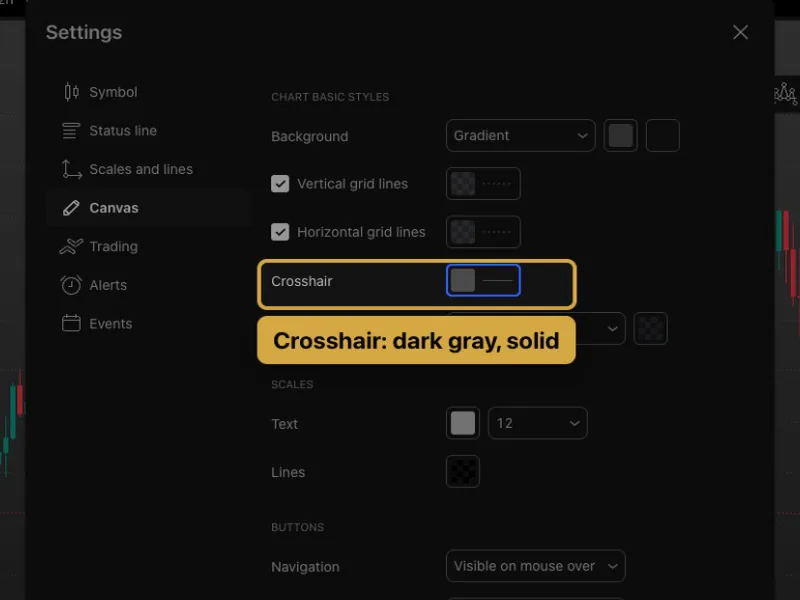
- Click the Crosshair button. A colour picker opens.
- In the row of saved colours, click the dark gray you just added. If it isn’t there, click +, type this code, and click Add:
4A4A4A- Under Line style, click the solid line, the first of the three options. The Crosshair button now shows a dark solid line.
- Press Escape to close the picker.
TradingView’s default crosshair is a lighter, dashed gray. A darker, solid crosshair stays easy to follow without pulling your eye away from the candles.
- Open Watermark and untick Replay mode. Watermark is a set of checkboxes (Ticker, Interval, Description, Replay mode). With all of them unticked it shows Hidden, and nothing is printed behind the candles.
Step 7: Events tab
- Keep Economic events on, so upcoming news shows on the time scale.
- Untick Latest news, to keep the chart quiet.
Step 8: Save it as a template for every chart
Before you click Ok:
- Click Template at the bottom left and choose Save as….
- Name the template:
PipTrend Dark- Click Save, then Ok.
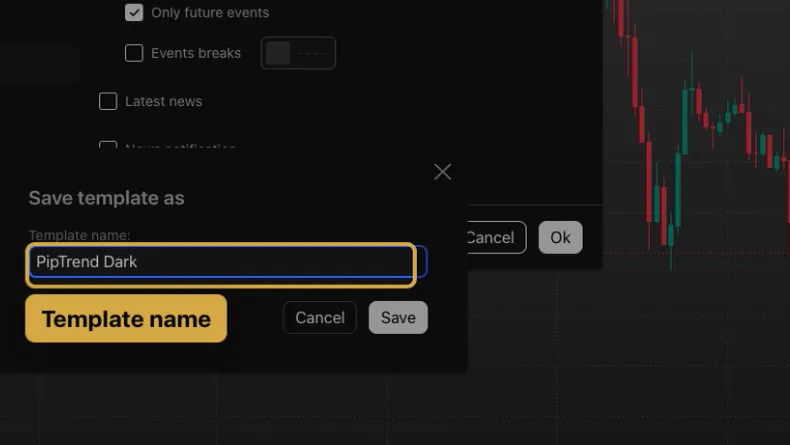
On any new chart, open Settings…, click Template, pick PipTrend Dark, and you’re done in two clicks.
Step 9: Favourite timeframes
Click the arrow next to the timeframe buttons at the top. Every timeframe with a star sits in the toolbar, so switching takes one click. Star the ones you use and unstar the rest.
You can also type a timeframe straight on the chart: type 4, then H, and press Enter, and the chart switches to four hours.
Custom intervals such as 2 hours or 8 hours need a paid TradingView plan.
Step 10: Favourite drawing tools
On the left toolbar, click the small arrow next to a tool group. Every tool has a star. Starred tools appear in the floating favourites bar at the top of the chart. Keep only the tools you use.
Our full settings, for reference
| Tab | Setting | Value |
|---|---|---|
| Theme | Dark theme | on |
| Symbol | Color bars based on previous close | on |
| Status line | Open market status, Chart values, Buy/sell buttons | off |
| Status line | Volume | on |
| Scales and lines | No overlapping labels, Countdown to bar close | on |
| Canvas | Background | Gradient, two dark grays (codes in Step 6) |
| Canvas | Crosshair | Dark gray, solid line (code in Step 6) |
| Canvas | Watermark | Hidden (all unticked) |
| Events | Economic events | on |
| Events | Latest news | off |
The table is for orientation. Copy the colour codes from the blocks in Step 6.
Dark mode or settings not working? What to check
- The Dark theme switch flips but nothing changes: this happened to us on a chart with custom canvas colours. Open Settings…, click Template, choose Apply defaults, click Ok, switch the theme, then apply your template again.
- Can’t find the + button: it is the last item in the colour picker’s bottom row, after your saved colours.
- Watermark still shows text: open Watermark and make sure every checkbox is unticked.
FAQ
What are the best TradingView chart settings for trading?
A dark theme, a minimal status line, a quiet canvas without watermark, a dark solid crosshair, and a visible countdown to bar close. The exact colours are personal. Ours are the codes in Step 6.
How do I turn on dark mode in TradingView?
Click your profile picture in the top left corner and turn on Dark theme.
How do I save TradingView chart settings for every chart?
In Settings…, click Template, choose Save as…, and name it. On any new chart, open Settings…, click Template, and pick your template.
Do I need a paid TradingView plan for these settings?
No. Everything in this guide works on the free plan, except custom intervals such as 2 hours or 8 hours.
Why did dark mode not change my chart?
We saw this on a chart with custom canvas colours. Open Settings…, click Template, choose Apply defaults, click Ok, switch the theme, then apply your template again.
Transcript
Full transcript
This is TradingView’s default chart. A white background, a busy status line, and buy and sell buttons on the chart. In this video, you’ll turn it into the clean dark setup we use at PipTrend. You’ll switch to the dark theme. You’ll go through the chart settings, tab by tab. And you’ll save everything as a template. Then you’ll set up your favourite timeframes and drawing tools.
Start with the theme. Click your profile picture in the top left corner. Turn on Dark theme. The whole platform switches, and the chart follows. Press Escape to close the menu.
Now open the chart settings. Right-click the chart and choose Settings. On the Symbol tab, tick Color bars based on previous close. Now a candle is green when it closes above the previous close, and red when it closes below. Below that, check that the timezone matches your own, so session times line up.
Next, the Status line tab. This is the text in the top left corner of the chart. Untick Open market status, Chart values, and Buy/sell buttons. Then tick Volume. You keep the symbol name and the change of the current candle, without the clutter.
On Scales and lines, keep No overlapping labels on. And keep Countdown to bar close on. The countdown shows how long until the current candle closes. That matters, because signals are confirmed on the candle close.
Now the Canvas tab, where the look comes from. Change Background from Solid to Gradient. Click the first colour, then the plus button. Type 4A4A4A, and click Add. Do the same for the second colour, with 151515. The chart now fades from dark gray at the top to near black at the bottom. Next, the crosshair. Click its colour, and pick the same dark gray, 4A4A4A, from your saved colours. Then choose the solid line style. A darker, solid crosshair stays easy to follow without pulling your eye away from the candles. Finally, open Watermark and untick Replay mode, so nothing is printed behind the candles.
Last, the Events tab. Keep Economic events on, so upcoming news shows on the time scale. Untick Latest news, to keep the chart quiet.
Before you click Ok, save all of this as a template. Click Template, choose Save as, and name it PipTrend Dark. Then click Save. On any new chart, open Settings, pick this template, and you’re done in two clicks. Now click Ok.
Next, your timeframes. Click the arrow next to the timeframe buttons at the top. Every timeframe with a star sits in the toolbar, so switching takes one click. Star the ones you use, and unstar the rest. You can also type a timeframe straight on the chart. Type 4, then H, and press Enter. The chart switches to four hours.
Finally, drawing tools. On the left toolbar, click the small arrow next to a tool group. Every tool has a star. Starred tools appear in the floating favourites bar, here at the top of the chart. Keep only the tools you use, and you’ll never dig through menus again.
That’s the setup. Your chart is dark, calm, and saved as a template. Next, save your setup with layouts and indicator templates.
Related guides
- TradingView layouts, templates and multi-chart
- How to build a forex watchlist dashboard on TradingView
- How to add PipTrend and show the PipTrend candles
Risk Disclaimer: Trading involves risk. Past performance doesn't guarantee future results. Only trade with money you can afford to lose. PipTrend is a tool to assist your trading decisions, not financial advice.
Finished this guide?
Was this guide helpful?

