In short: open the watchlist panel, create a new list, and add a section for each quote currency, for example JPY. Add the pairs with the plus button, or upload our ready-made list. Flag the pairs that matter today (we use cyan for watching and red for an open position), then step through the list with the arrow keys.
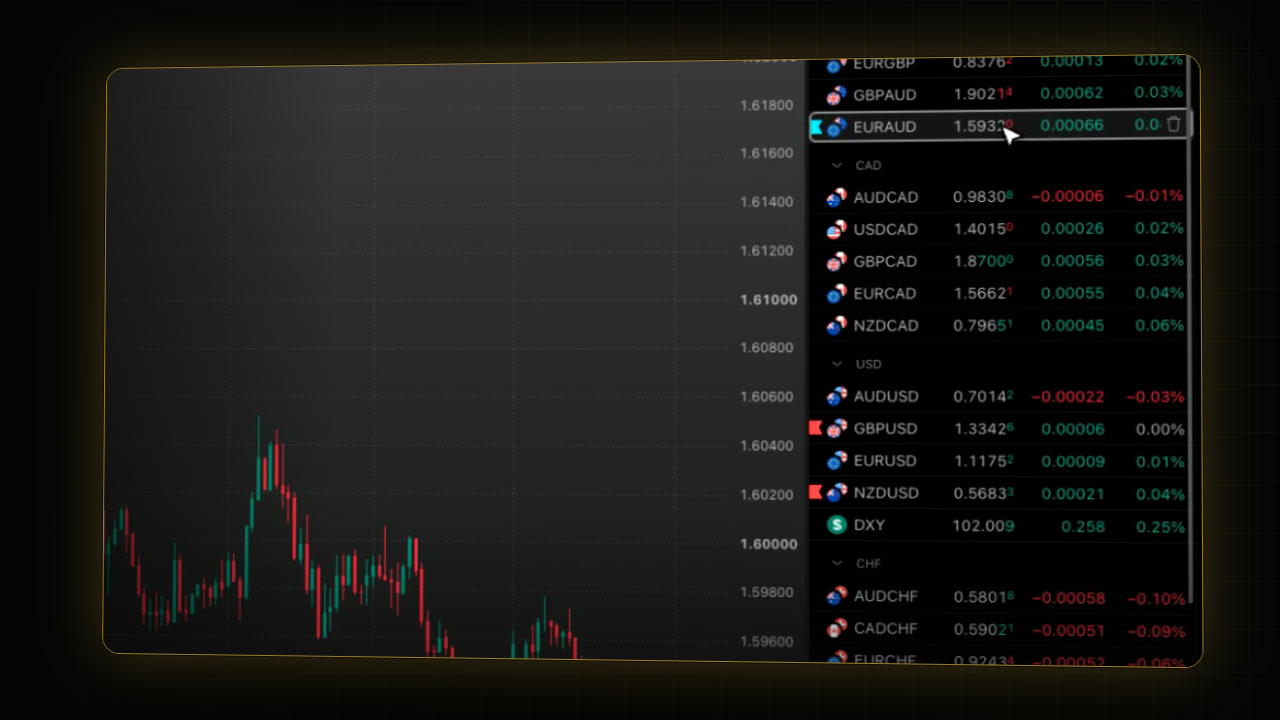 Video coming soon
A watchlist can be more than a list of symbols. Set up well, it becomes your daily dashboard: one look tells you which currencies are moving, and which pairs need your attention today. This is the forex list we use for swing trading.
Step 1: Open the watchlist
- On the right edge of the chart, click the watchlist icon at the top of the toolbar (“Watchlist, details, and news”).
- The watchlist panel opens. The name of the current list is at the top left of the panel.
Step 2: Create a new list
- Click the list name at the top of the panel.
- Choose Create new list….
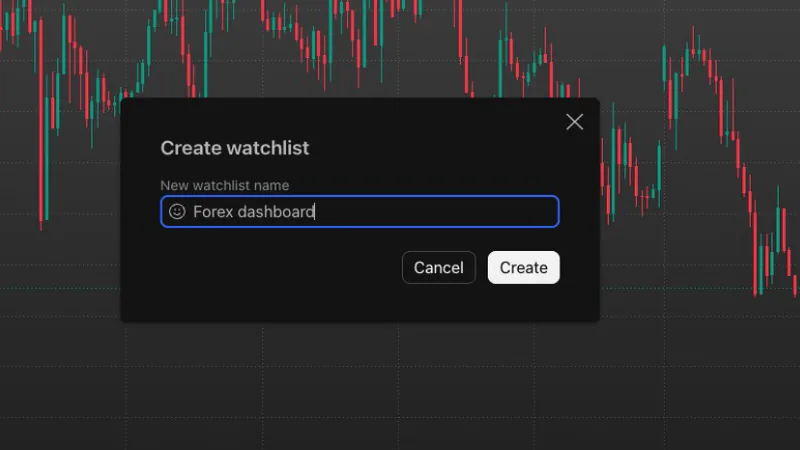
- The Create watchlist window opens. Type the name, for example:
Forex dashboard- Press Enter. The new, empty list opens in the panel.
Step 3: Add watchlist sections by quote currency
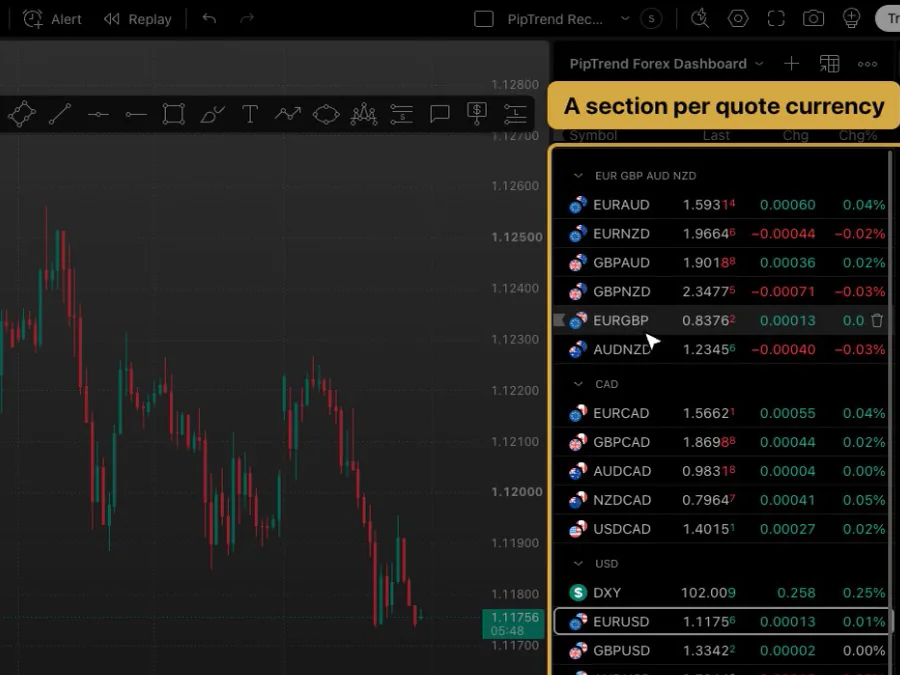
Group the pairs by their second currency, the quote currency. EURJPY, GBPJPY and USDJPY all go into a JPY section. When every pair in a section moves the same way, it is that one currency moving, and you see it at a glance.
- Click the list name again and choose Add section.
- A section called SECTION 1 appears. Double-click it to edit the name.
- Type the name and press Enter:
JPYYou can also right-click a section and choose Rename.
Step 4: Add the pairs
- Click the + button (Add symbol) at the top of the panel.
- Type the first pair and press Enter:
OANDA:USDJPY- The window stays open, so type the next pair and press Enter:
OANDA:EURJPY- Add the third the same way, then press Escape to close the window:
OANDA:GBPJPYThe part before the colon is the data feed. Keep one feed per list, ideally the one that matches your broker, so all prices come from the same source.
Step 5: Or import our ready-made list (.txt)
Building the full list by hand takes a few minutes. Our ready-made list has the same sections we use: EUR GBP AUD NZD, CAD, USD (with the dollar index DXY), CHF, JPY, and a JUST WATCHING section with NAS100, US30, gold, silver, Bitcoin and the DAX. It uses the OANDA feed.
- Download the file: PipTrend Forex Dashboard.txt
- Click the list name at the top of the panel and choose Upload list….
- Pick the downloaded file.
- A new list called PipTrend Forex Dashboard opens, with its sections and 34 symbols.
Step 6: Flag the pairs that matter
- Right-click a pair in the list.
- At the top of the menu, under Flag/Unflag, click a colour. The flag appears on the left edge of the row.
The keyboard shortcut is Alt+Enter on Windows and Option+Enter on a Mac. To remove a flag, right-click the pair and click Flag/Unflag again.
We use just two colours:
| Colour | Meaning |
|---|---|
| Cyan | A market we are watching, for example a setup is forming. |
| Red | A pair where we have an open position. |
These two colours are all you need. If you want more, you could use green for a pair with an alert set, or orange for big news this week on one of its currencies. Make the flags your own, with one meaning per colour.
Step 7: Choose the columns and sort
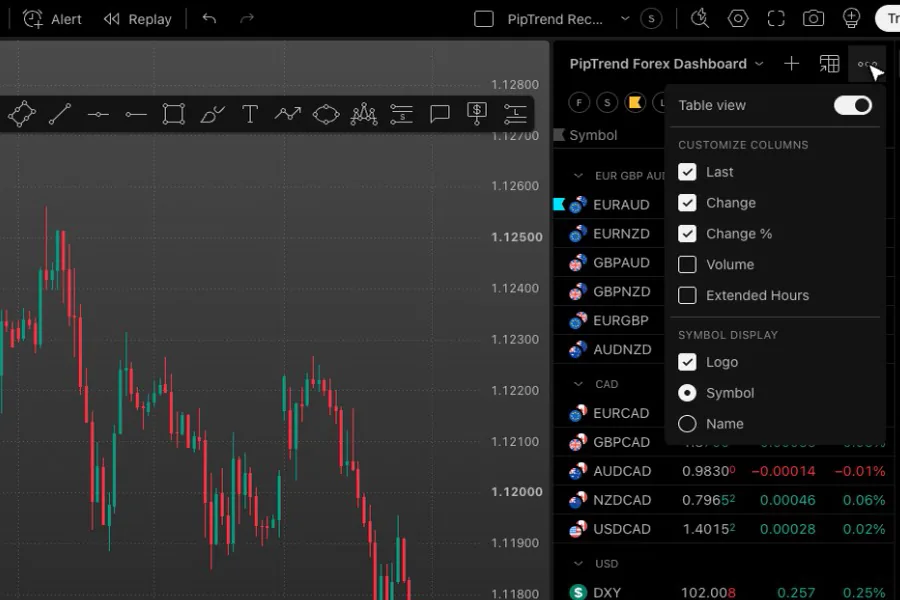
- Click the three dots (Settings) at the top of the panel.
- Under Customize columns, keep Last, Change and Change %. They are enough for a quick read.
- Press Escape to close the menu.
- Click a column header, for example Chg%, to sort by it. The list sorts inside each section, so your groups stay together.
Step 8: Use it as a dashboard
- Click a pair in the list. The chart switches to it.
- Press the down arrow key to move to the next pair, and the chart follows.
You can check every chart in a few minutes.
Extra tip: the dollar index
The USD section starts with the dollar index, DXY, as a quick read on the dollar. We used to watch all the currency indices for bias (DXY, EXY, BXY, JXY and the others), but today only DXY is part of our routine. With a futures data subscription, the futures versions give close to 24-hour data.
Can you set one alert on a whole watchlist?
Yes, on a paid plan. On the higher TradingView plans, Add alert on the list… in the list menu sets one alert that watches every symbol in the list. See TradingView’s pricing page for which plans include watchlist alerts. If you upgrade, signing up through our link gives you $15 toward your next plan (paid plans only).
Your watchlists sync to the TradingView app, so the same dashboard is on your phone.
If it doesn’t work
- Typing a pair changed the chart instead of adding it: the Add symbol window was not open. Click the + button first, then type.
- Add section did not ask for a name: that is normal. Double-click SECTION 1 to rename it.
- The sorted order looks wrong: a column sort is on. Click the circular arrow next to the sorted column header to go back to your own order.
FAQ
How do I create a watchlist on TradingView?
Open the watchlist panel on the right, click the list name at the top, choose Create new list…, type a name and press Enter.
How do I add sections to a TradingView watchlist?
Click the list name, choose Add section, then double-click SECTION 1 and type the section name.
How should I group forex pairs in a watchlist?
Group them by the quote currency, the second currency of the pair, for example all JPY pairs in one section. When a whole section moves the same way, that currency is moving.
Can I import a watchlist into TradingView?
Yes. Click the list name, choose Upload list… and pick a text file. The file name becomes the list name.
What do the flag colours mean?
Whatever you decide. We use cyan for a market we are watching and red for a pair with an open position.
Does my watchlist sync to the TradingView app?
Yes. Your watchlists sync to the TradingView app, so the same dashboard is on your phone.
Transcript
Full transcript
A watchlist can be more than a list of symbols. Set up well, it becomes your daily dashboard: one look tells you which currencies are moving, and which pairs need your attention today. In this video, you’ll build the forex watchlist we use for swing trading, grouped by currency, with flags for the pairs that matter.
The watchlist lives in the right panel. Click the watchlist icon at the top of the right toolbar to open it.
Click the list name at the top, and choose Create new list. Give it a name, for example Forex dashboard, and press Enter.
Now the idea behind it. Group the pairs by their second currency, the quote currency. When every pair in a group moves the same way, it’s that one currency moving, and you see it at a glance. Open the list menu, choose Add section, and name it, for example JPY.
Click the plus to add symbols. Type a pair, like USDJPY, and press Enter. Add the others the same way, like EURJPY and GBPJPY.
Building the full list takes a few minutes. To save time, upload our ready-made list. Open the list menu, choose Upload list, and pick the file from the guide linked below. It has a section for each quote currency, plus one for gold, silver, indices and Bitcoin.
Flags turn the list into a dashboard. Right-click a pair and pick a colour, or use the keyboard shortcut. I use just two colours. Cyan marks a market I’m watching, for example when a setup is forming. Red marks a pair where I have an open position. These two colours are all you need. If you want more, you could use green for a pair with an alert set, or orange for big news this week. Make the flags your own.
Click the three dots to choose the columns. Last, Change and Change percent are enough for a quick read. Click a column header to sort by it.
Now use it as a dashboard. Click a pair, and the chart switches to it. Step through the list with the arrow keys, and you check every chart in a few minutes. Keep one data feed per list, so all prices come from the same source, ideally the one that matches your broker.
An extra tip: the USD section starts with the dollar index, DXY, as a quick read on the dollar. I used to watch all the currency indices for bias, but today only DXY is part of my routine. And on the higher paid plans, you can set one alert on a whole list.
Your watchlists sync to the TradingView app, so the same dashboard is on your phone too. Next, set up alerts, so the market can tell you when it’s time to look.
Related guides
- How to set alerts on TradingView
- Which forex symbol and data feed to use on TradingView
- TradingView chart settings: a clean dark setup
Risk Disclaimer: Trading involves risk. Past performance doesn't guarantee future results. Only trade with money you can afford to lose. PipTrend is a tool to assist your trading decisions, not financial advice.
Finished this guide?
Was this guide helpful?

