In short: PipTrend Zones spots the key levels where price is most likely to react: good places to look for an entry, together with other confluence.
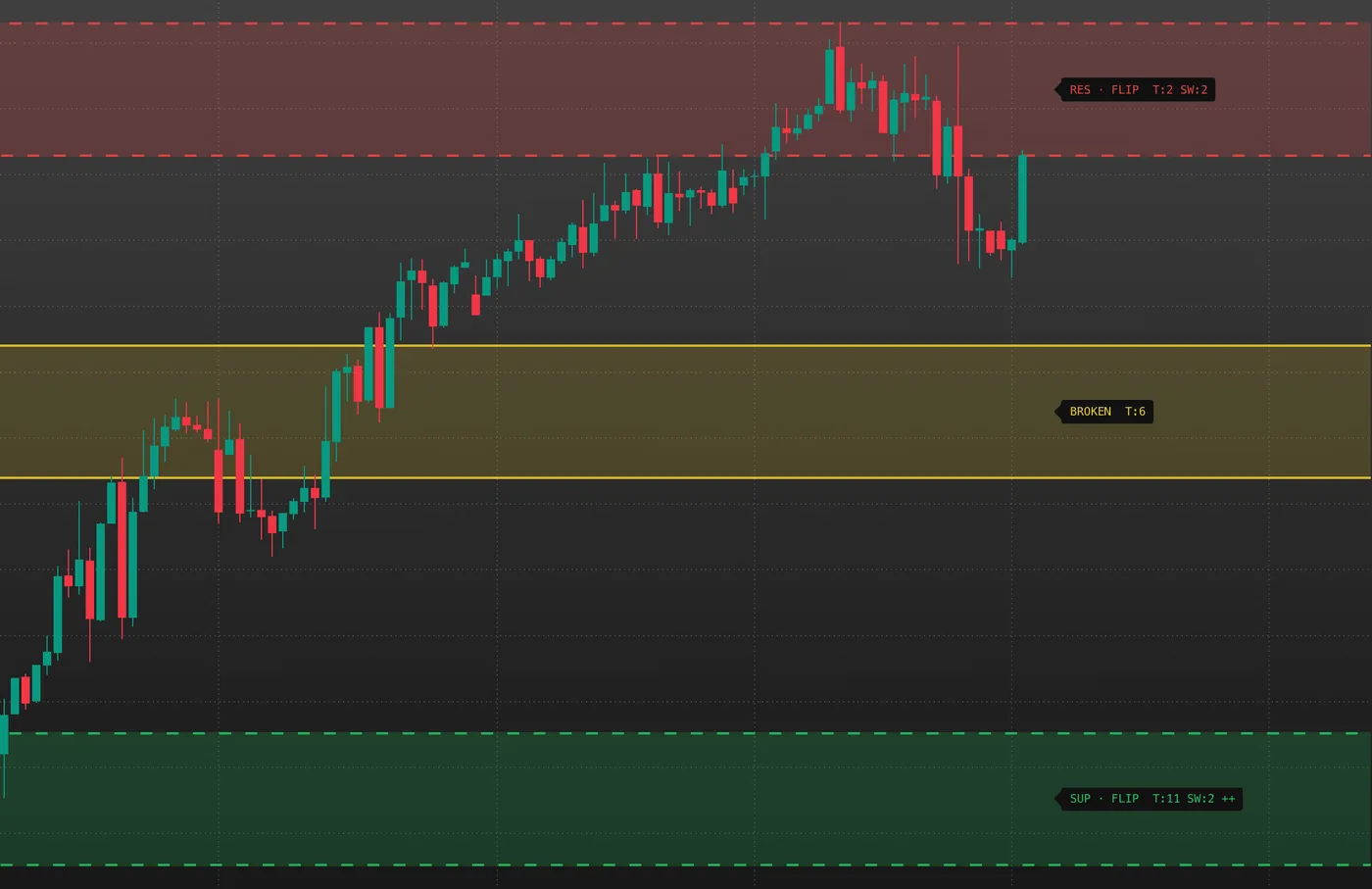
- The pair: one support zone below price (green) and one resistance zone above it (red), held steady until a zone breaks with a confirmed close.
- The tags: SUP or RES, T for touches, SW for sweeps, + or ++ for an overlap with a higher-level PipTrend zone, FLIP for a zone broken once.
- The broken zone: a yellow-gold box kept as a retest watch.
A zone on its own is not a signal. The same zones show on every intraday chart up to 4 hours; 15 minutes to 4 hours is recommended, and the 1-hour chart works best.
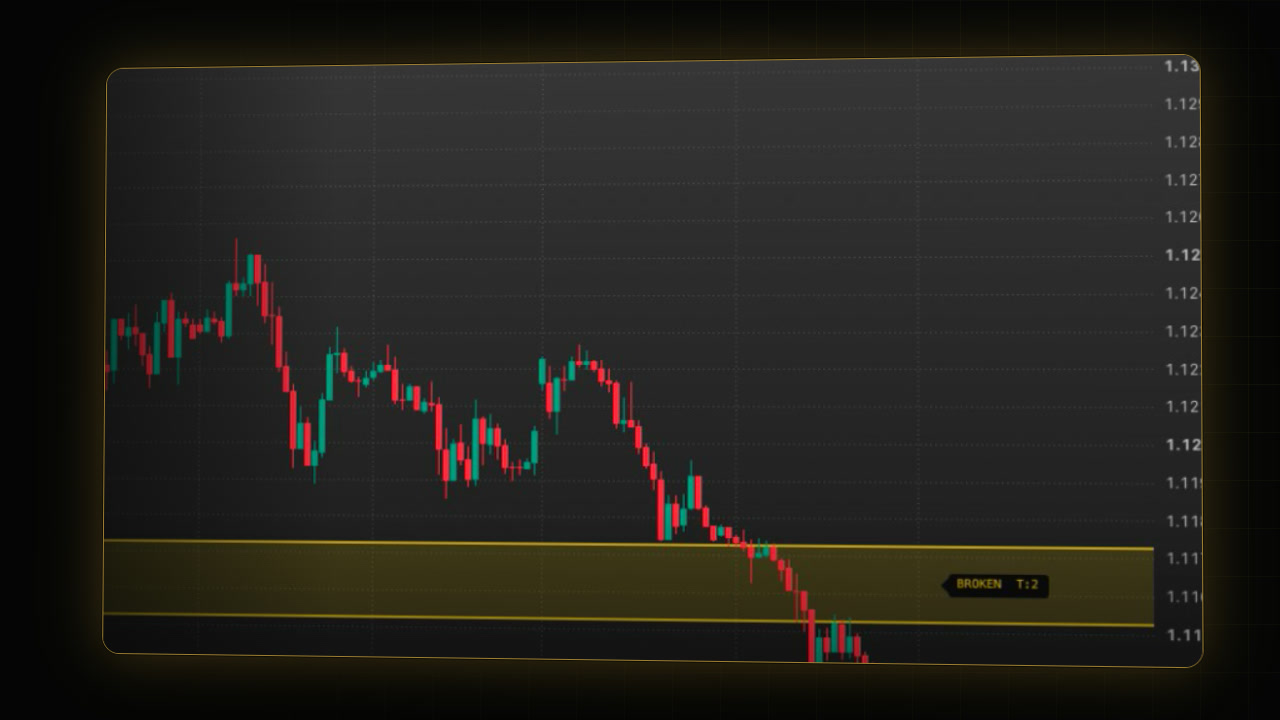 Video coming soon
PipTrend Zones is a Key Levels indicator, like PipTrend Session Liquidity: it marks where price may react and draws no candles. Its zones come from the PipTrend Engine, our own swing-based support and resistance method.
Step 1: Add it to your chart
- On your TradingView chart, click Indicators in the top toolbar.
- Click Invite-only scripts on the left.
- Click PipTrend Zones. In the chart legend it shows as PT Zones.
- Use a chart from 15m to 4h of a forex major, gold or a US index. The 1h chart works best.
PipTrend Zones is built for swing and day trading. It shows the same zones on every intraday chart from 1 minute to 4 hours, so a zone you mark on the 1-hour chart is the same zone on the 15-minute chart. On the 12-hour, daily and weekly charts it draws larger zones, sized for that chart. On 45-minute, 3-hour and 6-hour charts it draws nothing and a notice lists the supported timeframes.
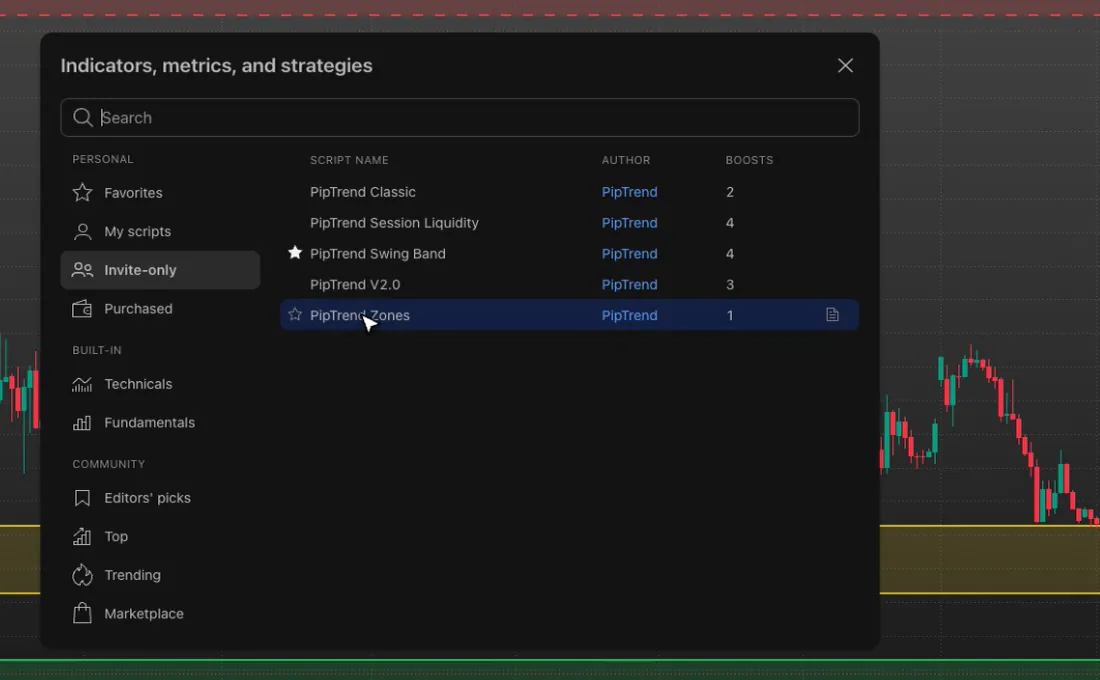
The zone pair
Many support and resistance tools draw every level they find. PipTrend Zones keeps one support zone at or below price and one resistance zone at or above it, and holds that pair steady until a zone breaks with a confirmed close. A minimum gap keeps the two apart, so the pair leaves room to trade.
Green and red mean support and resistance, not buy and sell.
What do the zone tags mean?
Each zone has a tag on the right (hover it on the chart for the same key):
- SUP or RES: the side of the zone.
- T: how often price touched the zone.
- SW: how often a wick swept through it while the close held back.
- + or ++: the zone overlaps a higher-level PipTrend zone.
- FLIP: broken once, now acting from the other side.
A stronger zone has a thicker border and a deeper fill.
What happens when a zone breaks?
- Dashed border: the zone broke once and now acts from the other side.
- Yellow-gold box with a thick border: the most recently broken zone. Its tag reads BROKEN · RETEST WATCH after the first break, because a broken zone can act from the other side if price comes back, and BROKEN after a second break, when it stays as a reference level only. It never fires an alert.
- Dotted box: while the live price is beyond a displayed zone and the break is not confirmed yet, it previews the next PipTrend zone beyond price. It follows the live price, can appear and disappear, and never fires an alert.
The Zones panel
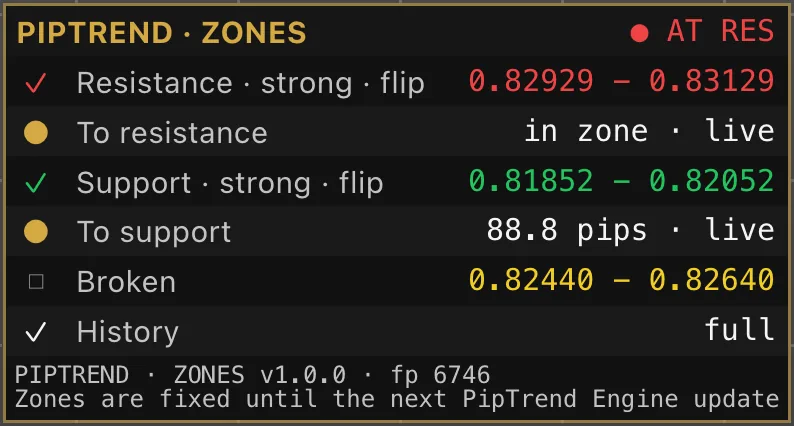
Top right by default:
- Header: where the live price sits: BETWEEN, AT SUP, AT RES, ABOVE RES or BELOW SUP.
- Resistance and Support: the zone prices, marked strong or flip.
- To resistance and To support: the live distance to each (in pips on forex).
- Broken: the broken zone.
- History: full when enough history is loaded for every zone and its strength to come out the same on any load; partial otherwise, which is the usual state on intraday charts.
How to use PipTrend Zones for entries
- Open a chart from 15 minutes to 4 hours, ideally the 1-hour, of a forex major, gold or a US index, and add PipTrend Zones.
- Read the panel: the support and resistance zones, the distance to each, and where price sits between them.
- When price comes to a zone, look for your entry there, with other confluence, such as the trend from PipTrend V2.0 or a Session Liquidity level, and your risk fixed before you enter.
- If price closes beyond a zone, wait for the confirmed break: the zone moves to the broken box and a new pair appears. Watch how price reacts if it comes back to the broken zone.
Settings
Double-click PT Zones in the legend. ZONES switches the tags, the broken zone and the preview; ZONES PANEL sets the panel’s corner and text size; COLOURS sets the support, resistance and broken colours.
Leave PIPTREND ENGINE (ADVANCED) at its defaults unless you know why: it only sets the zone height and the gap between the two zones.
Alerts
Create an alert with the condition Any zone event (context) and the frequency Once Per Bar Close. It fires when a displayed support or resistance zone is touched, swept or broken. Support touched (context), Resistance touched (context), Support broken (context) and Resistance broken (context) split the events by side. An alert tells you price is at a key level; the entry still needs your own confluence. See PipTrend alerts: every alert condition explained.
If it doesn’t work
- Only a notice, no zones: the chart timeframe is not supported (45 minutes, 3 or 6 hours, or a custom one). Switch to a chart from 15 minutes to 4 hours.
- The tags are cut off at the right: scroll the chart a little to the left, so there is empty space after the last candle.
- The zones differ from another chart of the same symbol: check the History row. With partial history, zones and their strength can differ on a chart with more history.
- Price traded beyond a zone, but the panel still lists it: a break needs a confirmed close. Until then the header says ABOVE RES or BELOW SUP.
FAQ
What do T and SW mean on PipTrend Zones?
T counts how often price touched the zone. SW counts how often a wick swept through it while the close held back.
What does the yellow box mean in PipTrend Zones?
It is the most recently broken zone, kept as a retest watch: a broken zone can act from the other side if price comes back. It never fires an alert.
Which timeframe should I use PipTrend Zones on?
Any chart from 15 minutes to 4 hours; the 1-hour chart works best. The zones are the same on every intraday chart up to 4 hours. The 12-hour, daily and weekly charts get larger zones.
Is a PipTrend zone a buy or sell signal?
No. A zone is a key level where price is most likely to react, which makes it a good place to look for an entry. Confirm it with other confluence and fix your risk before you enter.
Do PipTrend Zones repaint?
The support and resistance pair holds until a zone breaks with a confirmed close. The dotted next zone preview follows the live price, so it can appear and disappear. And with partial history in the panel, zones and their strength can differ on a chart that loads more history.
Why are there no zones on my chart?
The chart timeframe is not supported: 45 minutes, 3 or 6 hours, or a custom one. Switch to a chart from 15 minutes to 4 hours.
Why do zones differ between two charts of the same symbol?
Check the History row in the panel. With partial history, zones and their strength can differ on a chart with more history.
Transcript
Full transcript
PipTrend Zones is a key levels indicator too. It draws support and resistance zones, built by the PipTrend Engine, our own swing-based method. It spots the key levels where price is most likely to react, so they’re good places to look for an entry, together with other confluence. A zone on its own is not a signal.
Open Indicators, go to Invite-only scripts, and click PipTrend Zones. On the chart, it shows as PT Zones. It’s built for swing and day trading, and it shows the same zones on the intraday charts, up to 4 hours. We recommend 15 minutes to 4 hours, and the 1-hour chart works best.
Instead of drawing every level it finds, it keeps one support zone below price and one resistance zone above it, and holds that pair steady until a zone breaks with a confirmed close. Green and red mean support and resistance, not buy and sell.
Each zone has a tag on the right. SUP or RES is the side. T counts how often price touched the zone, and SW how often a wick swept through it while the close held back. A plus, or two, means it overlaps a higher-level PipTrend zone. Stronger zones get a thicker border and a deeper fill.
A dashed border means the zone broke once and now acts from the other side: that’s a flip. When a displayed zone breaks, it moves to this yellow-gold box. It stays as a retest watch, because a broken zone can act from the other side if price comes back to it.
While price trades beyond a zone and the break isn’t confirmed yet, a dotted box previews the next zone beyond price. It follows the live price, so it can appear and disappear, and it never fires an alert.
The panel at the top right sums it up. The header shows where price sits, here at support. Below it, the resistance and the support zone with their prices, the live distance to each, the broken zone, and the History row.
History says full when enough bars are loaded for every zone to come out the same on any load. On intraday charts, partial is normal: then the zones and their strength can differ on a chart with more history.
Here’s how to use it. On your chart, ideally the 1-hour, read the panel: the two zones, the distance to each, and where price sits. When price comes to a zone, look for your entry there, with other confluence, such as the trend from PipTrend V2.0 or a Session Liquidity level, and your risk fixed before you enter. If price closes beyond a zone, wait for the confirmed break, then watch how price reacts if it comes back to the broken zone.
Leave the PipTrend Engine settings at their defaults unless you know why. They only set the zone height and the gap between the two zones.
Its alerts fire when a displayed zone is touched, swept or broken, at the close of a candle. They tell you price is at a key level. The entry still needs your own confluence.
Next, see PipTrend Swing: trend ideas, the tracker, and fitting it to your pair.
Related guides
- PipTrend Swing guide
- Build your PipTrend chart: one indicator per family
- PipTrend Session Liquidity guide
Risk Disclaimer: Trading involves risk. Past performance doesn't guarantee future results. Only trade with money you can afford to lose. PipTrend is a tool to assist your trading decisions, not financial advice.
Finished this guide?
Was this guide helpful?

