In short: use one indicator that draws candles, from the Trend or Trade Setups family, and add Key Levels indicators on top.
- Free plan: two indicators visible at a time, so a good pair is one Trend indicator and one Key Levels indicator. Hidden indicators don’t count, so you can keep the others on the chart and switch.
- Paid plan: stack more, for example a Session Liquidity layer for intraday trading.
- Order: keep the candle-drawing indicator in front, and save the setup as an indicator template.
 Video coming soon
The three PipTrend families
| Family | What it does | Draws candles | Example |
|---|---|---|---|
| Trend | Reads the trend. | Yes | PipTrend V2.0 |
| Key Levels | Marks where price may react. | No | PipTrend Zones, PipTrend Session Liquidity |
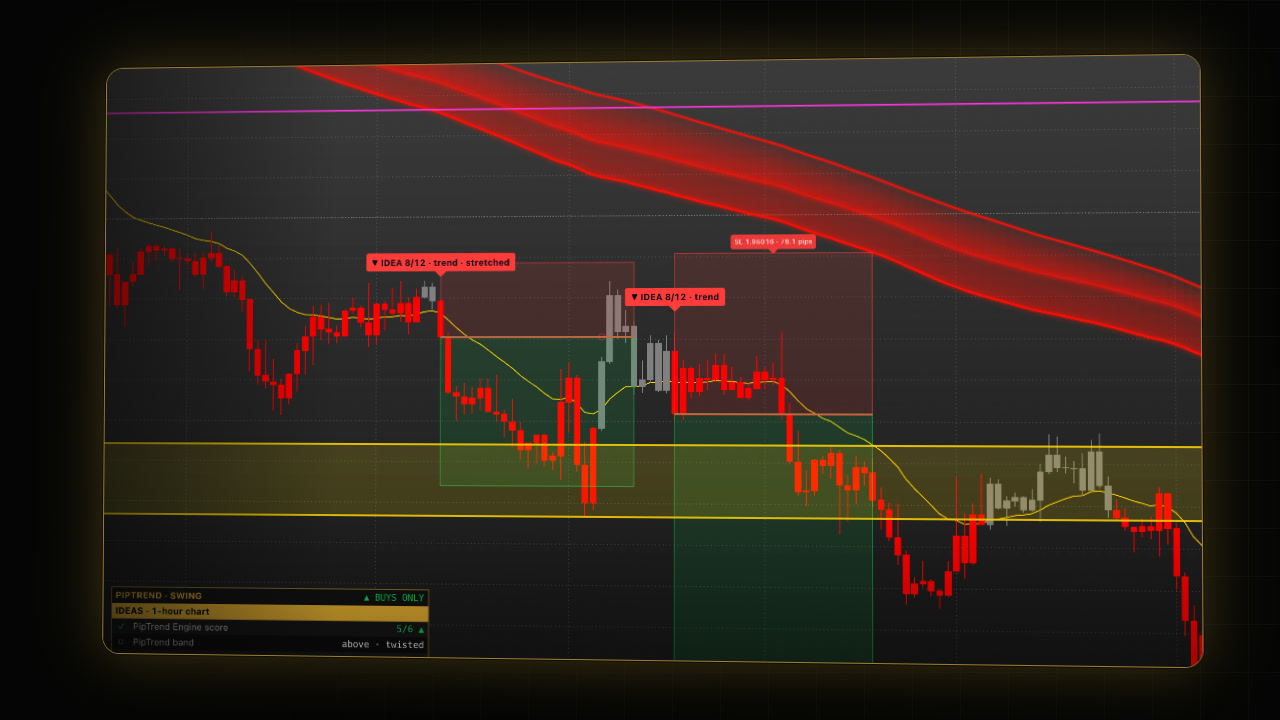
| Trade Setups | One complete setup for a trading style: an idea, a stop and a target. | Yes | PipTrend Swing |
The table is for orientation. Each family can grow over time.
Why Trade Setups indicators exist
On the TradingView free plan you can show two indicators on a chart at a time. That is one reason we build Trade Setups indicators: we try to put what a strategy needs into one indicator. A Trade Setups indicator uses the trend and the key levels in its own logic.
Pine Script, the language TradingView indicators are written in, has limits, so one indicator can’t hold everything. That is why you can stack them: if you want to see the trend or the zones on the chart as well, add a Trend or a Key Levels indicator as a second or third one. For example, PipTrend Swing already draws the zones, so add PipTrend V2.0 next to it to see its BULL and BEAR labels too, and set one of the two to Hidden under Candle display.
You can also use the individual indicators with your own strategy. For example, add PipTrend Zones or PipTrend Session Liquidity to find the key levels, and use them your way.
How do you stack PipTrend indicators?
- Use one indicator that draws candles: a Trend indicator or a Trade Setups indicator.
- Add Key Levels indicators on top. They draw no candles, so they layer over anything.
- If two candle-drawing indicators share a chart, open one of them (double-click its name in the legend), and set Candle display to Hidden (in PipTrend Swing: Hide Candles), so the colours never overlap. See Add PipTrend to your chart.
Keep the candles in front
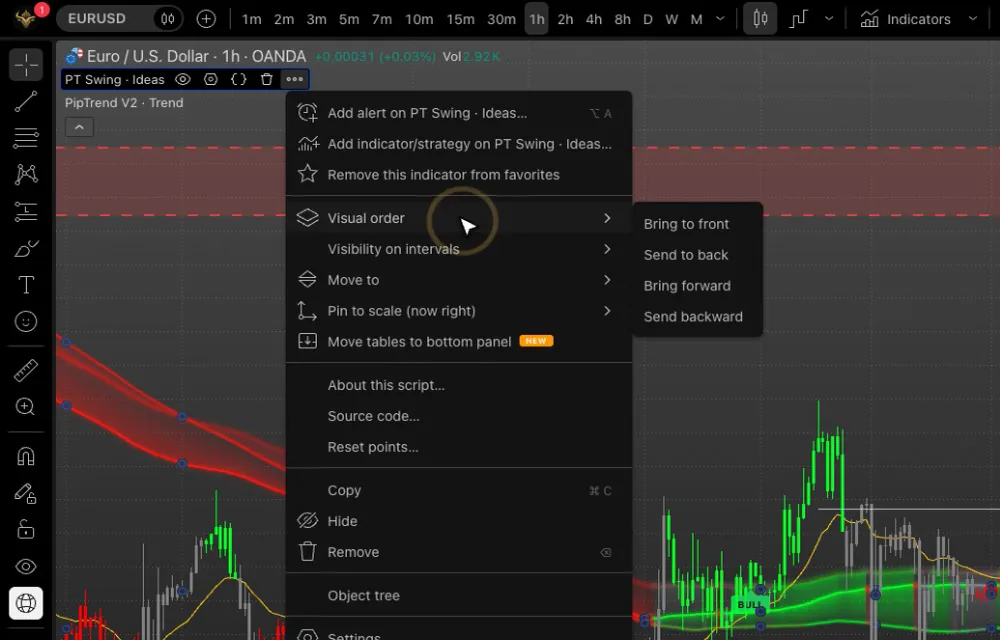
- Hover the name of the candle-drawing indicator in the chart legend, top left.
- Click the three dots next to it.
- Choose Visual order, then Bring to front.
Which PipTrend indicators work well together?
- Free plan (two visible at a time): one Trend indicator and one Key Levels indicator, for example PipTrend V2.0 with PipTrend Zones.
- Paid plan, intraday on the 15 minute chart: add PipTrend Session Liquidity too, for the killzones, the day’s levels and the VWAP. Its killzone boxes and VWAP show on charts up to 15 minutes by default. Where the trend, a killzone and a level line up, you have confluence.
- Swing trading on the 1-hour chart: PipTrend Swing, plus PipTrend V2.0 for its BULL and BEAR labels, with one of the two set to Hidden under Candle display.
How many indicators fit on one chart depends on your plan. Our guide to the TradingView free plan explains the current limits. If you upgrade, signing up through our link gives you $15 toward your next TradingView plan (paid plans only).
Do hidden indicators count on the free plan?
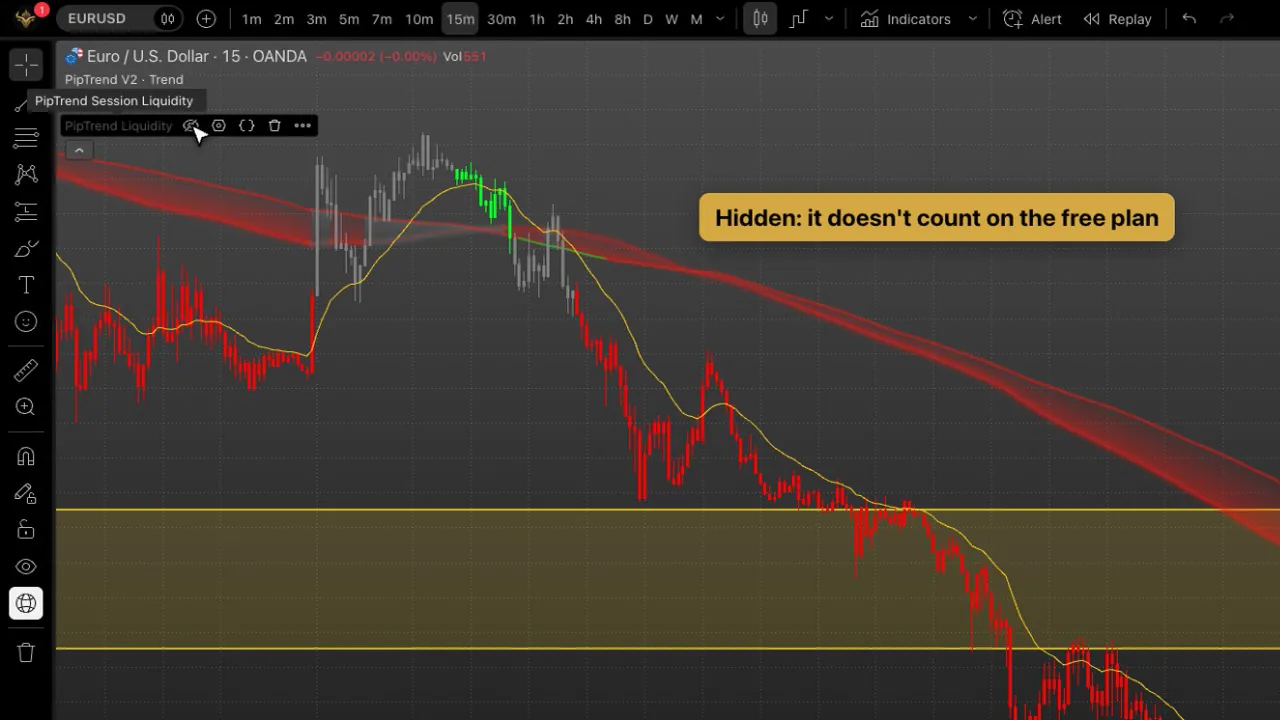
On the free plan, only two indicators can be visible at a time, but hidden indicators don’t count (tested on a free account, October 2026). So add every PipTrend indicator you use, and hide the ones you don’t need right now:
- Hover the indicator’s name in the chart legend, top left.
- Click the eye icon next to it. The indicator is hidden and stays on the chart.
- To switch, hide one and show another with the same eye icon.
Panels
Each indicator can show its own panel. If two panels land in the same corner, open one indicator’s settings and move its panel with Corner.
Save it as an indicator template
- Click the arrow next to Indicators in the top toolbar.
- Open the Templates tab and choose Save indicator template….
- Type a name, for example:
PipTrend intraday- Leave Remember Symbol and Remember Interval unticked unless the template should also switch the pair or the timeframe, and click Save.
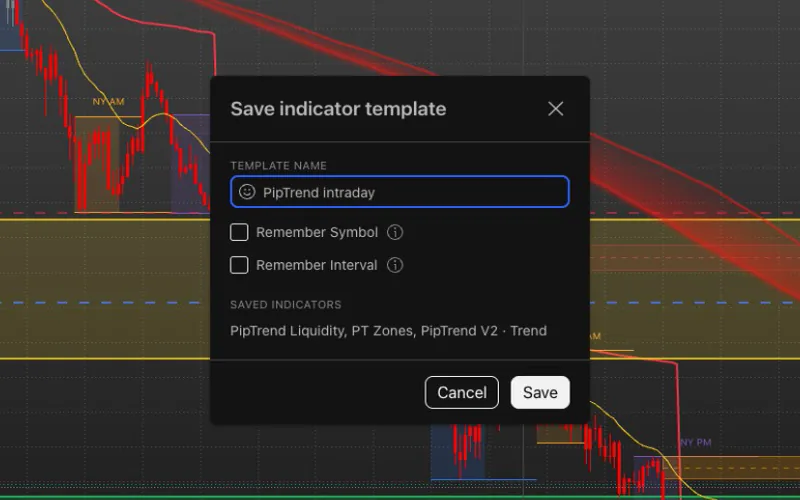
Now you can load the whole setup on any chart in one click, from the same menu under Templates. See Layouts and indicator templates.
If it doesn’t work
- You can’t show another indicator: on the free plan only two can be visible at a time. Hide one with the eye icon in the legend, then show the other.
- The colours look mixed: two indicators draw candles. Set one of them to Hidden under Candle display.
- The PipTrend candles sit behind other drawings: bring the candle-drawing indicator to front under Visual order.
- Session Liquidity shows no killzone boxes: the chart is above 15 minutes. Switch to 15 minutes or lower, or change “Show on timeframes up to” in its settings.
FAQ
How many PipTrend indicators can I use on the TradingView free plan?
Two can be visible on a chart at a time, as of October 2026, and hidden ones don’t count. A good visible pair is one Trend indicator and one Key Levels indicator; keep the others on the chart, hidden, and switch with the eye icon.
Can I use two PipTrend indicators that both draw candles?
Yes. Set one of them to Hidden under Candle display, so only one draws the candles.
Do I need a Trade Setups indicator?
No. You can use the individual indicators with your own strategy, for example PipTrend Zones or PipTrend Session Liquidity for the key levels.
Do hidden indicators count toward the TradingView free plan limit?
No (tested on a free account, October 2026). Keep every PipTrend indicator you use on the chart, hidden, and switch between them with the eye icon next to each name in the legend.
Which PipTrend indicators should I start with on the free plan?
One Trend indicator and one Key Levels indicator, for example PipTrend V2.0 with PipTrend Zones.
Can I save my PipTrend setup and load it on other charts?
Yes. Save it as an indicator template: click the arrow next to Indicators, open the Templates tab and choose Save indicator template…. Leave Remember Symbol and Remember Interval unticked, then load it on any chart from the same menu.
Transcript
Full transcript
In this video, you’ll build your PipTrend chart. PipTrend indicators come in three families. Trend indicators read the trend and draw the candles. Key Levels indicators mark where price may react, and they don’t draw candles. Trade Setups indicators bring one complete setup for a trading style, with an idea, a stop and a target.
On TradingView’s free plan, you can show two indicators on a chart at a time. That’s one reason we build Trade Setups indicators: we try to put everything a strategy needs into one indicator. A Trade Setups indicator uses the trend and the key levels in its own logic.
But Pine Script, the language TradingView indicators are written in, has limits, so one indicator can’t hold everything we’d like it to. That’s why you can stack them. If you want to see the trend or the zones on the chart as well, add a Trend or a Key Levels indicator as a second or third one.
You can also use the individual indicators with your own strategy. For example, add PipTrend Zones or PipTrend Session Liquidity to find the key levels, and use them your way.
When you stack, use one indicator that draws candles, from Trend or Trade Setups, and add Key Levels on top. They draw no candles, so they layer over anything. If two candle-drawing indicators share a chart, set one of them to Hidden under Candle display, so the colours never overlap.
Keep the indicator that draws the candles in front. Hover its name in the legend, click the three dots, go to Visual order, and choose Bring to front.
On the free plan, a good pair is one Trend indicator and one Key Levels indicator, for example PipTrend V2.0 with PipTrend Zones. On a paid TradingView plan, you can stack more. For intraday trading on the 15 minute chart, add PipTrend Session Liquidity too, for the killzones, the day’s levels and the VWAP. Where the trend, a killzone and a level line up, you have confluence.
Here’s a tip for the free plan. Only two indicators can be visible at a time, but hidden indicators don’t count. So add every PipTrend indicator you use, and hide the ones you don’t need right now: click the eye next to a name in the legend. To switch, hide one and show another.
Each indicator can show its own panel. If two panels land in the same corner, open one indicator’s settings and move its panel with Corner.
When your chart is set up, save it as an indicator template. Open the menu next to Indicators, go to Templates, and choose Save indicator template. Name it, for example PipTrend intraday, and click Save. Now you can load the whole setup on any chart in one click.
Next, set up PipTrend alerts, so your chart can tell you when something happens.
Related guides
- PipTrend alerts: every alert condition explained
- Layouts and indicator templates
- The TradingView free plan
Risk Disclaimer: Trading involves risk. Past performance doesn't guarantee future results. Only trade with money you can afford to lose. PipTrend is a tool to assist your trading decisions, not financial advice.
Finished this guide?
Was this guide helpful?

