In short: add the PipTrend indicator to your chart, click Alert, and change Condition from Price to the indicator.
- Named alert: pick it, for example Bull Signal, and set Trigger to Once per bar close.
- Any alert() function call: sends every new BULL and BEAR label from that pair and timeframe, in one alert, for as long as the alert is active.
Create one alert for each pair and timeframe you want to follow.
 Video coming soon
This guide builds on How to set alerts on TradingView, which covers the alert window, notifications and alerts on your phone. Here we cover what is specific to PipTrend.
Step 1: Pick the indicator as the condition
- Add the PipTrend indicator to your chart, for example PipTrend V2.0.
- Click Alert in the top toolbar, or press Alt+A (Option+A on a Mac).
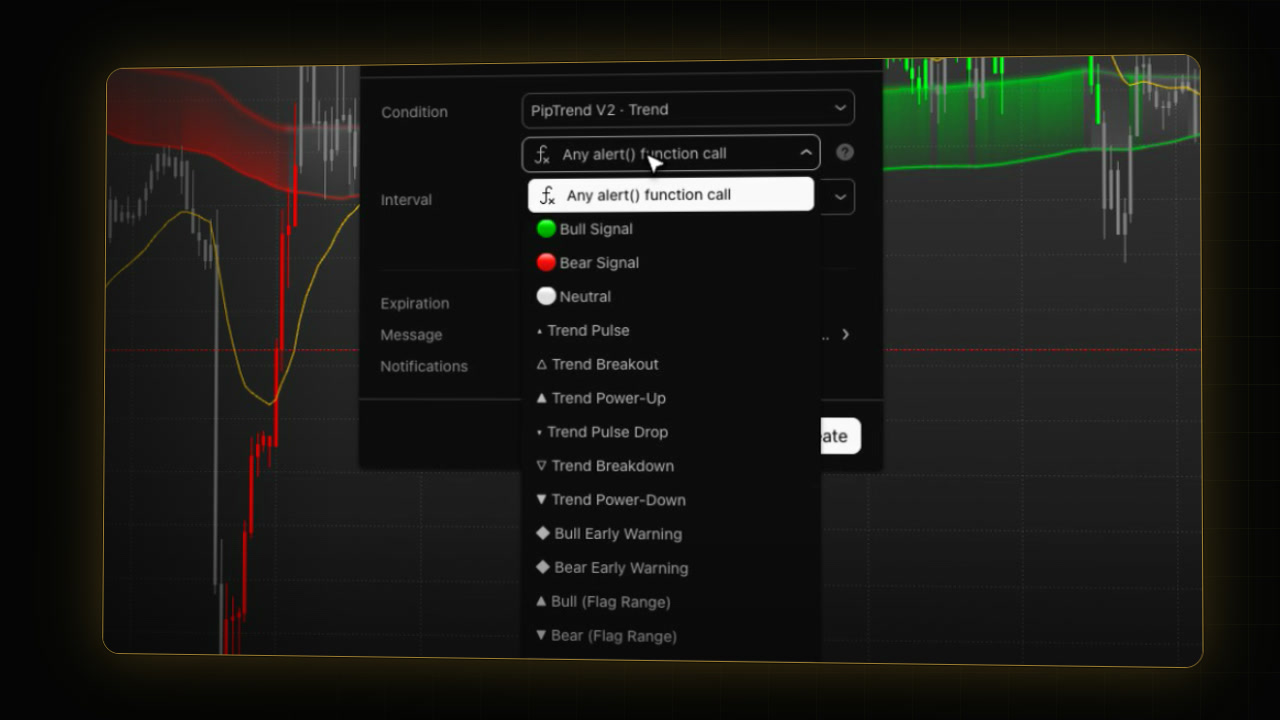
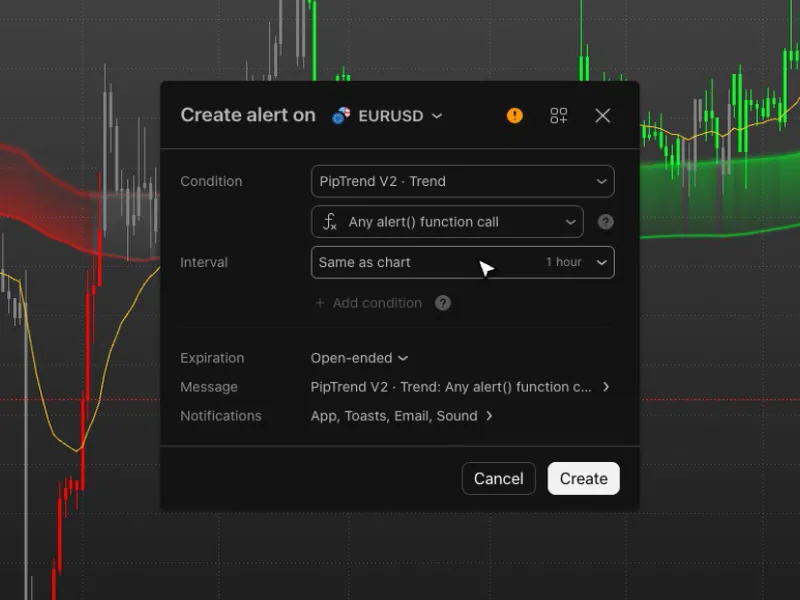
- In Condition, click Price and choose the indicator, for example PipTrend V2 · Trend.
- The second field now lists the indicator’s alerts. It starts on Any alert() function call.
Step 2: Choose a named alert or Any alert() function call
A named alert
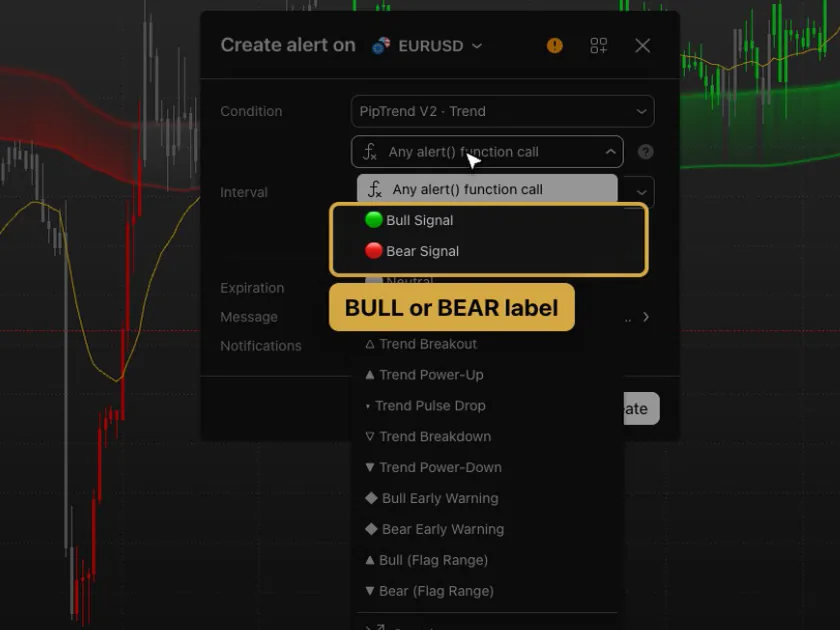
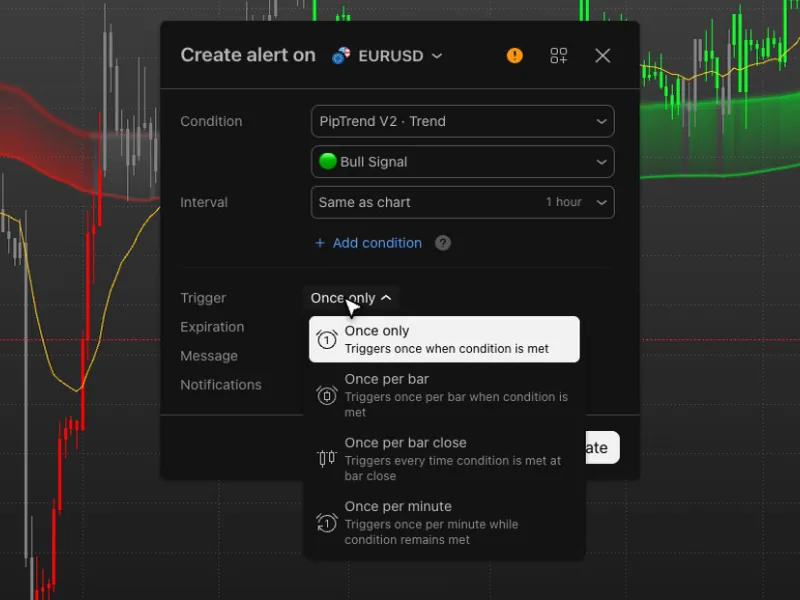
- Click the second field and pick an alert, for example 🟢 Bull Signal.
- The Trigger row appears. Click it and choose Once per bar close. PipTrend’s named alerts fire at the candle close, so this is the natural choice.
- The Message fills in for you, for example “PipTrend V2: bull”.
Any alert() function call
- Click the second field and pick Any alert() function call.
- There is no Trigger row: the indicator fires the alert itself, at the candle close.
Set it once, and it keeps running. On a 1-hour chart it sends every new BULL and BEAR label from that pair and timeframe, for as long as the alert is active. Each message carries the symbol and the side, for example “EURUSD Bull”.
To get only one side, open the indicator’s settings (double-click its name on the chart), and on the Inputs tab, under ALERTS, switch off Bull alerts (any alert() call) or Bear alerts (any alert() call). The named alerts ignore these switches.
Step 3: One alert per pair and timeframe
Each alert follows one pair on one timeframe. To follow more:
- switch the chart to another pair and create another alert, or
- use the Interval field in the alert window to pick another timeframe without changing your chart.
They all run at the same time. Each one counts toward your TradingView plan’s alert limit. If you upgrade, signing up through our link gives you $15 toward your next plan (paid plans only).
Step 4: Create
Click Create. Notifications, phone alerts and managing your alerts work as in How to set alerts on TradingView.
Why does TradingView warn that an indicator alert may repaint?
When an indicator is the alert condition, TradingView shows an orange caution sign next to the title: “This alert may function differently than expected. This is due to calculations being based on an indicator or strategy that can get repainted.” It is TradingView’s general warning for indicator alerts, because some indicators can repaint. PipTrend’s labels and alerts are calculated on closed candles, which is why we set them to fire at the candle close. The colour of the forming candle can still change until it closes.
Which alerts does each PipTrend indicator have?
PipTrend V2.0
| Alert | Fires when | Message |
|---|---|---|
| 🟢 Bull Signal / 🔴 Bear Signal | the candle that prints a BULL or BEAR label closes | PipTrend V2: bull / PipTrend V2: bear |
| ◆ Bull Early Warning / ◆ Bear Early Warning | a side becomes armed (a label may not follow) | starts with “PipTrend V2 early warning:” |
| ▲ Bull (Flag Range) / ▼ Bear (Flag Range) | a Flag Range label prints | PipTrend V2 flag range: bull / bear |
| ⚪ Neutral | the candles turn gray after a green or red run | PipTrend V2: Neutral. The trend has paused. |
| ▴ Trend Pulse, △ Trend Breakout, ▲ Trend Power-Up, ▾ Trend Pulse Drop, ▽ Trend Breakdown, ▼ Trend Power-Down | the trend lines cross (nothing is drawn on the chart) | starts with “PipTrend V2: “ |
| Any alert() function call | every BULL, BEAR or Flag Range label | the symbol and the side, for example EURUSD Bull |
PipTrend Classic
| Alert | Fires when | Message |
|---|---|---|
| 🟢 Bull Signal / 🔴 Bear Signal | a BULL or BEAR label prints at the close | PipTrend Classic: bull signal detected / bear signal detected |
| ▴ Trend Pulse, △ Trend Breakout, ▲ Trend Power-Up, ▾ Trend Pulse Drop, ▽ Trend Breakdown, ▼ Trend Power-Down | a trend marker prints | starts with “PipTrend Classic: “ |
| Any alert() function call | every BULL or BEAR label | the symbol and the side, for example EURUSD Bull |
Classic has the same Bull alerts (any alert() call) and Bear alerts (any alert() call) switches.
PipTrend Swing Band
| Alert | Fires when |
|---|---|
| Swing: any idea | a trend idea prints |
| Swing: trend idea BUY / Swing: trend idea SELL | a trend idea on that side |
| Swing: band side flip | the band changes side |
The idea message carries the entry reference, the stop and the target. For trading bots, Any alert() function call sends a JSON message per idea; choose what it sends with Webhook: trend ideas (Off, Ideas, Ideas and watch) in the indicator’s settings. The webhook sends the same untested ideas, so run any automation on a demo account first.
PipTrend Zones
| Alert | Fires when |
|---|---|
| Any zone event (context) | a shown support or resistance zone is touched, swept or broken |
| Support touched (context) / Resistance touched (context) | a zone on that side is touched |
| Support broken (context) / Resistance broken (context) | a zone on that side is broken |
Zones alerts are context, not entries, and arrive at the close of the chart candle after the event.
PipTrend Session Liquidity
| Alert | Fires when |
|---|---|
| HOD Break, LOD Break, Prev HOD Break, Prev LOD Break | the close crosses that level |
| HOD Retest, LOD Retest, Prev HOD Retest, Prev LOD Retest | after a break, a candle closes within two ticks of the level |
| Supply Mitigated, Demand Mitigated, Bullish FVG Mitigated, Bearish FVG Mitigated | that zone is mitigated |
The level alerts work on 1, 2, 3, 5, 6, 10, 15 and 30 minute charts. To get them while you trade a 1-hour chart, create the alert from a 15 or 30 minute chart of the same symbol: the alert keeps the timeframe it was made on. Use Once per bar close for every Session Liquidity alert.
Can I send PipTrend alerts to a bot or webhook?
Yes. Any alert can go to another service through Webhook URL in the alert’s Notifications (a paid TradingView plan and two-factor authentication are needed, see How to set alerts on TradingView). PipTrend Swing Band can also send a JSON message per idea, set with Webhook: trend ideas (see its table above).
If a bot or a filter reads the alert text, match the full message, not a single word. The words bull and bear also appear in other alert messages, such as the trend alerts and the early warnings. Test any automation on a demo account first.
If it doesn’t work
- The indicator is not in the Condition list: add it to the chart first. The list only shows indicators on the current chart.
- No Trigger row: you picked Any alert() function call, which fires at the candle close by itself.
- Only one side arrives: check Bull alerts (any alert() call) and Bear alerts (any alert() call) in the indicator’s settings.
FAQ
How do I set an alert on a PipTrend indicator?
Add the indicator to your chart, click Alert, change Condition from Price to the indicator, pick its alert, and click Create.
What does Any alert() function call do?
It sends a message for every new BULL and BEAR label from that pair and timeframe, for as long as the alert is active, with the symbol and the side, for example “EURUSD Bull”.
Which trigger should I use for PipTrend alerts?
Once per bar close. PipTrend’s labels and alerts are calculated on closed candles.
Can one alert watch several pairs or timeframes?
No. Each alert follows one pair on one timeframe. Create one for each, using the Interval field for other timeframes.
Why does TradingView show a caution sign on PipTrend alerts?
It is TradingView’s general warning for indicator alerts, because some indicators can repaint. PipTrend’s labels and alerts are calculated on closed candles.
Do PipTrend alerts work when my chart is closed?
Yes. Alerts run on TradingView’s servers, so a PipTrend alert keeps watching when your chart, browser or computer is closed. See How to set alerts on TradingView.
Transcript
Full transcript
PipTrend can tell you when something changes on the chart, even when your chart is closed. In this video, you’ll set an alert on a PipTrend indicator, choose between a named alert and Any alert function call, and pick the right trigger. We use PipTrend V2.0 here, and every PipTrend indicator works the same way.
Add the indicator to your chart first. Then open the alert window with Alert in the top toolbar. In Condition, change Price to the indicator, here PipTrend V2 Trend.
The second field lists the indicator’s own alerts. Bull Signal and Bear Signal fire on the candle that prints a BULL or BEAR label. The early warnings fire when a side becomes armed, and a label may not follow. Neutral fires when the candles turn gray, and the trend alerts fire when the trend lines cross.
Pick Bull Signal, and the Trigger row appears. PipTrend’s named alerts fire at the candle close, so Once per bar close is the natural choice. The message is filled in for you: PipTrend V2, bull.
If you want one alert for both sides, choose Any alert function call instead. You set it once, and it keeps running. On a 1-hour chart, it sends you every new BULL and BEAR label from that chart, for as long as the alert is active, each message with the symbol and the side, for example EURUSD Bull. There’s no trigger to set, because the indicator fires it at the candle close.
Each alert follows one pair on one timeframe. To follow more, create one alert for each: switch the chart to another pair, or use the Interval field to pick another timeframe without changing your chart. They all run at the same time, and each one counts toward your plan’s alert limit. To get only one side, open the indicator’s settings and, under Alerts, switch off Bull alerts or Bear alerts.
You’ll see a caution sign next to the title. It’s TradingView’s general warning for indicator alerts, because some indicators can repaint. PipTrend’s labels and alerts are calculated on closed candles, which is why we set them to fire at the candle close.
Every PipTrend indicator works the same way: choose it in Condition, then pick its alert. The guide linked below lists every alert for each indicator, with its message.
If a bot or a filter reads the alert text, match the full message, not a single word. The words bull and bear also appear in other alert messages. And test any automation on a demo account first.
Click Create, and the alert is set. Notifications and alerts on your phone work just like in our TradingView alerts video. Next, see my swing routine: scanning the watchlist dashboard.
Related guides
- My swing trading routine on TradingView
- How to set alerts on TradingView
- Build your PipTrend chart: which indicators to combine
Risk Disclaimer: Trading involves risk. Past performance doesn't guarantee future results. Only trade with money you can afford to lose. PipTrend is a tool to assist your trading decisions, not financial advice.
Finished this guide?
Was this guide helpful?

