In short: an invite-only script is a community script with hidden code that only works for the TradingView usernames its author has added. Give the author your exact username, never your password. Once you have access, click Indicators, choose Invite-only under Personal, and click the script once to add it.
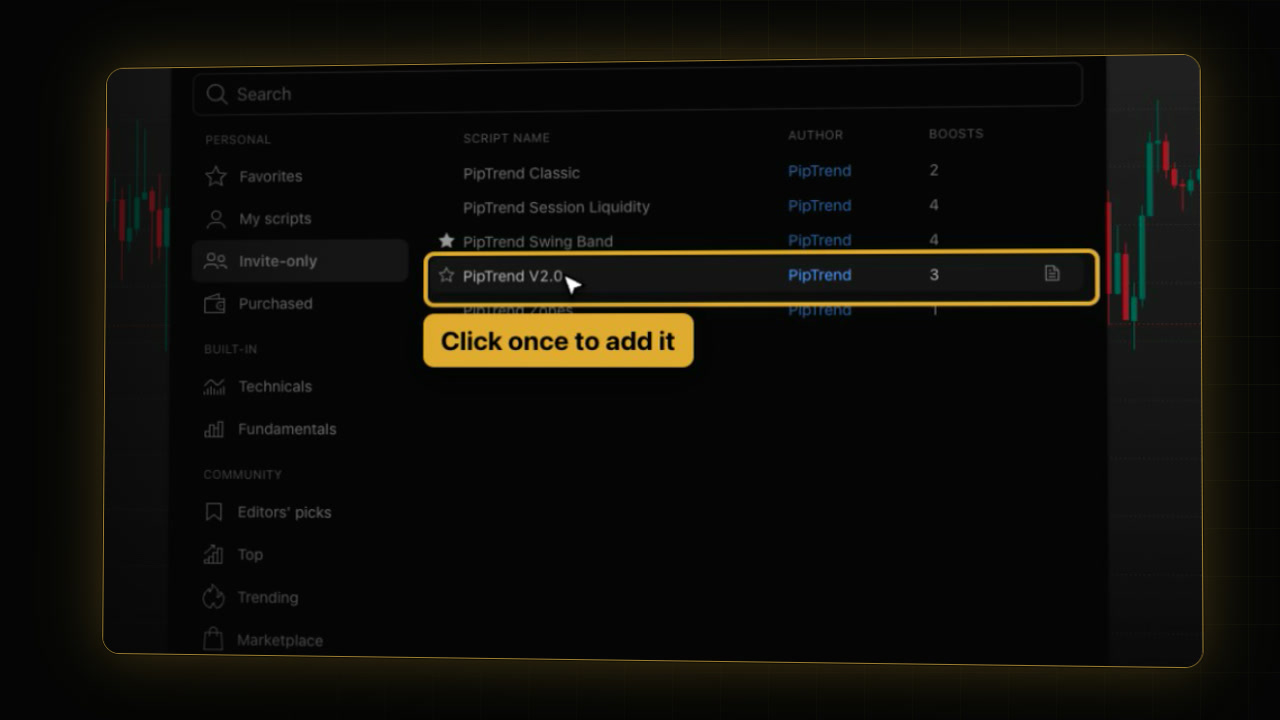 Video coming soon
PipTrend is an invite-only script, and so are many other paid indicators. This guide explains how invite-only access works on TradingView in general. For the PipTrend access steps, see How PipTrend access works.
Invite-only vs protected vs open-source scripts
| Kind | Code | Who can add it |
|---|---|---|
| Open-source | visible to all | everyone |
| Protected | hidden | everyone |
| Invite-only | hidden | only the usernames the author has given access |
Invite-only scripts have a lock icon next to their name, and the author’s name is shown next to the title. TradingView itself does not grant access to them, and no TradingView plan includes them: only the author can add your username.
Step 1: Find your exact TradingView username
- On any TradingView page, click your profile picture in the top left corner.
- The menu opens. Below the TradingView logo, the line with your picture shows your username.
- Press Escape to close the menu.
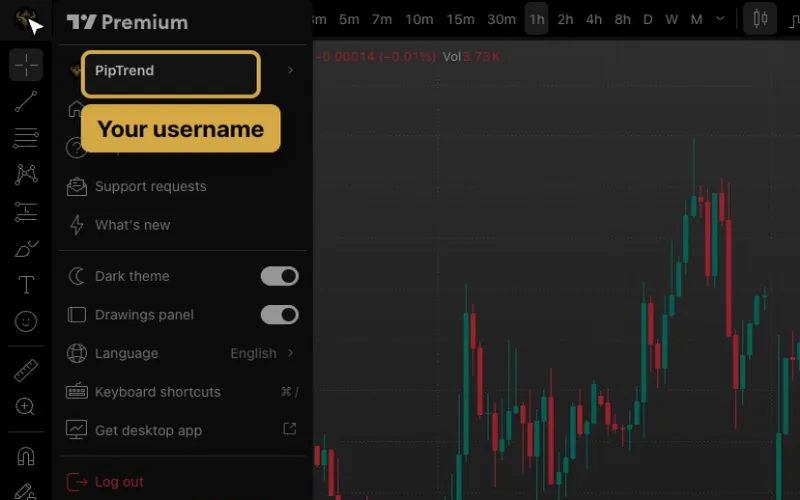
Write it down exactly as shown. Access is tied to this username, not to your email address and not to your display name.
Step 2: Give your username to the author
Follow the author’s instructions. On TradingView they are in the Author’s instructions field under the script’s description. A genuine author only needs your username.
For PipTrend, the steps are in How PipTrend access works.
Step 3: Open the Invite-only tab
- Open a chart and click Indicators in the top toolbar.
- The window Indicators, metrics, and strategies opens. In the left column, under Personal, click Invite-only.
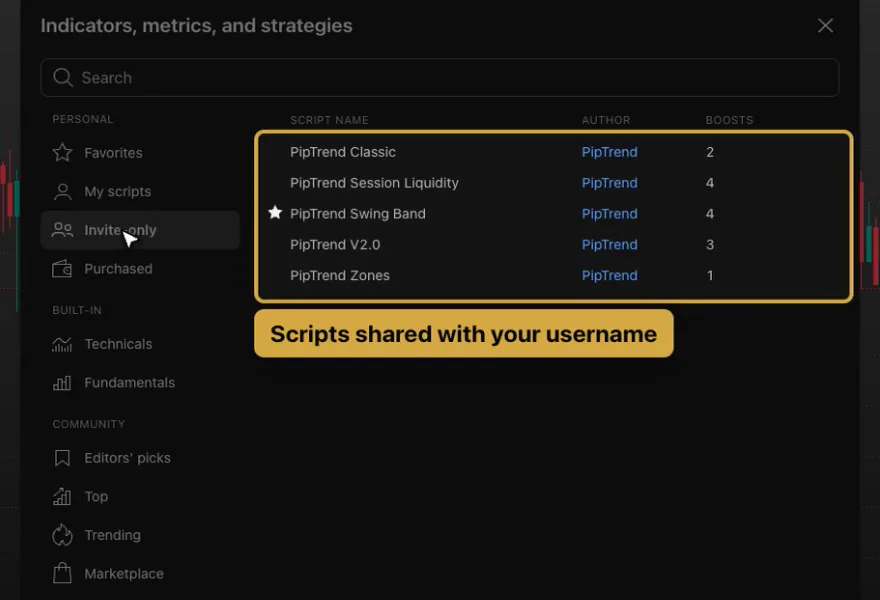
The list shows every invite-only script your username has access to. The tab only appears once an author has given your username access. If you don’t see it at all, no access has been granted yet.
Step 4: Add the script and star it
- Click the script’s name once. It is added to your chart.
- Hover the script’s name again and click the star next to it. It now also appears under Favorites.
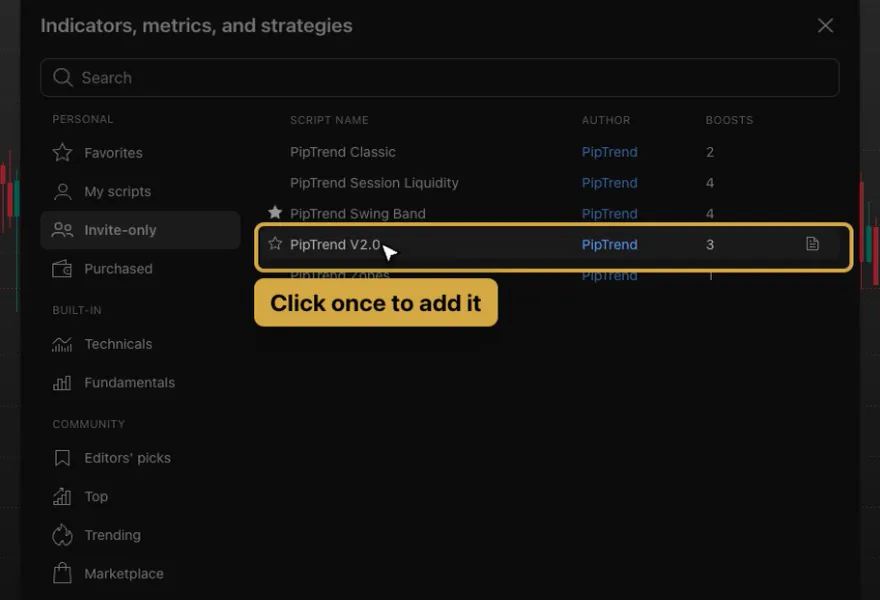
From here an invite-only script works like any other indicator. See How to add indicators on TradingView for settings, visibility, hiding and removing.
Is it safe to use invite-only scripts?
- Never share your password or login code. No author needs them to give you access.
- Access is personal. A script works only for the usernames its author has added, so a shared login or a “copy” of an invite-only script is never needed.
- Check the author. TradingView recommends doing your own research on an invite-only script and its author before you use it.
Invite-only scripts not showing? What to check
- There is no Invite-only tab: no author has given your username access yet. Check that the author received your username, spelled exactly right.
- A script you expect is missing: check that you are logged in to the same TradingView account whose username you gave, then reload the page.
- A script was there and is gone: access can end, for example when a subscription runs out. The script then leaves the Invite-only tab.
- PipTrend is missing: see How PipTrend access works.
FAQ
What is an invite-only script on TradingView?
A community script whose code is hidden and that only works for the TradingView usernames its author has given access to. It shows a lock icon next to its name.
How do I get access to an invite-only script?
Ask the script’s author, following the Author’s instructions on the script’s page. The author adds your TradingView username. TradingView does not sell or grant access itself.
Why don’t I have an Invite-only tab in TradingView?
The tab appears only after an author has given your username access to at least one invite-only script. No tab means no access yet.
Is it safe to give my TradingView username to an author?
Yes. Your username is public, and it is all an author needs. Never share your password or login code.
Can I see the code of an invite-only script?
No. Invite-only scripts are closed-source, like protected scripts. Only open-source scripts show their code.
Why can’t I use an invite-only indicator I can see?
It only works for the usernames its author has added. Check that the author received your exact TradingView username, and that you are logged in to that same account. Then reload the page.
Transcript
Full transcript
Some indicators on TradingView are invite-only scripts. In this video, you’ll learn what that means, how access works, where to find the scripts you’ve been given, and how to stay safe when someone offers you one.
Community scripts on TradingView come in three kinds. Open-source scripts show their code to everyone. Protected scripts hide the code, but anyone can add them. Invite-only scripts hide the code too, and only people the author has given access to can use them. You’ll recognise them by the lock next to their name.
Access is given to one thing: your TradingView username. Not your email, and never your password. To find your exact username, click your profile picture. The name at the top of this menu is the one an author needs. Then press Escape.
Once an author has given you access, open Indicators. Under Personal, a tab called Invite-only appears. It lists every invite-only script you can use. If you don’t see this tab at all, no author has given your username access yet.
From here, an invite-only script works like any other indicator. Click it once to add it to your chart, and star it to keep it in Favorites.
A word on safety. A genuine author only ever needs your username. Nobody needs your password or your login code to give you access. And access is personal: a script only works for the usernames its author has added.
Access can also end, for example when a subscription runs out, and the script then disappears from this tab. If a script you expect is missing, check three things. The username you gave is spelled exactly right. You’re logged in to that same account. And you’ve reloaded the page.
That’s how invite-only scripts work. To get access to PipTrend, follow our access guide, linked below. Next, use free Pine Script indicators from the community.
Related guides
- How to use Pine Script indicators on TradingView
- How PipTrend access works
- How to add PipTrend and show the PipTrend candles
Sources
Risk Disclaimer: Trading involves risk. Past performance doesn't guarantee future results. Only trade with money you can afford to lose. PipTrend is a tool to assist your trading decisions, not financial advice.
Finished this guide?
Was this guide helpful?

