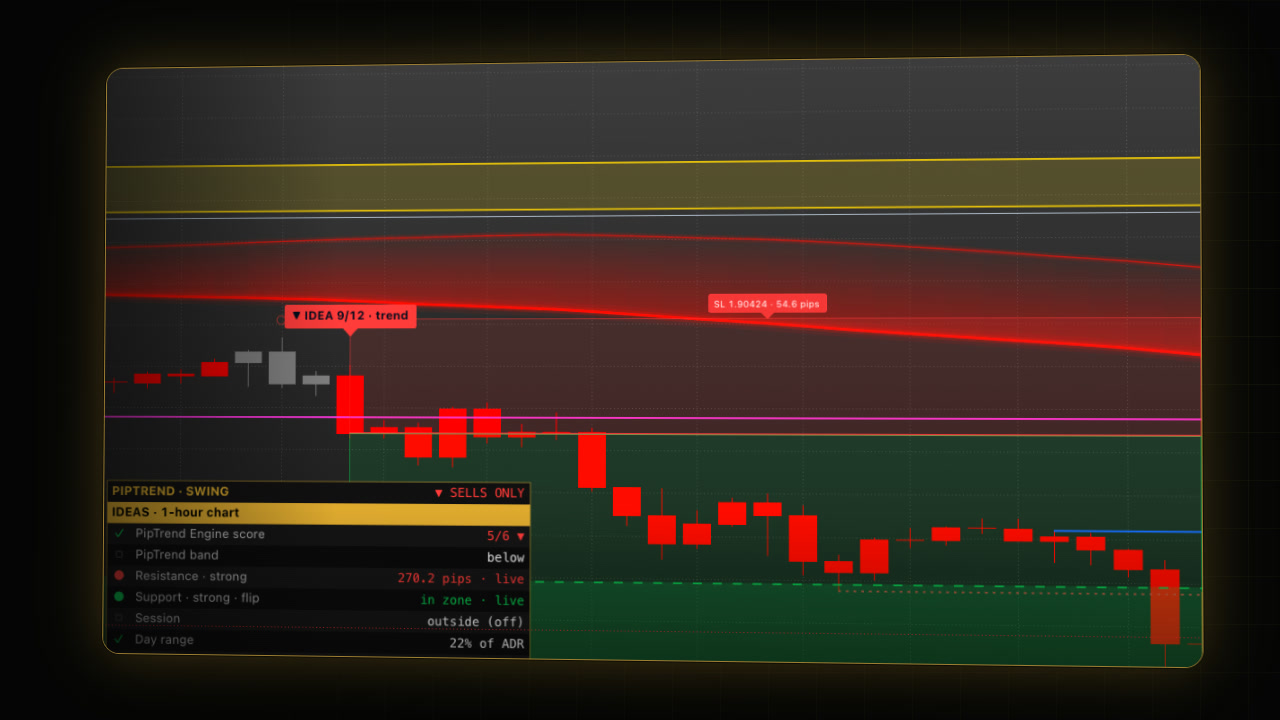
In short: PipTrend Swing gives you one complete setup for swing trading on the 1-hour chart.
- Side: the band sets it. The panel header says BUYS ONLY or SELLS ONLY.
- Where: the PipTrend zones and the Day map mark where price may react.
- When: an IDEA chip prints at the candle close with a stop and a target at two times the risk (1:2).
- You decide: do your top-down analysis and your own checks, then take the idea or skip it.
 Video coming soon
PipTrend Swing is a Trade Setups indicator. It builds on the other PipTrend indicators: it reads the PipTrend Classic and PipTrend V2.0 trend sides, draws the same zones as PipTrend Zones, and takes the day’s levels from PipTrend Session Liquidity. Then it adds the logic for swing trades on top.
Why does every idea use a 1:2 target?
Every idea has a target at two times the risk. One win then pays for two losses, so you break even at a win rate of about 33 percent; above 40 percent the maths turns positive over many trades, before spreads and costs. That is the maths of the ratio, not a result of this indicator: no performance figures exist for PipTrend Swing’s ideas.
Step 1: Add it
- On your TradingView chart, switch to 1h on a forex major (it was built and developed on EURUSD).
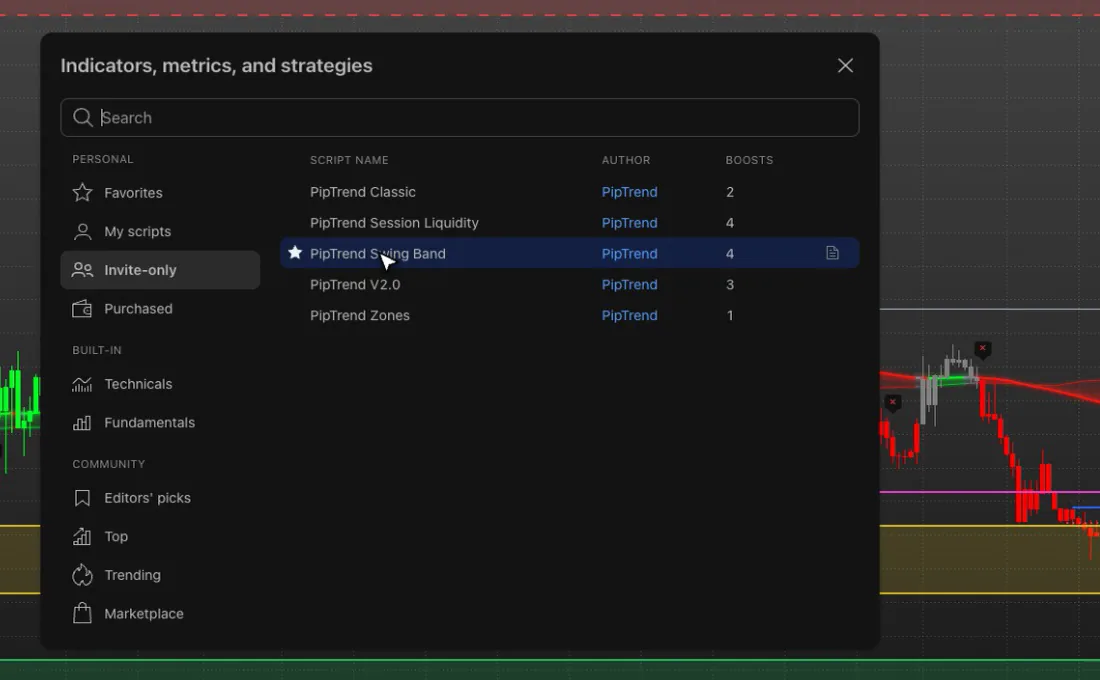
- Click Indicators, then Invite-only scripts on the left.
- Click PipTrend Swing Band (its name in that list). On the chart it shows as PT Swing · Ideas.
- PipTrend Swing draws its own candles. Hide TradingView’s candles so they don’t overlap: see How to add PipTrend and show the PipTrend candles.
How to use it, step by step
- Pick the side. The band sets it: a bullish band means buys only, a bearish band sells only. The panel header says it in plain words.
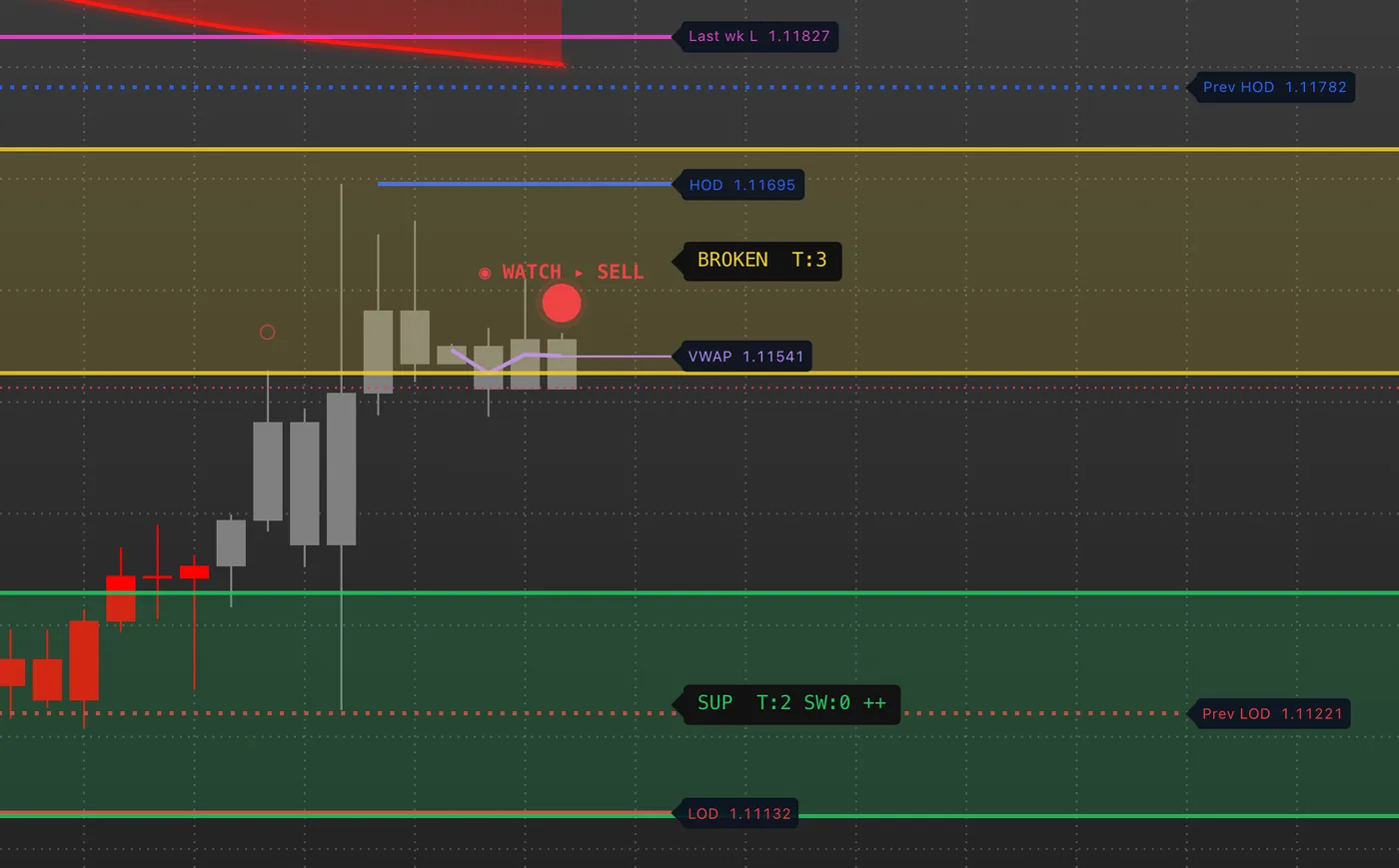
- Know where price may react. The zones are the same PipTrend zones as in PipTrend Zones. The Day map uses levels from Session Liquidity (yesterday’s session high and low, the killzone boxes, the VWAP) plus last week’s high and low and the day open.
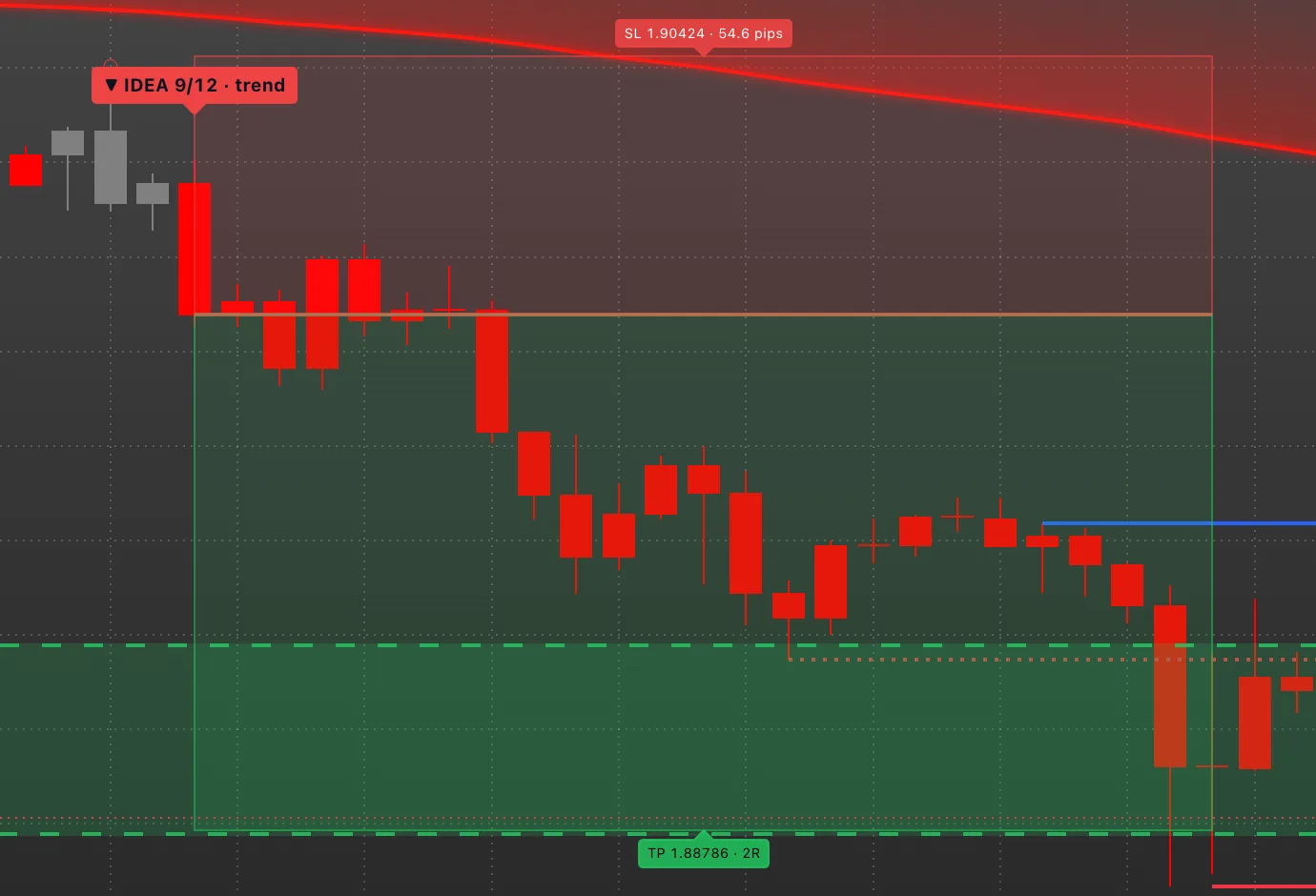
- Wait for an idea. When a pullback on the 1-hour chart turns back in the band’s direction and the trend filters agree, an IDEA chip prints at the candle close, with a stop box beyond the pullback and a target box at 2R. The price chips show the stop in pips and the target in R.
- Decide. Do your top-down analysis first: check that the 4-hour and daily charts agree with the side. Then check that the pullback ended at a zone or a level, that no high-impact news is due, and that your risk is fixed. Enter at the next candle’s open with the stop and target from the chips, or skip it. An idea is a candidate for your own checklist, not a signal to copy.
The chip and the kinds
On a trend idea the chip shows how many of 12 conditions were met, for example IDEA 6/12. That is a count, not a probability. The other kinds are a higher low (or lower high) at the band, a breakout retest and a potential swing.
Marks: early warnings and ideas that didn’t pass
- Circle (watch mark): a pullback reached a PipTrend level. A heads-up, never a trade on its own.
- early: a gray candle engulfed the previous one in the trend direction. Not a trade.
- ✕ (near-miss or blocked): an idea formed at the candle close but did not pass: too few conditions were met, or a switched-on filter stopped it. Hover it to see the conditions with ✕ and ✓. These can be possible entries too, but they need a closer look and your own judgement, so only take one if it fits your plan. If one filter keeps stopping ideas you would take, you can switch it off under FILTERS in the settings.
The Swing panel
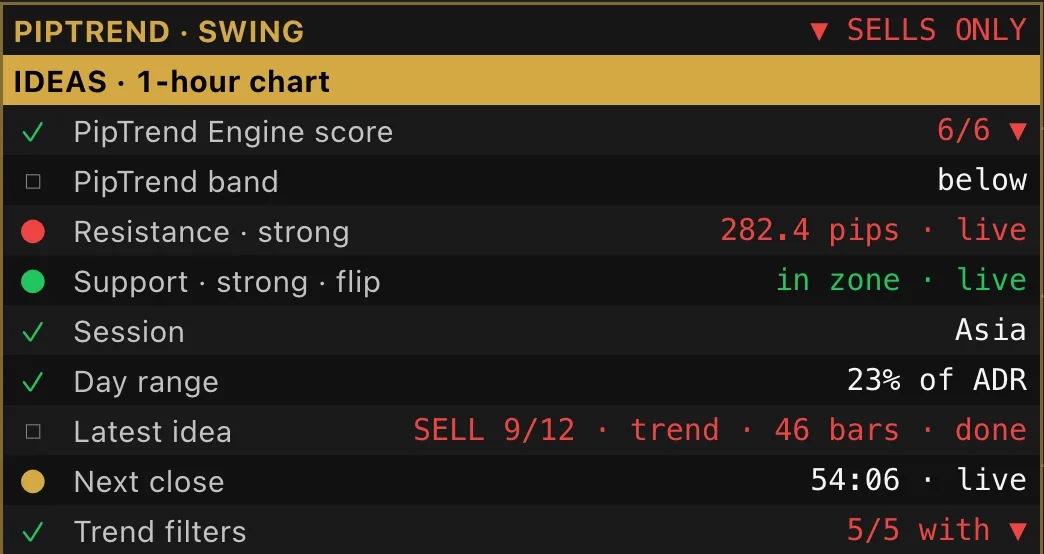
Bottom left by default: the side (BUYS ONLY or SELLS ONLY), the PipTrend Engine score, where price sits against the band, the distance to the nearest zones, the session, the day range, the latest idea and the trend filters.
What does the win/loss tracker show?
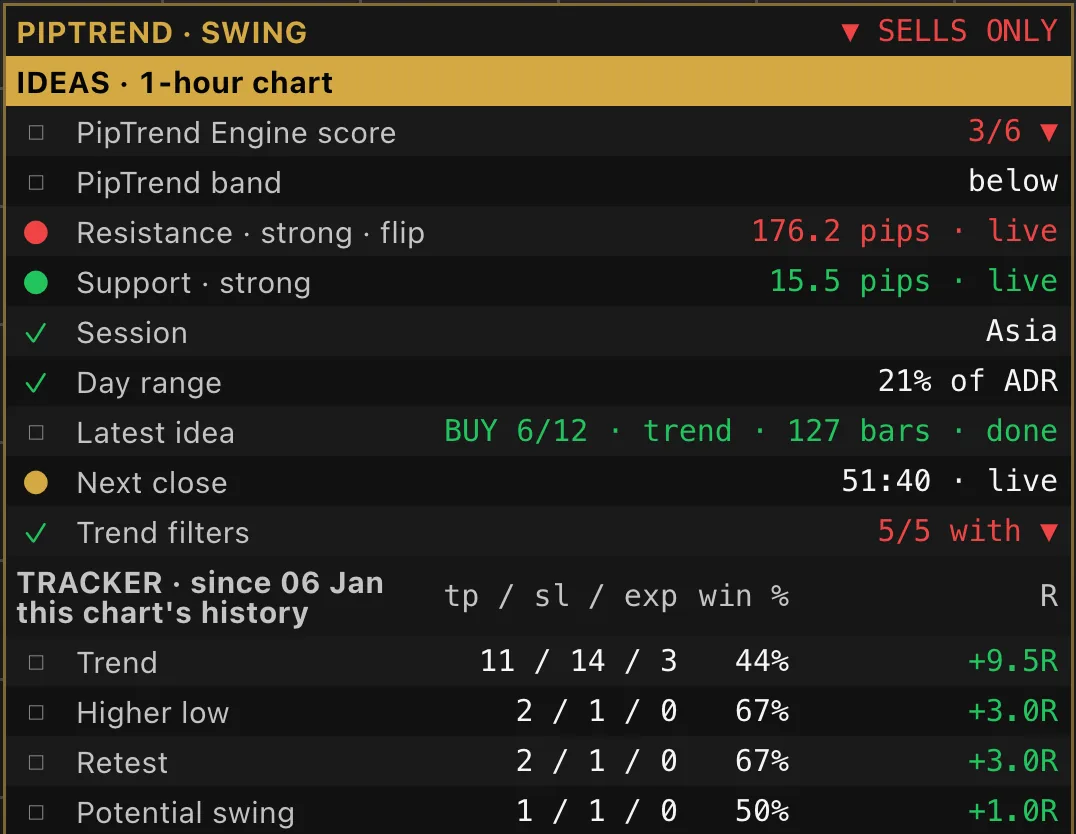
- Double-click PT Swing · Ideas in the legend.
- Under TRACKER, tick Win/loss tracker (off by default).
- The panel adds a table of this chart’s earlier ideas by kind: target reached first, stop reached first or expired (tp / sl / exp), the win % and the summed R.
Use it to fit the indicator to your favourite pair, its volatility and how it moves. It is not a backtest and not a result: it assumes entry at the idea’s close, stop and target exactly at their levels, before spread and costs, and the numbers change with how much history the chart loads. When the stops fit, switch it off.
Which settings should you change for each pair?
PipTrend Swing was built on EURUSD, where the Standard preset is the reference. Every pair moves differently, so fit the stop distance to each one. In the settings, under TREND IDEAS:
| Setting (orientation only) | Default | What it does |
|---|---|---|
| Setup preset | Standard | Wide stops (volatile pairs): 1.5 times wider. Tight stops (quiet pairs): three quarters. |
| Stop width (%) | 100 | Fine-tunes the preset: 120 makes every stop distance 20% wider. |
| Target (R) | 2.0 | Target as a multiple of the stop. Also changes which ideas print: a new idea on a side waits for the running one. |
| Minimum conditions met | 6 | Raising it shows fewer ideas. A higher count has not been linked to better results. |
| Session switches | all on | Untick the sessions a pair doesn’t move in. |
The zone height is under PIPTREND ENGINE (ADVANCED): Max zone height (pips, forex) and Min zone height (pips, forex).
The settings belong to the chart, not to the pair. If you switch symbols on the same chart, the settings stay (tested October 2026). To keep one setup per pair, give each pair its own chart, for example in a multi-timeframe or multi-chart layout, or save each setup as an indicator template.
Fit honestly: a quiet cross like EURGBP may suit tight stops, a fast pair like GBPJPY or gold wide stops. Fit the stop to the pair’s normal swing size, not to the win %. Tuning stops until the tracker looks good only fits the past.
Alerts
Create an alert with the condition Swing: any idea and the frequency Once Per Bar Close. The message carries the entry reference, the stop and the target. See PipTrend alerts: every alert condition explained.
If it doesn’t work
- No ideas print: ideas print on the 1-hour chart only. Other charts show context.
- Two sets of candles: hide TradingView’s own candles, or set Candle display to Hide Candles.
- My stop settings changed when I switched pairs: settings belong to the chart. Use one chart per pair, or an indicator template per pair.
- The tracker numbers changed: they depend on how much history the chart loads.
FAQ
What risk-to-reward does PipTrend Swing use?
A target at two times the risk (1:2) by default, set by Target (R).
Is PipTrend Swing a signal service?
No. It prints trade ideas with a stop and a target for your own checklist. Do your top-down analysis and checks, then take or skip each idea.
Does PipTrend Swing keep separate settings for each pair?
No. Settings belong to the chart. Give each pair its own chart, or save each setup as an indicator template.
Is the win/loss tracker a backtest?
No. It is a look back at this chart’s loaded history, before spread and costs. Use it to fit the stops to a pair, not as a performance record.
Which timeframe does PipTrend Swing work on?
Ideas print on the 1-hour chart only; other charts show context. It was built and developed on EURUSD.
What does IDEA 6/12 mean?
How many of 12 conditions were met for that trend idea. It is a count, not a probability.
What win rate do you need with a 1:2 target?
About 33 percent to break even, before spreads and costs, because one win pays for two losses. That is the maths of the ratio, not a result of this indicator: no performance figures exist for PipTrend Swing’s ideas.
Transcript
Full transcript
PipTrend Swing is a trade setups indicator: one complete setup for swing trading. It builds on the other PipTrend indicators. It reads the PipTrend Classic and V2.0 trend sides, draws the same zones as PipTrend Zones, and takes the day’s levels from Session Liquidity. Then it adds the logic for swing trades on top.
On the 1-hour chart, it answers the three questions of a swing trade: which side to trade, where price may react, and when a pullback has turned back with the trend. Then it prints a trade idea with a stop, and a target at two times the risk, one to two. You decide whether to take it.
Here’s why the one to two matters. With a target at two times the risk, one win pays for two losses, so you break even at a win rate of about 33 percent. Above 40 percent, the maths turns positive over many trades, before spreads and costs. That’s the maths of the ratio, not a result of this indicator.
Open Indicators, go to Invite-only scripts, and click PipTrend Swing Band, its name in that list. On the chart, it shows as PT Swing, Ideas. It draws its own candles, so hide TradingView’s candles, as shown in our first PipTrend video. It was built and developed on EURUSD, on the 1-hour chart.
Step one: pick the side. The band sets it. When the band is bullish, PipTrend Swing looks for buys only. When it’s bearish, sells only. The panel header says it in plain words: here, sells only.
Step two: know where price may react. The zones here are the same PipTrend zones as in PipTrend Zones. The Day map uses levels from Session Liquidity: yesterday’s session high and low, the killzone boxes and the VWAP, plus last week’s high and low, and the day open.
Step three: wait for an idea. When a pullback on the 1-hour chart turns back in the band’s direction, and the trend filters agree, an IDEA chip prints at the candle close. It comes with a stop box beyond the pullback and a target box at two times the risk, and the price chips show the stop in pips and the target in R.
On a trend idea, the chip shows how many of 12 conditions were met, here 6 of 12. That’s a count, not a probability. There are other kinds too: a higher low at the band, a breakout retest, and a potential swing.
Step four: you decide. Before you take an idea, do your top-down analysis: check that the 4-hour and daily charts agree with the side. Then check that the pullback ended at a zone or a level, that no high-impact news is due, and that your risk is fixed. Enter at the next candle’s open with the stop and target from the chips, or skip it. An idea is a candidate for your own checklist, not a signal to copy.
Small marks warn earlier, but they’re never trades on their own: a circle when a pullback reaches a PipTrend level, and an early note on an engulfing candle.
A cross marks an idea that formed but didn’t pass: too few conditions were met, or a filter stopped it. Hover it to see what was missing. These can be possible entries too, but they need a closer look and your own judgement, so only take one if it fits your plan. If one filter keeps stopping ideas you would take, you can switch it off under Filters.
The panel at the bottom left sums it up: the side, the PipTrend Engine score, where price sits against the band, the distance to the nearest zones, the session, the day range, the latest idea, and the trend filters.
PipTrend Swing also has a tracker. Open the settings, and under Tracker, tick Win/loss tracker. It’s off by default. It lists this chart’s earlier ideas by kind: how many reached the target first, the stop first, or expired, with the win percentage and the summed R.
Use it to fit the indicator to your favourite pair, its volatility and how it moves. But be clear on what it is not. It’s not a backtest, and not a result. It assumes entry at the idea’s close, the stop and target exactly at their levels, before spread and costs, and the numbers change with how much history the chart loads. When the stops fit, switch it off.
Now, fit it to your pair. PipTrend Swing was built on EURUSD, where the Standard preset is the reference. Every pair moves differently, so fit the stop distance to each one. The settings belong to the chart, not to the pair: if you switch symbols, they stay. To keep one setup per pair, give each pair its own chart, or save each setup as an indicator template.
Start with Setup preset: Standard, Wide stops for volatile pairs, one and a half times wider, or Tight stops for quiet pairs, three quarters. Then Stop width fine-tunes it: 120 percent makes every stop 20 percent wider.
Target, in R, is 2 by default. It also changes which ideas print, because a new idea on a side waits for the running one. Minimum conditions met is 6 by default. Raising it shows fewer ideas, but a higher count hasn’t been linked to better results.
If a pair moves in one session only, untick the other sessions under Trend ideas. And in the advanced PipTrend Engine settings, the zone height in pips sets how tall the zones are.
A quiet cross like EURGBP may suit tight stops, and a fast pair like GBPJPY, or gold, wide stops. Fit the stop to the pair’s normal swing size, not to the win percentage. Tuning stops until the tracker looks good only fits the past.
Next, build your PipTrend chart: which indicators to combine, one per family.
Related guides
- Build your PipTrend chart: one indicator per family
- PipTrend alerts: every alert condition explained
- PipTrend Zones guide
Risk Disclaimer: Trading involves risk. Past performance doesn't guarantee future results. Only trade with money you can afford to lose. PipTrend is a tool to assist your trading decisions, not financial advice.
Finished this guide?
Was this guide helpful?

