In short:
- Level: Horizontal ray, then click the price. It runs from that point to the right.
- Zone: Rectangle, then click one corner and the opposite corner.
- Trade plan: Long position (or Short position), click your entry, drag the stop and target edges to your levels.
- Position size: double-click the position, and under Inputs enter your Account size and Risk. The tool shows the quantity.
- Drawings stay with the symbol on every timeframe.
 Video coming soon
Before you start
- Open a chart on TradingView. The tools in this guide work on every plan.
- The floating favourites toolbar holds the tools you starred. To set it up, see TradingView chart settings. Every tool below is also in the left toolbar, in its group.
- Hover over a tool in the favourites toolbar to see its name.
Step 1: Mark a price level
- Click Horizontal ray in the favourites toolbar.
- Click the price on the chart where the level starts, for example an earlier low. The ray starts there and runs to the right.
- Press Escape to deselect it.
Horizontal line works the same way but runs across the whole chart.
Step 2: Draw a zone
- Click Rectangle in the favourites toolbar.
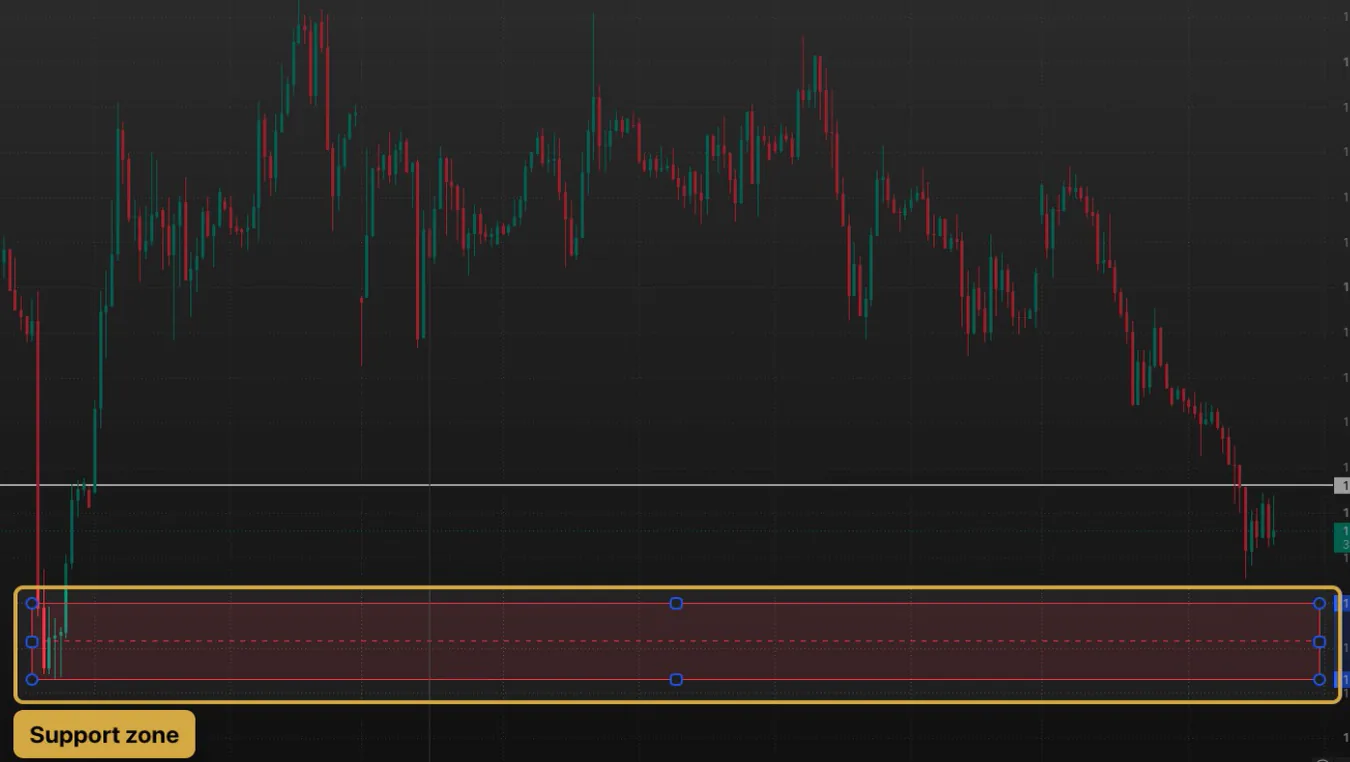
- Click one corner of the zone, for example at the top of the area where price reacted before.
- Click the opposite corner. The rectangle appears, here a support zone.
- Press Escape to deselect it.
Step 3: Edit or delete a drawing
- Click the drawing. A toolbar appears above the chart.
- Use the colour, width and style buttons to change how it looks.
- Click Settings (the gear) to open all its options.
- Click Lock so it can’t move by accident.
- To delete it, keep it selected and press Delete or Backspace.
Step 4: Plan a trade with the position tool
- Click Long position in the favourites toolbar. For a sell, use Short position.
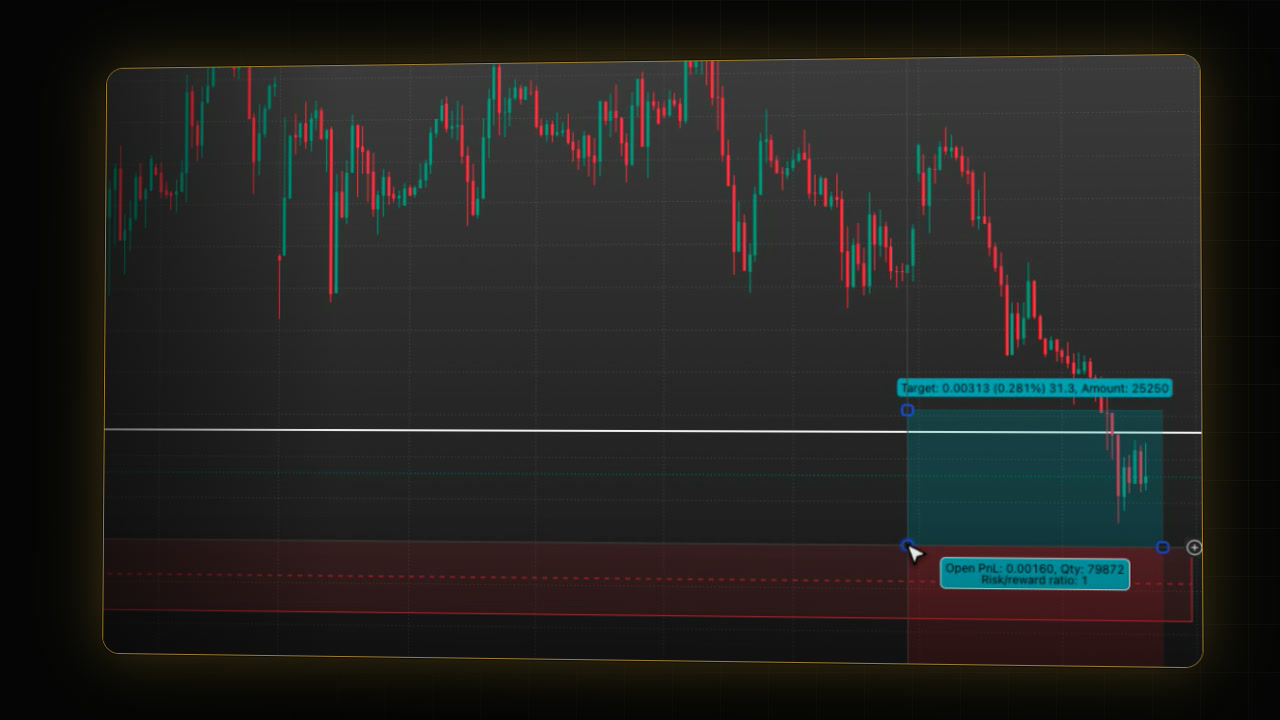
- Click your entry price on the chart. A box appears: the upper area is the target and the lower area is the stop.
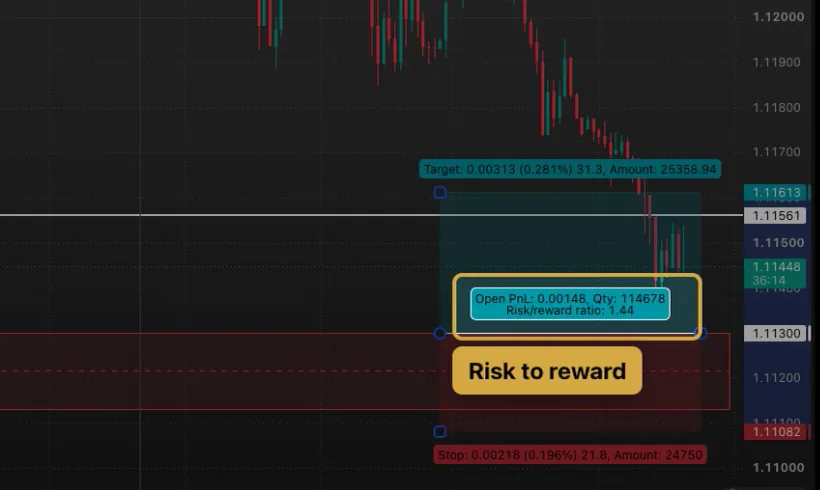
- Drag the bottom edge (the small circle at its left corner) to your stop, for example just below the zone.
- Drag the top edge to your target if it isn’t there yet.
- Read the label in the middle: it shows Risk/reward ratio and Qty. The labels above and below show the distance of the target and the stop.
Step 5: Calculate position size from your risk
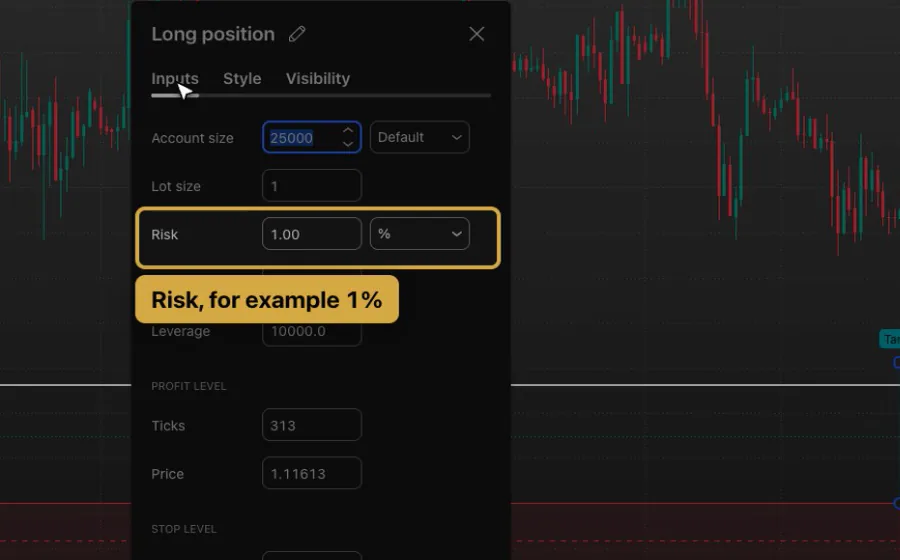
- Double-click the position. Its settings open. Click the Inputs tab.
- In Account size, type your account balance.
- In Risk, type the amount you want to risk, for example 1 with % selected.
- Click Ok. Qty in the middle label is now the quantity that loses that amount if the stop is hit.
With Lot size at 1, Qty is in units. On most forex accounts a standard lot is 100,000 units, but contract sizes differ, so check your broker’s before you place a trade.
Step 6: Visibility and templates
- In the position’s settings, open the Visibility tab. It lists Ticks, Seconds, Minutes, Hours, Days, Weeks, Months and Ranges. By default a drawing shows on all of them. Untick a row to hide the drawing on those timeframes.
- To keep a style you like for the next drawing of this tool, click Template, then Save as…, and give it a name.
- Click Ok to keep your changes, or Cancel to close without them.
Step 7: Why drawings show on other charts
- Drawings belong to the symbol, not the timeframe. Switch from 1 hour to 4 hours, and the level, zone and position are still there.
- The sync button in the left toolbar sets where new drawings appear. Click the small arrow next to it:
- New drawings sync globally: a new drawing also shows in your other layouts on the same ticker.
- New drawings sync in layout: a new drawing stays in the current layout.
Step 8: Hide and lock everything
- Click the eye in the left toolbar to hide all drawings and indicators. Click it again to show them.
- The lock above it keeps all your drawings in place. The small arrows next to both buttons choose what they act on, for example drawings only.
TradingView drawing shortcuts for Windows and Mac
| Shortcut (orientation only) | Windows | Mac |
|---|---|---|
| Horizontal ray | Alt + J | Option + J |
| Horizontal line | Alt + H | Option + H |
| Rectangle | Shift + Alt + R | Shift + Option + R |
| Trendline | Alt + T | Option + T |
| Delete the selected drawing | Delete | Delete or Backspace |
| Hide all drawings | Ctrl + Alt + H | Command + Option + H |
Let PipTrend draw the zones
If you’d rather not draw support and resistance by hand, the PipTrend Zones indicator draws them for you with touch counts. See the PipTrend Zones guide.
If it doesn’t work
- The drawing snaps to a candle: magnet mode is on. Click the magnet in the left toolbar to turn it off.
- A drawing is gone on another timeframe: check its Visibility tab; that timeframe is unticked.
- A drawing shows up in another layout: sync is set to globally. Choose New drawings sync in layout for drawings you want to keep to one layout.
- All drawings vanished at once: the eye in the left toolbar is set to hide. Click it again.
- Qty looks far too big or too small: check Account size, Risk and the % or currency setting next to Risk, and your broker’s contract size.
FAQ
How do I use the long position tool on TradingView?
Click Long position in the left toolbar or your favourites, then click your entry price. Drag the lower edge to your stop and the upper edge to your target. The middle label shows the risk to reward ratio and the quantity.
How do I calculate position size on TradingView?
Double-click a long or short position, and under Inputs enter your Account size and Risk, for example 1%. Qty then shows the quantity that loses that amount if the stop is hit.
How do I see the risk to reward ratio on TradingView?
Place a long or short position and set its stop and target. The ratio is in the label in the middle of the tool and updates as you drag the edges.
Why do my TradingView drawings show on other charts?
Drawing sync is set to globally, so a new drawing shows in every layout on the same ticker. Click the arrow next to the sync button in the left toolbar and choose New drawings sync in layout.
How do I turn the Qty into lots?
With Lot size at 1, Qty is in units. On most forex accounts a standard lot is 100,000 units, but contract sizes differ, so check your broker’s. For the lot maths, see Forex lot size explained, or let the position size calculator do it.
Which TradingView drawing tools do I need for trade planning?
Three cover most of it: Horizontal ray for levels, Rectangle for zones, and Long position or Short position for the trade plan. Star them so they sit in the favourites toolbar. To size the trade before you draw it, try the position size calculator.
Transcript
Full transcript
A few drawing tools cover most of trade planning: a level, a zone, and the position tool. In this video, you’ll draw them from your favourites toolbar, plan a trade with your account size and risk, and keep your drawings tidy across timeframes.
Your favourite tools sit in this floating toolbar. We set it up in the chart settings video: star a tool in the left toolbar, and it appears here. Hover a tool to see its name.
For a price level, use Horizontal ray. Click it, then click the price on the chart. The ray starts there and runs to the right. Horizontal line runs across the whole chart. The shortcuts are Alt J for a ray and Alt H for a line, or Option on a Mac.
For a zone, use Rectangle. Click one corner, then the opposite corner. Draw it around the area where price reacted before, for example a support zone.
Click a drawing to select it. The toolbar above it changes the colour, the width and the style. Settings opens all of it, and Lock keeps it from moving by accident. To delete a drawing, select it and press Delete or Backspace.
To plan a trade, use Long position, or Short position for a sell. Click your entry price. The upper area is the target and the lower area is the stop. Drag their edges to your levels, here the stop below the zone. The risk to reward ratio updates in the middle.
Double-click the position to open its settings. Under Inputs, enter your account size and your risk, for example 1 percent. The tool then shows the quantity that risks that amount if the stop is hit. Check it against your broker’s contract size before you place a trade.
Visibility sets which timeframes a drawing shows on. By default, it shows on all of them. And when you have styled a tool the way you like, Template, Save as keeps that style for the next drawing.
Drawings stay with the symbol, not the timeframe. Switch to four hours, and your level, zone and position are still there. With sync set to globally, a new drawing also shows in your other layouts on the same ticker. Choose in layout to keep it to one layout.
For a clean look, the eye in the left toolbar hides your drawings and indicators. Click it again to bring them back. The lock above it keeps your drawings in place.
Next, choose the right data feed for each pair.
Related guides
- Which forex symbol and data feed to use on TradingView
- How to set up a multi-timeframe layout on TradingView
- TradingView chart settings
Risk Disclaimer: Trading involves risk. Past performance doesn't guarantee future results. Only trade with money you can afford to lose. PipTrend is a tool to assist your trading decisions, not financial advice.
Finished this guide?
Was this guide helpful?

