In short: sign in to the TradingView app with the same account you use on the web. Your watchlists, layouts and alerts are already there.
- Tap a symbol to open its chart, and tap the timeframe at the bottom to change it.
- To add an indicator or PipTrend, tap ••• at the bottom of the chart, then Indicators.
- Allow notifications for TradingView in the iPhone Settings, so your alerts reach the phone.
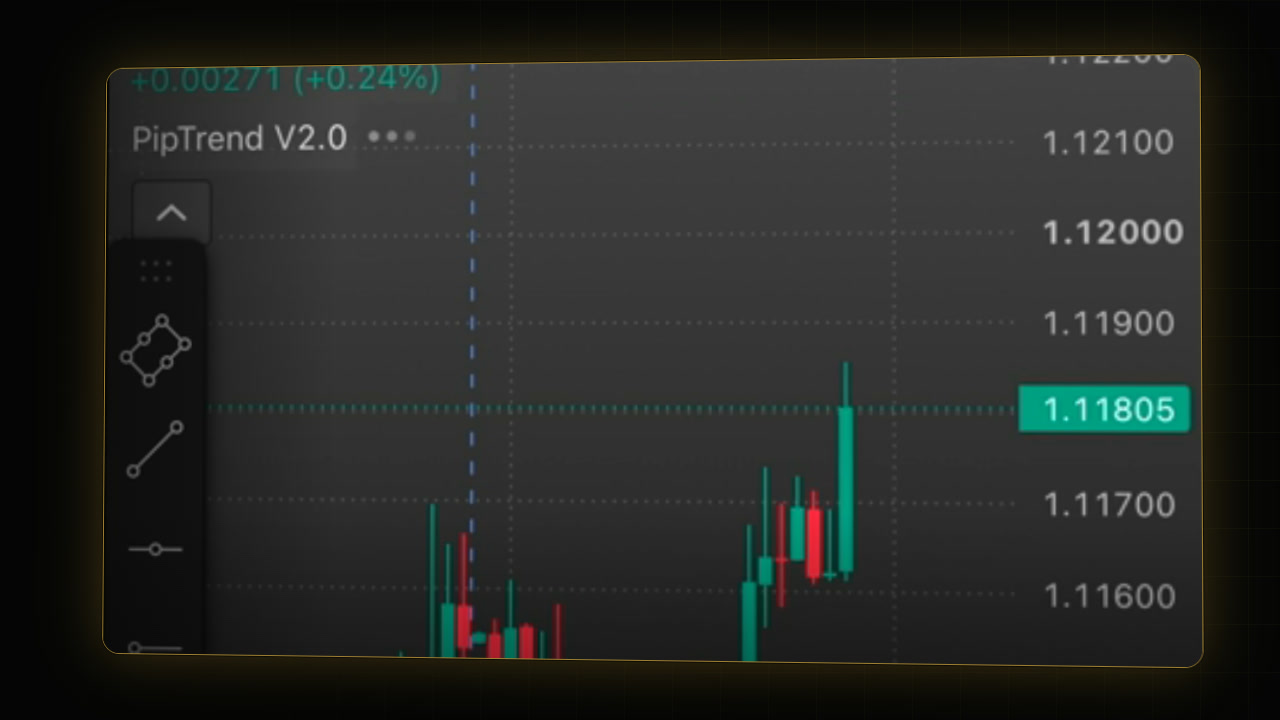 Video coming soon
The phone is the place to check your alerts and your charts on the go. Do your deeper analysis on a bigger screen, and let the app tell you when it is time to look.
Step 1: Install the app and sign in
- Install the TradingView app from the App Store.
- Open it and sign in with the same account you use on the web, the same way you signed up: email, Google or Apple.
Your watchlists, layouts, indicators and alerts belong to your account, so they are the same on every device. If you don’t have an account yet, see How to set up TradingView the right way.
Step 2: Open your watchlists
- Tap Watchlist at the bottom.
- To switch lists, tap the list name at the top and pick another one.
- Tap a symbol to open its chart.
To build a watchlist worth opening, see How to build a forex watchlist dashboard.
Step 3: Change the timeframe and zoom
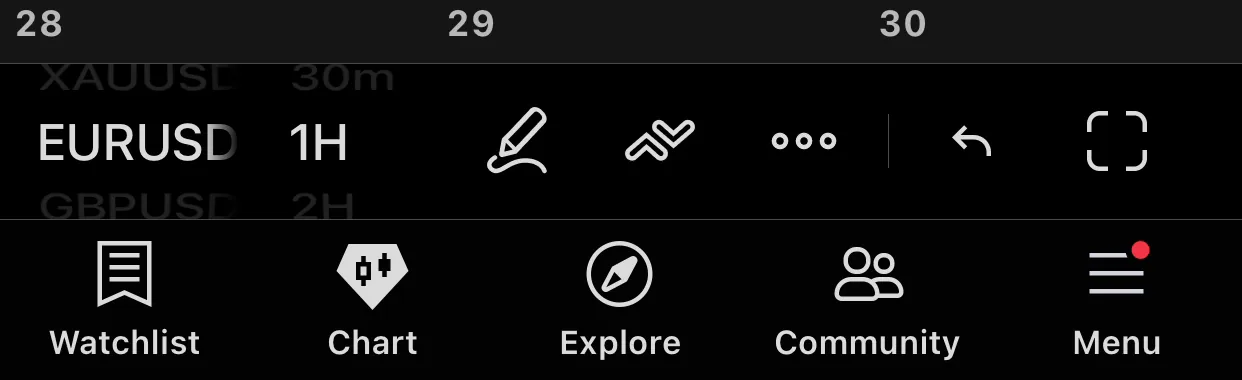
- Tap the timeframe at the bottom of the chart, for example 1H, and pick another one.
- Pinch to zoom in and out.
Step 4: Add an indicator
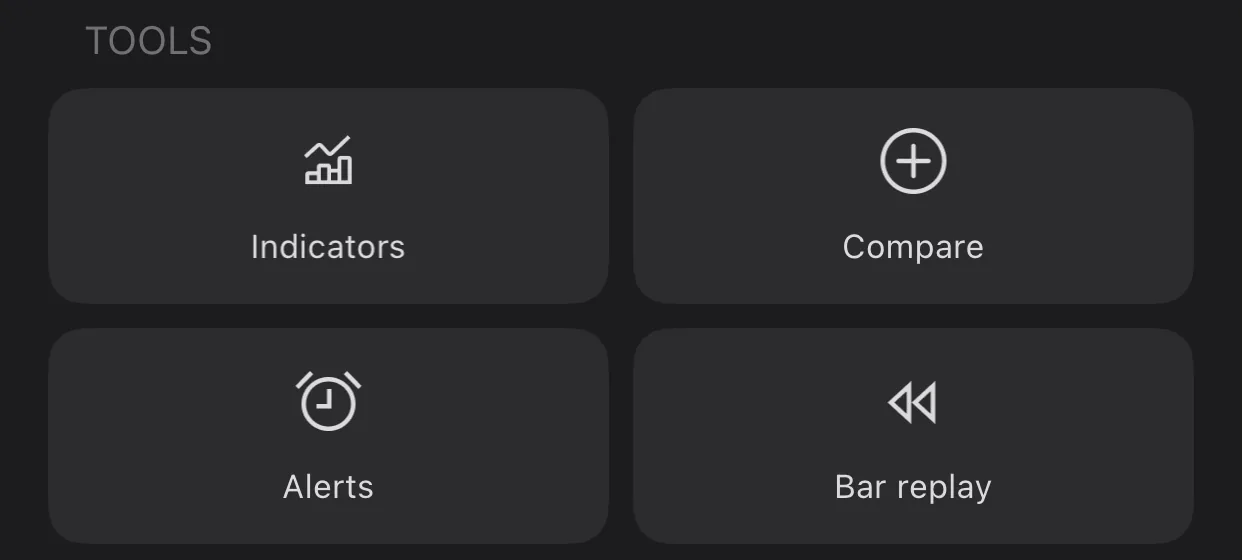
- Tap ••• at the bottom of the chart. The Analysis hub opens.
- Tap Indicators.
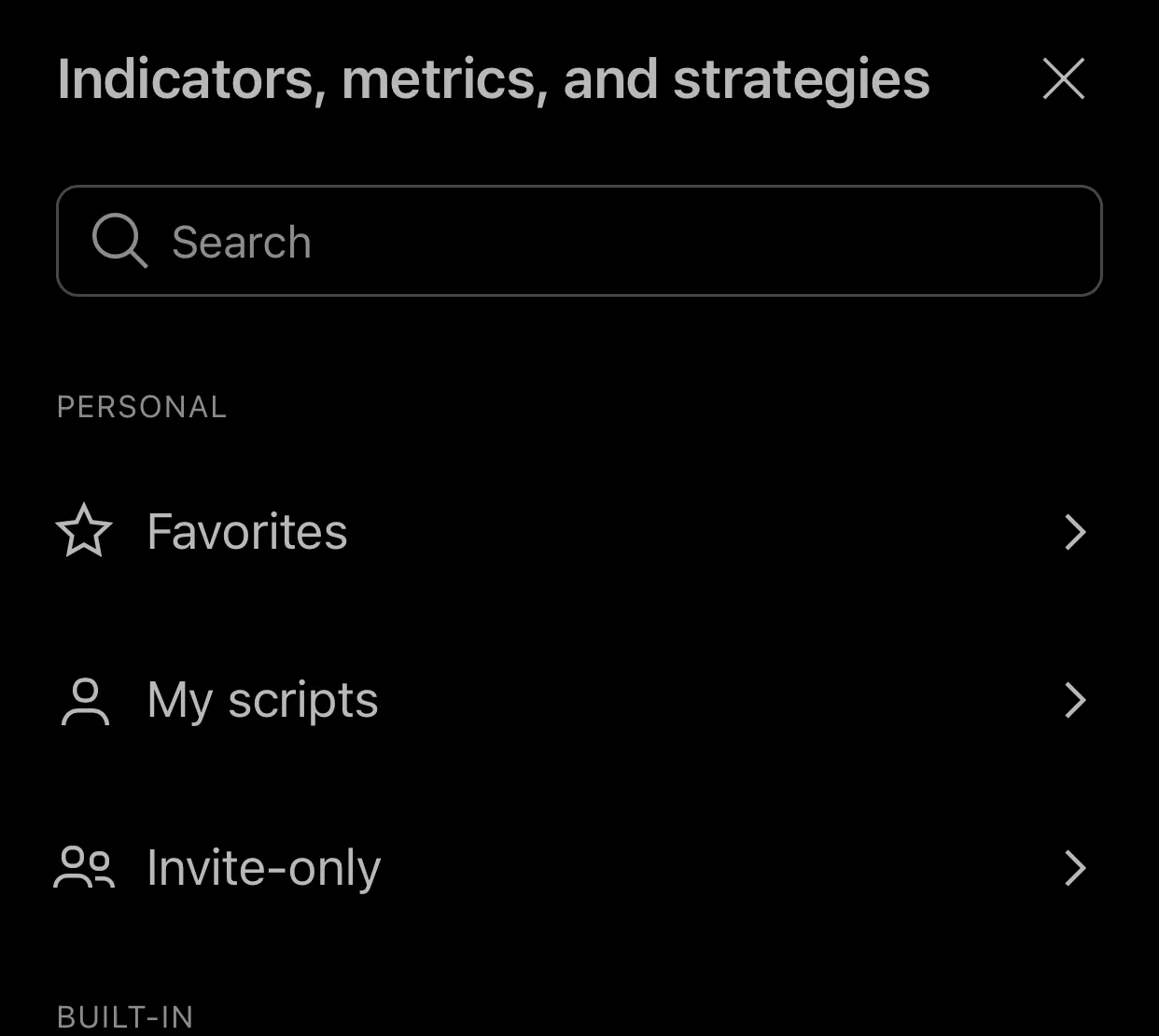
- Search for the indicator by name and tap it. It is added to the chart, just like on the web.
Step 5: Add PipTrend from Invite-only
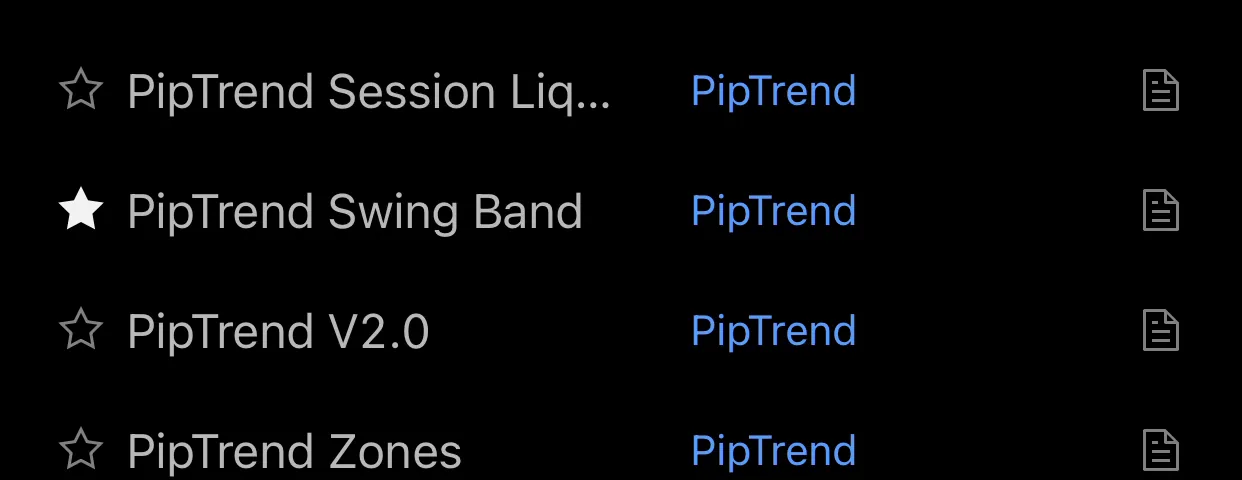
- In the same window, under Personal, tap Invite-only.
- Tap a PipTrend script to add it to the chart.
If PipTrend isn’t listed, check that you are signed in to the TradingView account whose username has access. See PipTrend not showing on your chart.
Step 6: Get your alerts on the phone
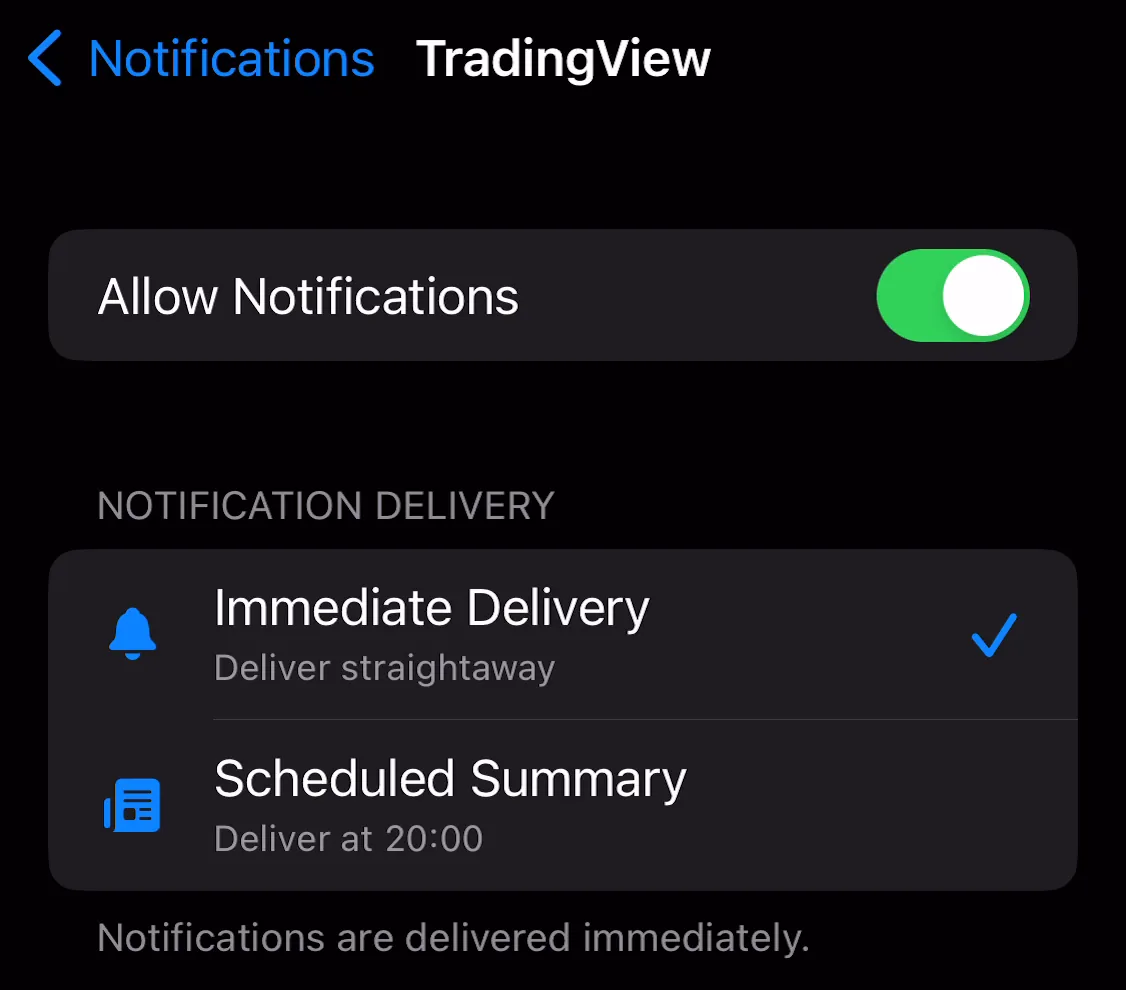
- Open the iPhone Settings app, then Notifications, then TradingView.
- Turn on Allow Notifications. The app also asks for this the first time you open it.
- In each alert you create, keep the app notification turned on (Notify in app on the web).
Alerts you create on the web then reach your phone as push notifications. To see them in the app, tap ••• at the bottom of the chart, then Alerts. To set alerts up, see How to set alerts on TradingView.
Step 7: Turn the phone sideways
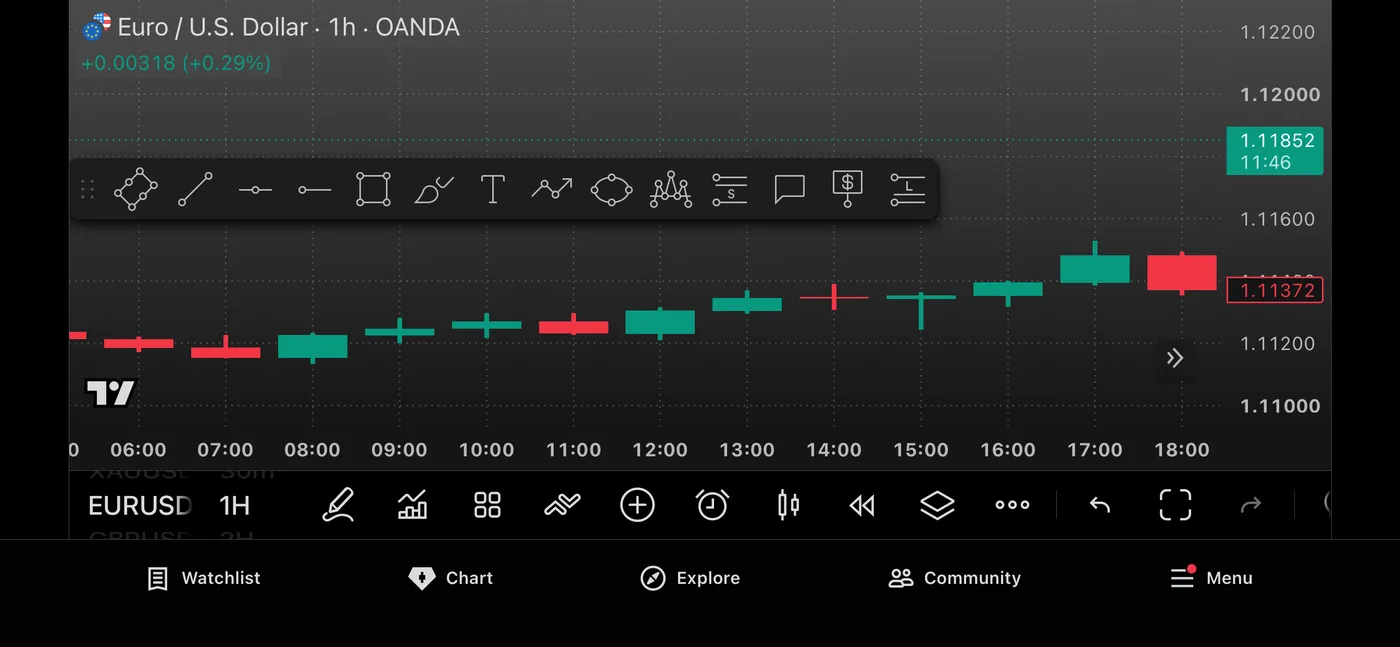
For a wider chart, turn your phone sideways (with rotation lock off). The chart fills the screen, which is the easiest way to read the candles and the levels on a phone.
FAQ
Does PipTrend work on the TradingView mobile app?
Yes. Sign in with the TradingView account whose username has access, then tap the three dots at the bottom of the chart, Indicators, and Invite-only under Personal.
Are my watchlists and layouts the same on the phone?
Yes. Watchlists, layouts, indicators and alerts belong to your TradingView account, so they are the same everywhere you sign in.
How do I add indicators in the TradingView app?
Tap the three dots at the bottom of the chart, then Indicators. Search for the indicator by name and tap it.
Why don’t my TradingView alerts reach my phone?
Check three things: the app is signed in to the same account, Allow Notifications is on for TradingView in the iPhone settings, and the alert’s app notification is turned on.
Where are my alerts in the TradingView app?
Tap the three dots at the bottom of the chart, then Alerts.
Related guides
- How to add indicators on TradingView
- Invite-only scripts on TradingView
- How to set alerts on TradingView
Risk Disclaimer: Trading involves risk. Past performance doesn't guarantee future results. Only trade with money you can afford to lose. PipTrend is a tool to assist your trading decisions, not financial advice.
Finished this guide?
Was this guide helpful?

