In short:
- Every forex pair on TradingView comes from many feeds: brokers and data providers.
- Your broker is listed: use its feed. Your chart then matches your broker’s prices.
- Your broker isn’t listed: use OANDA or FOREX.com.
- To pick a feed exactly, type its prefix, a colon and the pair (Step 2).
- Use one feed on your chart, watchlist and alerts. Volume and the daily candle differ most between feeds.
 Video coming soon
Step 1: See the feeds for a pair
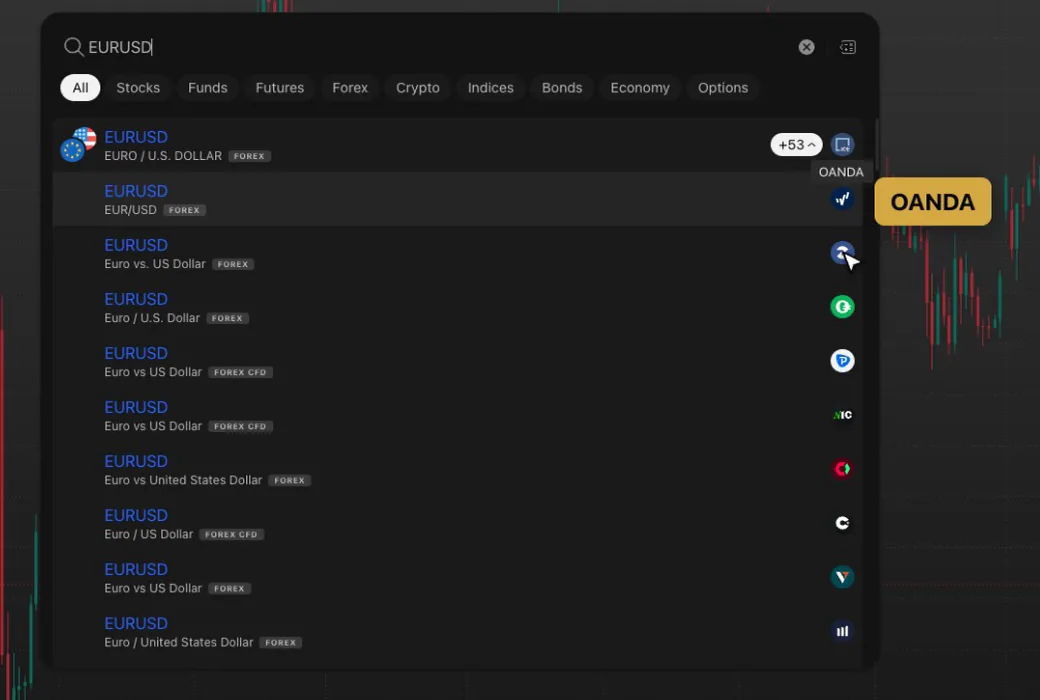
- On TradingView, click the symbol name at the top left of the chart. The symbol search opens.
- Type the pair, for example:
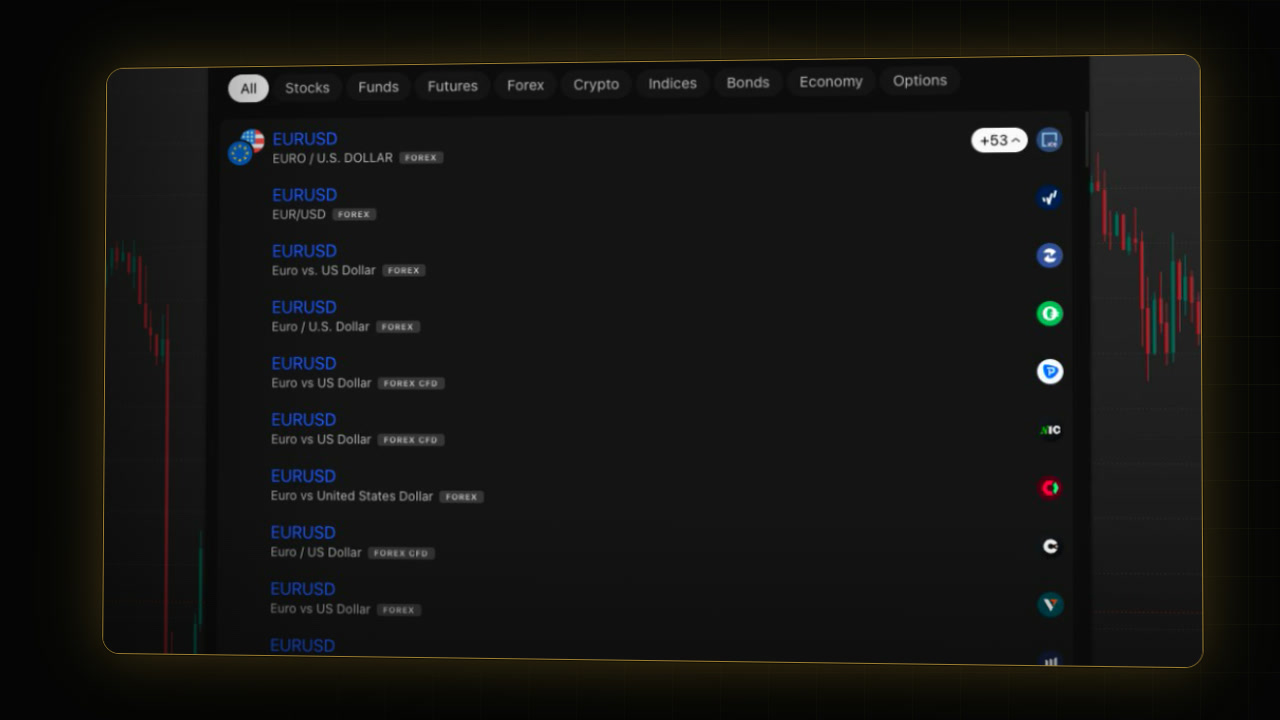
EURUSD- The first row is the pair itself, with a number such as +53 on the right: that is how many more sources offer it.
- Each row below is one source. Hover over the logo on the right of a row to see the source’s name, for example OANDA, FXCM or FOREX.com.
- The small badge under each row says FOREX or FOREX CFD.
Step 2: Pick a feed exactly
- In the symbol search, type the feed prefix, a colon and the pair. For OANDA:
OANDA:EURUSDFor FOREX.com:
FOREXCOM:EURUSD- Press Enter.
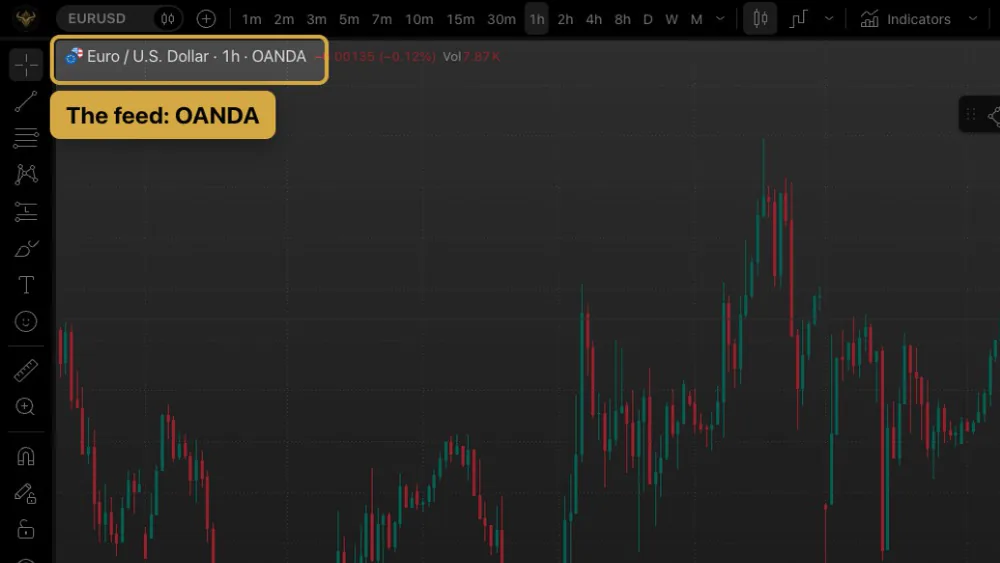
- Check the chart title at the top left. The feed shows after the timeframe, for example Euro / U.S. Dollar · 1h · OANDA.
To use your broker’s feed, search for the pair and hover over the logos until you find your broker, then click that row.
Do prices differ between OANDA, FXCM and FOREX.com?
We compared five EURUSD feeds on the same 1 hour bars on 27 October 2026.
| Measured (orientation only) | OANDA | FXCM | FOREX.com | ICE Data Services | Pepperstone |
|---|---|---|---|---|---|
| 14 Oct, 15:00 UTC bar low | 1.11129 | 1.11128 | 1.11130 | 1.11127 | 1.11127 |
| 27 Oct, 13:00 UTC bar volume | 6,681 | 8,808 | none | 69,586 | 11,936 |
| Daily candle starts (UTC) | 21:00 | 21:00 | 21:00 | 22:00 | 21:00 |
- Prices: on a major pair the feeds agree to within a fraction of a pip most of the time. Highs and lows still differ slightly, so a wick can touch your level on one feed and stop just short of it on another. That matters for alerts and stops.
- Volume: forex has no central exchange, so each feed counts its own ticks. The numbers are not comparable between feeds, and some feeds show none. Compare volume only within one feed.
- The daily candle: most feeds start the trading day at 17:00 New York time (21:00 UTC in summer). ICE Data Services starts an hour later, so its daily open and close differ, and so does anything you read from the daily chart.
Which EURUSD should you use on TradingView?
- Your broker is listed: use its feed. Your chart then matches your broker’s prices, which is what your stops and targets run on.
- It isn’t listed: use OANDA or FOREX.com.
- Then keep it. Use the same feed on your chart, in your watchlist and for your alerts. An alert runs on the feed of the symbol you set it on, and an indicator, PipTrend included, calculates on the feed of your chart.
To build a watchlist on one feed, see How to build a forex watchlist dashboard on TradingView.
Why is gold or the S&P 500 delayed on TradingView?
For gold and stock indices, the same name covers different instruments:
| Instrument (orientation only) | Example | What to expect |
|---|---|---|
| CFD | OANDA gold | Trades almost around the clock, no delay |
| Futures | COMEX gold | A different price; shows D (delayed 10 minutes) without paid data |
| Cash index | S&P 500 | Moves only during US market hours |
The symbols, each to copy:
OANDA:XAUUSDCOMEX:GC1!OANDA:SPX500USDCME_MINI:ES1!SP:SPXThe D badge next to the chart title means delayed data. Click it, and TradingView explains: “data is delayed by 10 minutes because of exchange requirements”, with the option to buy the exchange’s real-time data package. On 27 October 2026, the 14:00 UTC hour closed at 4063.9 on COMEX gold futures and at 4049.69 on OANDA gold.
More on each market: XAUUSD on TradingView, the S&P 500 on TradingView and Nifty on TradingView.
If it doesn’t work
- Your chart and your broker’s platform show slightly different prices: the chart is on another feed. Switch to your broker’s feed, or accept small differences.
- Two charts of the same pair disagree: check the feed in each chart title. They are probably on different feeds.
- An alert didn’t trigger although the chart touched your level: the alert may be set on a different feed than the chart you are looking at.
- Volume looks very different after switching symbols: each feed counts its own ticks. Compare volume only within one feed.
- A D appears next to the title: the data is delayed. Use a CFD symbol, or buy that exchange’s real-time data.
FAQ
Which data feed is best for forex on TradingView?
Your broker’s feed, if it is listed, because your chart then matches the prices you trade. If it isn’t, use OANDA or FOREX.com, and keep the same feed on your chart, watchlist and alerts.
What is the difference between OANDA and FX on TradingView?
They are two different feeds: OANDA is OANDA’s data, and FX is FXCM’s. Prices are within a fraction of a pip on major pairs, but volume differs a lot because each feed counts its own ticks.
Why is forex volume different on each TradingView feed?
Forex has no central exchange, so there is no single volume figure. Each feed counts the ticks on its own platform. Compare volume only within one feed.
Why does TradingView show D next to a symbol?
The data is delayed, usually by 10 minutes, because of the exchange’s rules. You can buy that exchange’s real-time data in TradingView, or use a CFD symbol instead.
Does the data feed change my indicator signals?
It can, slightly. An indicator, PipTrend included, calculates on the feed of your chart, and highs and lows differ a little between feeds. Keep one feed on your chart, watchlist and alerts.
Why doesn’t my TradingView chart match my broker?
The chart is on another feed. Switch to your broker’s feed if it is listed, or accept small differences.
Transcript
Full transcript
On TradingView, one forex pair comes from dozens of data feeds, from brokers and data providers. They look the same, but the prices, the volume and even the daily candle can differ. In this video, you’ll see where the feed shows, what changes between feeds, and how to choose one.
Click the symbol at the top left and type the pair, here EURUSD. The first row is the pair, with more than fifty sources behind it. Each row below is one source. Hover a logo to see its name: OANDA, FXCM, FOREX dot com, and many brokers.
To pick a feed directly, type its prefix, a colon, and the pair, for example OANDA colon EURUSD, and press Enter. The chart’s title at the top left shows the feed after the timeframe.
On a major pair, the feeds agree to within a fraction of a pip most of the time. But highs and lows can differ slightly, so a wick that touches your level on one feed can stop just short of it on another. That matters for alerts and stops.
Volume is where feeds really differ. Forex has no central exchange, so each feed counts its own ticks. In the same hour, OANDA showed about seven thousand, and this feed about seventy thousand. Some feeds show no volume at all. Compare volume only within one feed.
The daily candle can differ too. Most feeds start the trading day at 5 PM New York time, but some start an hour later. Their daily open and close are then different, and so is anything you read from the daily chart.
So which feed should you use? If your broker is listed, use its feed. Your chart then matches your broker’s prices. Only if it isn’t listed, I recommend OANDA or FOREX dot com. I use my broker’s feed.
Use the same feed on your chart, your watchlist and your alerts. An alert runs on the feed of the symbol you set it on, and an indicator, PipTrend included, calculates on the feed of your chart.
For gold and indices, the choice is bigger. A CFD, like OANDA’s gold, trades almost around the clock and shows without a delay. Futures, like COMEX gold, trade at a different price and show a D: the data is delayed by 10 minutes unless you buy the exchange’s real-time data. And the S&P 500 index itself only moves during US market hours.
Pick your feed once. Next, build a watchlist dashboard with it.
Related guides
- How to build a forex watchlist dashboard on TradingView
- How to set alerts on TradingView (and get them on your phone)
- The TradingView drawing tools I use for trade planning
Risk Disclaimer: Trading involves risk. Past performance doesn't guarantee future results. Only trade with money you can afford to lose. PipTrend is a tool to assist your trading decisions, not financial advice.
Finished this guide?
Was this guide helpful?

