In short:
- Find: open Indicators (or press the slash key) and search the community library.
- Check: click Read more for the description, comments, last update and script type.
- Add: click the script. It appears on your chart.
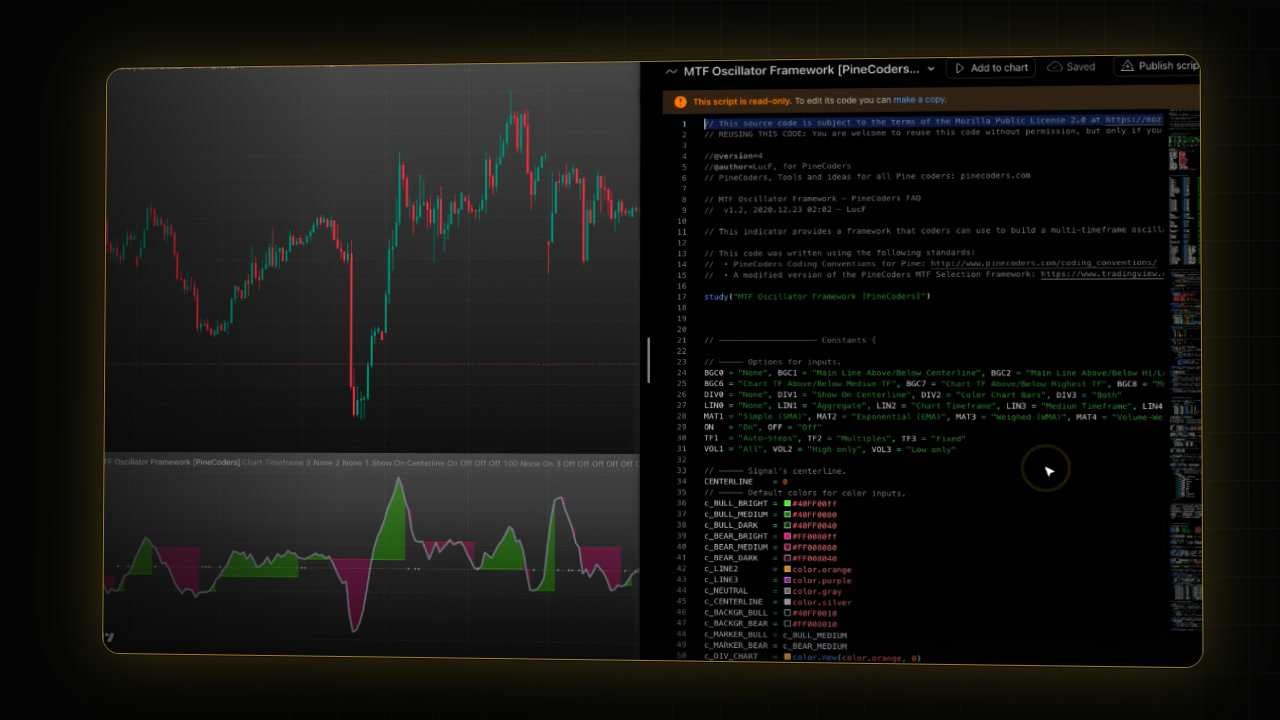
- Read the code: hover its name on the chart and click Source code.
- Change it: in the Pine Editor, click make a copy, edit it, then Add to chart. Save keeps it in My scripts.
 Video coming soon
What is a Pine Script indicator?
Pine Script is TradingView’s own language for indicators and strategies. Most indicators on TradingView, PipTrend included, are Pine scripts. Traders also publish thousands of free scripts in the community library.
Step 1: Find a community script
- On your chart, click Indicators in the top toolbar, or press the slash key.
- In the window Indicators, metrics, and strategies, look at Community on the left: Editors’ picks, Top and Trending.
- Or search by name. In the video we search for PineCoders, a TradingView-supported group of Pine programmers who also choose the Editors’ picks:
PineCodersScripts with an EP badge are Editors’ picks. The number on the right of each row shows how many traders boosted it.
Step 2: Read before you add
- Hover the script’s row. Three buttons appear: Add to favorites, Source code (only on open-source scripts) and Read more.
- Click Read more. The script’s page opens over your chart.
- Check:
- the description: what it shows and how to read it;
- the comments: what other traders found;
- Updated: when the author last changed it;
- the badges at the top, for example EDITORS’ PICKS and OPEN-SOURCE SCRIPT.
- Close the page with the X at the top right.
The three script types (orientation only)
| Type | Can you see the code? | Can you add it? |
|---|---|---|
| Open-source | Yes | Yes |
| Protected | No | Yes |
| Invite-only | No | Only with access from the author |
PipTrend is invite-only. See Invite-only scripts on TradingView for how access works.
Step 3: Add it to your chart
- Click the script’s row once. It is added to your chart.
- Press Escape to close the window.
Oscillators like the one in the video open in their own pane below the chart. Their settings work like any indicator’s: see How to add indicators on TradingView.
Step 4: Read its code
- Hover the script’s name at the top left of its pane. Its buttons appear.
- Click Source code. The Pine Editor opens on the right.
- The banner says This script is read-only. To edit its code you can make a copy.
- Read the first lines: they show the license. The script in the video says: “REUSING THIS CODE: You are welcome to reuse this code without permission, but only if you also publish open-source.”
Read the license before you reuse any code. Licenses differ from script to script.
Step 5: Edit a copy in the Pine Editor
- In the banner, click make a copy. The editor now shows Untitled script: your copy, not saved yet.
- Change what you need. In the video we only change the name in the line that starts with study (newer scripts use indicator).
- Click Add to chart. Your version appears in a new pane. You don’t have to save first.
- Click Save to keep it. It then appears under Personal > My scripts in the Indicators window.
Your copy doesn’t change when the author updates the original. To get their changes, make a new copy.
Are community Pine scripts safe to use?
Community scripts are free, but quality varies. Test one on your own pairs and timeframes before you use it in a trading decision, and check how recently it was updated.
If it doesn’t work
- There is no Source code button: the script is protected or invite-only, so its code is hidden.
- The code can’t be edited: you’re looking at the original, which is read-only. Click make a copy.
- TradingView asks “Save script before switching?”: you have unsaved changes in the editor. Click Save to keep them or Don’t save to discard them.
- Your copy isn’t in My scripts: it was added to the chart but never saved. Open it again in the editor and click Save.
- You can’t add another indicator: your plan limits the number of indicators per chart.
FAQ
How do I add a Pine Script indicator to TradingView?
Open Indicators, search for the script by name, and click it once. To add your own code, paste it into the Pine Editor and click Add to chart.
Can I see the code of any TradingView indicator?
Only of open-source scripts. Hover the indicator’s name on the chart and click Source code. Protected and invite-only scripts hide their code.
How do I edit a community script on TradingView?
Open its source code, click make a copy in the Pine Editor, change the copy, and click Add to chart. Click Save to keep it in My scripts.
Are TradingView community scripts safe to use?
They run inside TradingView, but their quality varies. Read the description and comments, check when it was last updated, and test it on your own pairs before you rely on it.
Does my copy update when the author changes the original?
No. Your copy stays as it is. To get the author’s changes, make a new copy.
Transcript
Full transcript
Pine Script is TradingView’s own language for indicators, and traders publish thousands of free scripts in the community library. In this video, you’ll find a community script, check what kind it is, add it, look at its code, and make your own copy you can change.
Click Indicators, or press the slash key. Under Community, you’ll find Editors’ picks, Top and Trending. Or search by name. Here, we search for PineCoders, a TradingView-supported group of Pine programmers who also choose the Editors’ picks.
Before you add a script, click Read more. The page shows the description, the comments, when it was last updated, and the script type. This one is an Editors’ pick, and open-source.
There are three types. Open-source scripts show their code. Protected scripts work the same way, but hide the code. And invite-only scripts, like PipTrend, need access from the author.
Close the page, and click the script to add it. This one opens in its own pane below the chart. Its settings work like any other indicator’s, as shown in our indicators video.
To see the code, hover the script’s name and click Source code. The Pine Editor opens on the right. The code is read-only, and the first lines show the license.
Read it before you reuse anything. This one lets you reuse the code without asking, but only if anything you publish with it stays open-source.
To change the script, click make a copy. You get an untitled copy you can edit. Change what you need, here just the name, and click Add to chart. Your version appears in a new pane.
Click Save to keep it in My scripts, under Personal in the Indicators window. Your copy is yours now: it doesn’t change when the author updates the original.
Community scripts are free, but quality varies, so test one on your own pairs before you rely on it. Next, learn the basics of PipTrend V2.0.
Related guides
Sources
Risk Disclaimer: Trading involves risk. Past performance doesn't guarantee future results. Only trade with money you can afford to lose. PipTrend is a tool to assist your trading decisions, not financial advice.
Finished this guide?
Was this guide helpful?

