In short: click Indicators in the top toolbar, or press the slash key, then search for the indicator by name and click it once. To change it, double-click its name on the chart. To choose the timeframes it shows on, use the Visibility tab. To hide or remove it, hover its name and use the eye or the cross.
 Video coming soon
Indicators are the tools you place on top of a chart, from a simple moving average to PipTrend. The steps below work the same for every indicator. This guide covers the mechanics. If you are deciding which indicators to use, start with TradingView indicators explained.
Step 1: Open Indicators and search
- Click Indicators in the top toolbar, or press the slash key on your keyboard.
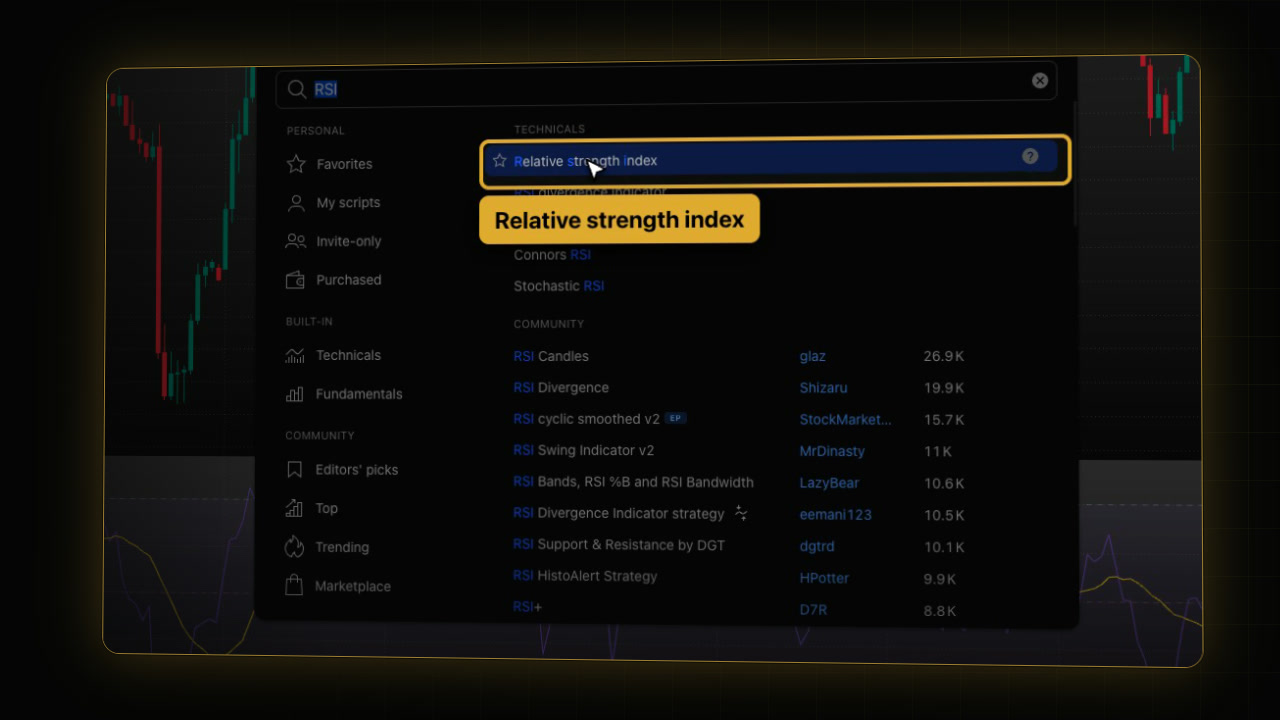
- The window Indicators, metrics, and strategies opens. Type the indicator’s name in the search box at the top, for example:
RSIStep 2: Find built-in, community and invite-only indicators
The left column groups indicators by source:
- Personal: Favorites (everything you starred), My scripts, Invite-only (private scripts an author has shared with your username, like PipTrend), and Purchased.
- Built-in: Technicals (TradingView’s own tools) and Fundamentals.
- Community: Editors’ picks, Top, Trending, and Marketplace.
Step 3: Add the indicator
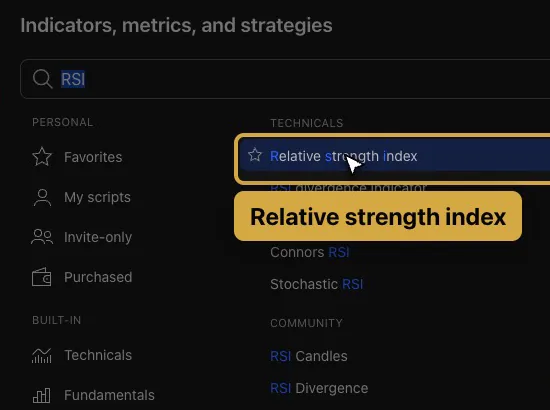
Click Relative strength index in the results, and it is added to your chart. Each click adds another copy, so click once.
Step 4: Star it as a favourite
Hover the result and click the star next to it. The indicator moves into Favorites, so next time it is two clicks away. Close the window.
Step 5: Change its settings
Double-click the indicator’s name, top left on the chart.
- Inputs holds its settings, for example RSI Length.
- Style sets its colours and lines.
Step 6: Choose the timeframes it shows on
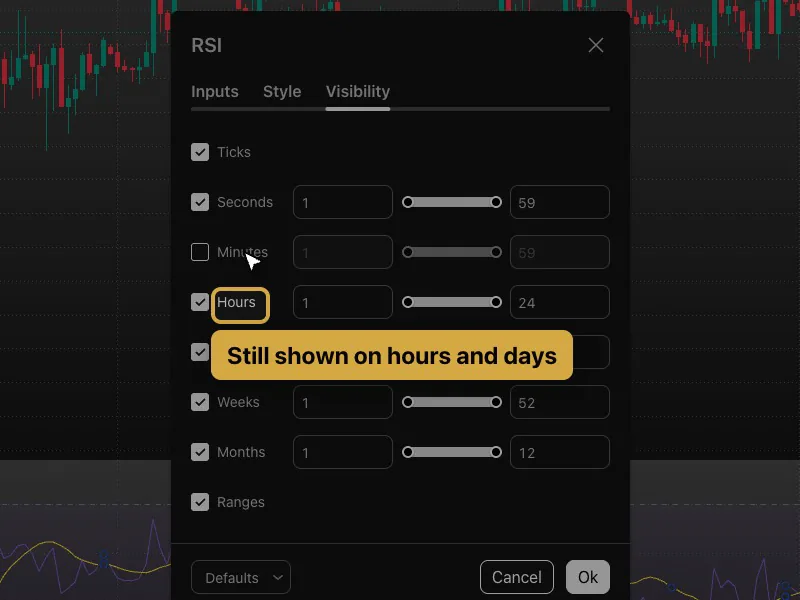
On the Visibility tab, each timeframe group has a checkbox: Ticks, Seconds, Minutes, Hours, Days, Weeks, Months, Ranges. Untick Minutes, for example, and the indicator disappears on minute charts but stays on hourly and daily charts. Click Ok.
Step 7: Hide or remove an indicator
Hover the indicator’s name on the chart to see its buttons:
- Eye: hides the indicator for a moment. Click it again to bring it back.
- Gear: opens its settings.
- Cross: removes it from the chart.
How many indicators can you add?
That depends on your TradingView plan. Our guide to the TradingView free plan explains the current limits. If you upgrade, signing up through our link gives you $15 toward your next plan (paid plans only).
Indicator not showing on TradingView? What to check
- The slash key does nothing: click on the chart first, so the chart has keyboard focus, then press the slash key again.
- The indicator appears twice: you clicked the result twice. Hover one of them and click the cross.
- The indicator disappeared on another timeframe: check its Visibility tab. That timeframe group is probably unticked.
- An invite-only script is missing: see Invite-only scripts on TradingView.
FAQ
How do I add an indicator on TradingView?
Click Indicators in the top toolbar or press the slash key, search for the indicator by name, and click it once in the results.
How do I find my favourite indicators faster?
Click the star next to an indicator in the Indicators window. It then appears under Favorites, two clicks away on any chart.
How do I show an indicator only on certain timeframes?
Double-click the indicator’s name, open the Visibility tab, and untick the timeframe groups where you don’t want it, for example Minutes.
How do I remove an indicator from a TradingView chart?
Hover the indicator’s name, top left on the chart, and click the cross.
How many indicators can I add on the free plan?
Two can be visible on a chart at a time, and hidden indicators don’t count (tested on a free account, October 2026, see Build your PipTrend chart). Our guide to the TradingView free plan covers the other limits.
How do I add a custom or invite-only indicator?
Open Indicators and look under Personal on the left: My scripts holds your own scripts, and Invite-only holds private scripts an author has shared with your username, like PipTrend.
Transcript
Full transcript
Indicators are the tools you place on top of a chart, from a simple moving average to PipTrend. In this video, you’ll learn how to add one, find it again fast, change its settings, choose the timeframes it shows on, and remove it. The same steps work for every indicator on TradingView.
Click Indicators in the top toolbar. Or simply press the slash key on your keyboard. The search box at the top finds any indicator by name. Type RSI.
On the left, you see where indicators come from. Technicals are TradingView’s built-in tools. Invite-only lists private scripts an author has shared with you, like PipTrend. And Favorites collects everything you’ve starred.
Click Relative strength index in the results, and it’s added to your chart. Each click adds another copy, so click once.
Now click the star next to it. The indicator moves into Favorites, so next time it’s two clicks away. Then close the window.
To change an indicator, double-click its name, top left on the chart. The Inputs tab holds its settings, like the RSI Length. The Style tab sets its colours and lines.
The Visibility tab decides which timeframes the indicator shows on. Untick Minutes, for example, and the indicator disappears on minute charts but stays on hourly and daily charts. Click Ok.
Hover the indicator’s name to see its buttons. Click the eye icon to hide the indicator for a moment, and click it again to bring it back. When you no longer need it, click the cross icon, and it’s removed from the chart.
How many indicators you can use on one chart depends on your TradingView plan. Our guide to the free plan explains the current limits. That’s it. Next, see how invite-only scripts work, and how to add PipTrend.
Related guides
- Invite-only scripts on TradingView: what they are and how to add them
- How to add PipTrend and show the PipTrend candles
- TradingView chart settings: a clean dark setup
Risk Disclaimer: Trading involves risk. Past performance doesn't guarantee future results. Only trade with money you can afford to lose. PipTrend is a tool to assist your trading decisions, not financial advice.
Finished this guide?
Was this guide helpful?

