In short:
- Layouts: a layout saves everything on your chart. Open its menu at the top right to save, rename, copy or create one, and keep Autosave on.
- Indicator templates: save your indicator setup with Save indicator template in the menu next to Indicators, and load it on any chart in one click.
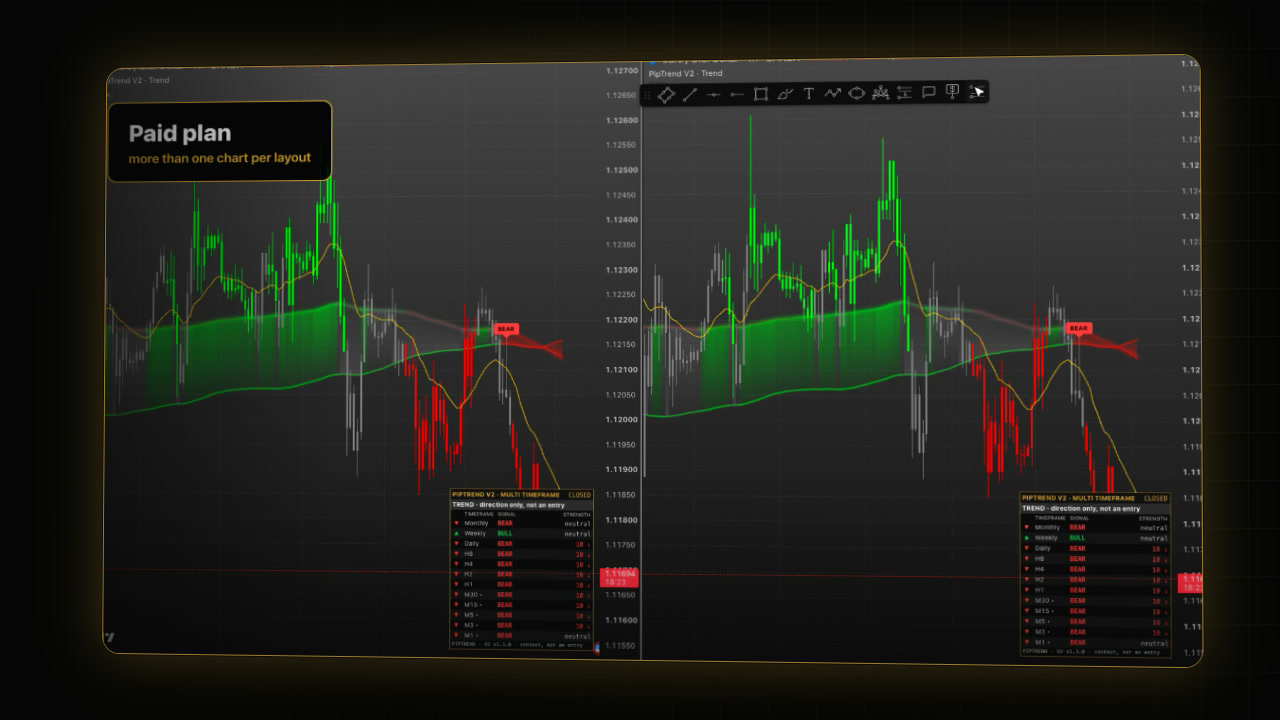
- Several charts: Layout setup in the top toolbar shows several charts at once, with Sync in layout to link them. More than one chart needs a paid plan.
 Video coming soon
What does a TradingView layout save?
A layout is your saved chart: the symbol, the timeframe, the indicators, your drawings and the chart settings. Its name is shown at the top right of TradingView. For the chart look itself, see TradingView chart settings.
Step 1: Save, rename or copy your layout
- Click the layout name at the top right. The layout menu opens.
- Save layout saves it now (Cmd+S on a Mac, Ctrl+S on Windows).
- Turn on Autosave to save every change as you go.
- Rename… gives the layout a clear name.
- Make a copy… duplicates it, for example to try a new setup without touching the old one.
Step 2: Create a new layout
- In the layout menu, choose Create new layout….
- In New layout name, type a name, for example:
Swing EURUSD- Leave Open in new tab ticked to keep your current chart open in its own tab.
- Click Create. The new layout opens in a new browser tab.
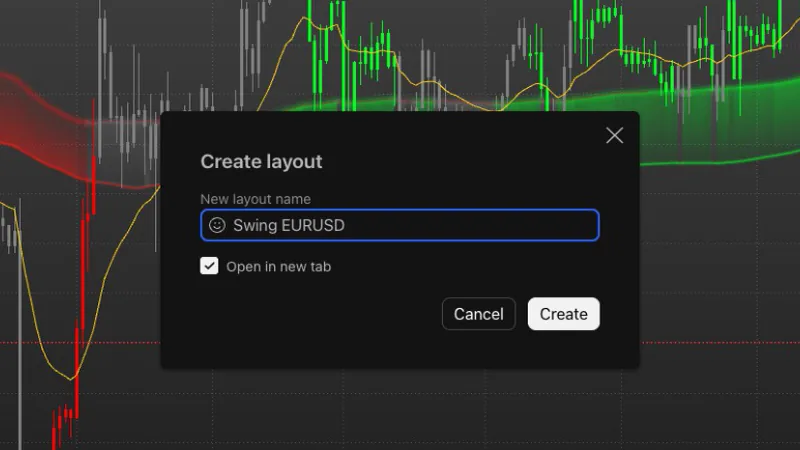
To switch between layouts later, use Open layout… in the same menu.
Step 3: Save an indicator template
An indicator template saves your indicator setup, so you can load it on any chart in one click.
- Add the indicators you use to the chart and set them up, for example PipTrend V2.0. See How to add indicators on TradingView.
- Click the arrow next to Indicators in the top toolbar and open the Templates tab.
- Choose Save indicator template….
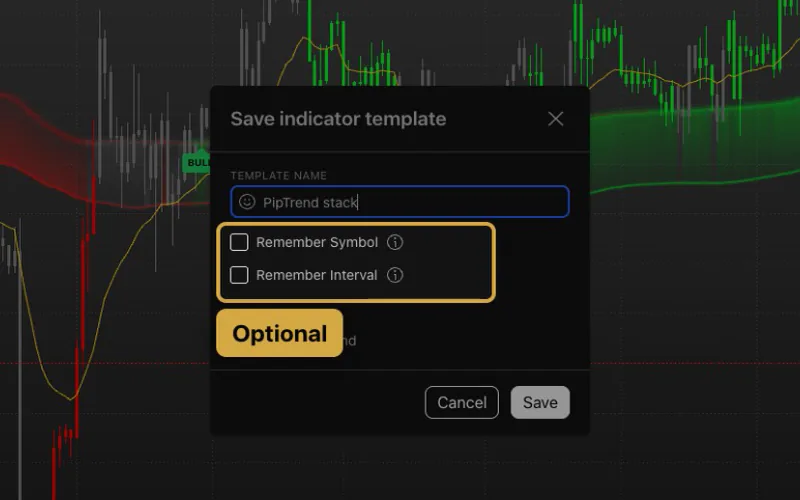
- In Template name, type a name, for example:
PipTrend stack- Remember Symbol and Remember Interval are optional. Tick them only if loading the template should also switch the pair or the timeframe.
- Saved indicators lists what goes into the template. Click Save.
Step 4: Load the template on any chart
- Click the chart you want to use it on.
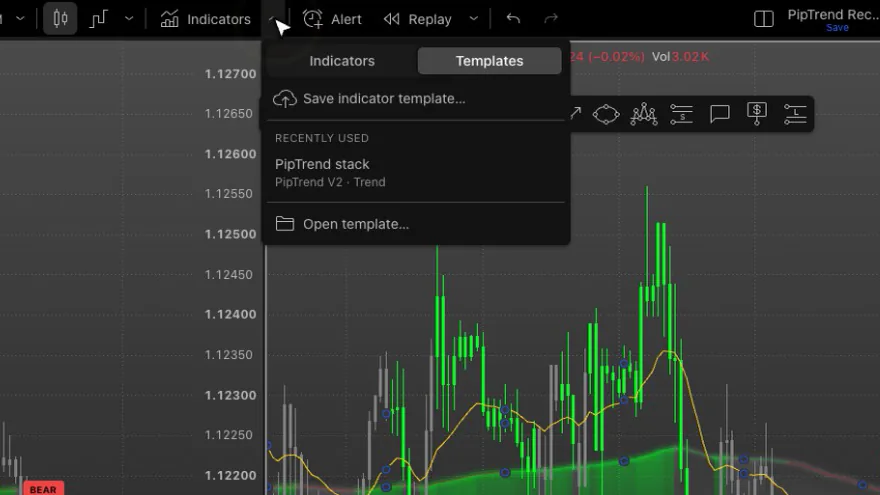
- Click the arrow next to Indicators and open the Templates tab.
- Click your template under Recently used, or find it with Open template….
The template replaces the indicators already on that chart with the whole stack.
Step 5: Show several charts (Paid plan)
- Click Layout setup in the top toolbar.
- Pick a grid, for example two charts side by side. The new chart starts as a copy of the first.
- Under Sync in layout, choose what the charts share:
- Symbol: all charts follow the same pair, so you can show two timeframes of it.
- Interval, Crosshair, Time and Date range link the rest.
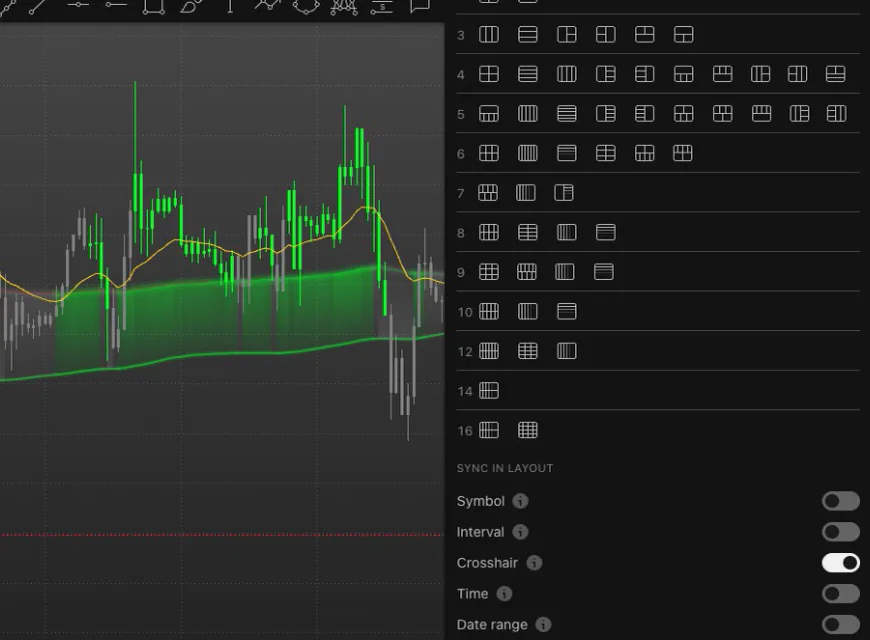
More than one chart per layout needs a paid TradingView plan. If you upgrade, signing up through our link gives you $15 toward your next plan (paid plans only).
Why did loading a template remove my indicators?
- Loading the template removed indicators: a template replaces the indicators on the chart. Save a new template that includes them.
- The new layout opened in another tab: that is Open in new tab. Your old layout is still open in the first tab.
FAQ
How do I save a layout on TradingView?
Click the layout name at the top right and choose Save layout, or press Cmd+S on a Mac or Ctrl+S on Windows. With Autosave on, changes are saved as you go.
What is an indicator template on TradingView?
A saved set of indicators with their settings. You save it from the Templates tab of the menu next to Indicators and load it on any chart in one click.
How do I show multiple charts on TradingView?
Click Layout setup in the top toolbar and pick a grid. More than one chart per layout needs a paid plan.
What is the difference between a layout and an indicator template?
A layout saves the whole chart: the symbol, the timeframe, the indicators, your drawings and the chart settings. An indicator template saves only the indicator setup, and loading it replaces the indicators on the chart you load it on.
How do I link charts in a TradingView layout?
In Layout setup, under Sync in layout, turn on Symbol, Interval, Crosshair, Time or Date range.
Transcript
Full transcript
Everything on your chart, the symbol, the timeframe, the indicators, your drawings and the chart settings, lives in a layout. In this video, you’ll save and manage layouts, save your indicator setup once as a template, and show several charts side by side.
The name of your layout is at the top right. Open its menu. Save layout saves it, and with Autosave on, every change is saved as you go. Rename gives it a clear name, and Make a copy duplicates it, for example to try a new setup without touching the old one.
To start a fresh one, choose Create new layout, type a name, for example Swing EURUSD, and click Create. With Open in new tab ticked, the new layout opens in its own tab, and your current chart stays open.
A layout keeps a chart. An indicator template keeps your indicator setup, so you can load it on any chart in one click. Add the indicators you use and set them up first, here PipTrend V2.0.
Then open the menu next to Indicators, go to Templates, and choose Save indicator template. Name it, for example PipTrend stack. Remember Symbol and Remember Interval are optional: tick them only if the template should also switch the pair or the timeframe. Click Save.
To see more charts at once, click Layout setup in the top toolbar and pick a grid, for example two charts side by side. The new chart starts as a copy of the first. More than one chart in a layout needs a paid TradingView plan.
Under Sync in layout, choose what the charts share. Symbol keeps them on the same pair, so you can show two timeframes of it. Interval, Crosshair, Time and Date range link the rest.
To load your template on any chart, click that chart, open the same menu, and pick the template. It replaces the indicators already on the chart with the whole stack, in one click.
Save your layout with Command S on a Mac, or Control S on Windows. Next, build a multi-timeframe layout step by step.
Related guides
- How to set up a multi-timeframe layout on TradingView
- How to add indicators on TradingView
- TradingView chart settings: a clean dark setup
Risk Disclaimer: Trading involves risk. Past performance doesn't guarantee future results. Only trade with money you can afford to lose. PipTrend is a tool to assist your trading decisions, not financial advice.
Finished this guide?
Was this guide helpful?

